“Purchase Management module for CRM SYSTEM” Documentation by “Applify Technologies”
“Purchase Management module for CRM SYSTEM”
Created: 20/06/2023
By: Applify Technologies
Email: crm@applify.com.my
Table of Contents
How to use Purchase Management module - top
- First, you purchase order setting: Purchase -> Setting:If you check checkbox when create "Purchase order" not create "Purchase request", "Quotation"
 Second, you go to create approval: Purchar -> Setting -> Approval -> New Approval setting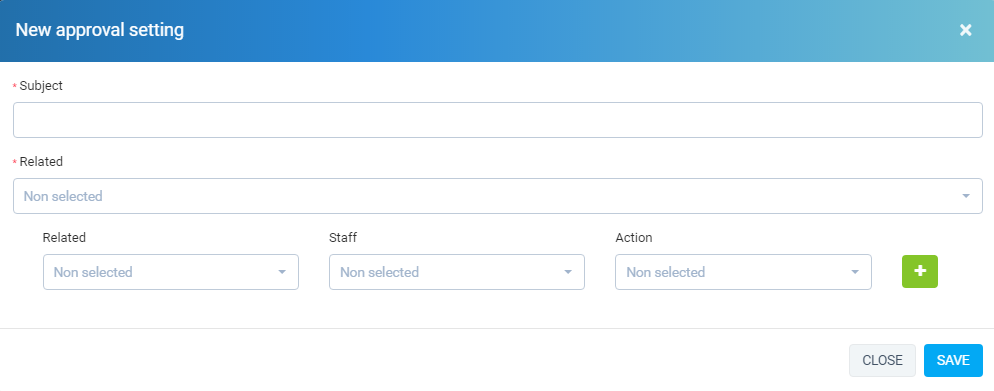
List of approval: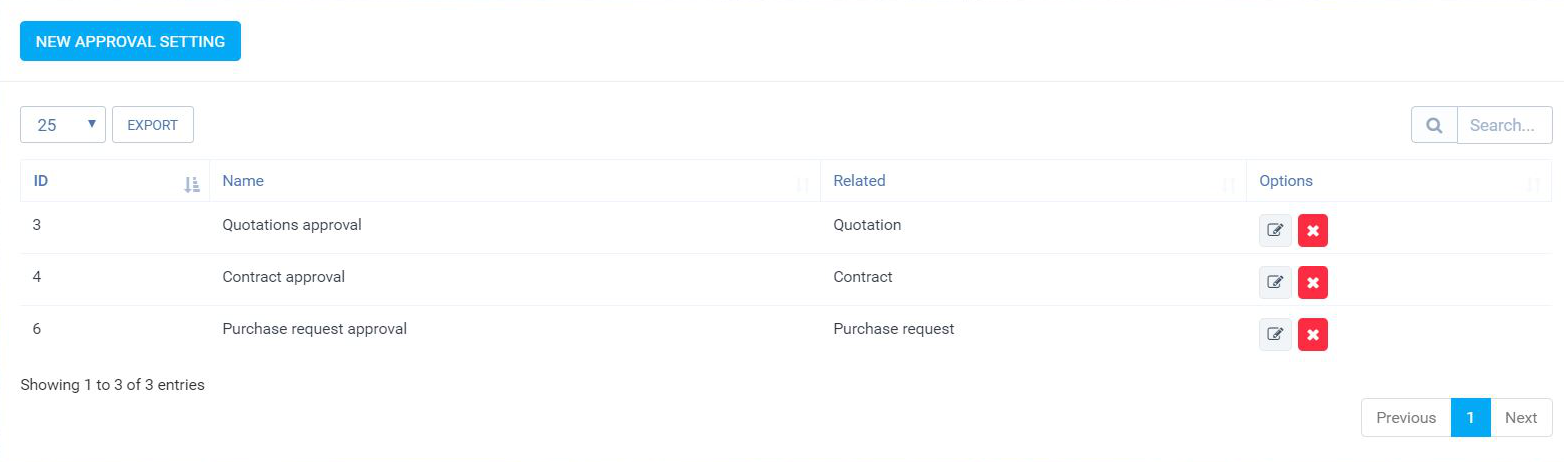
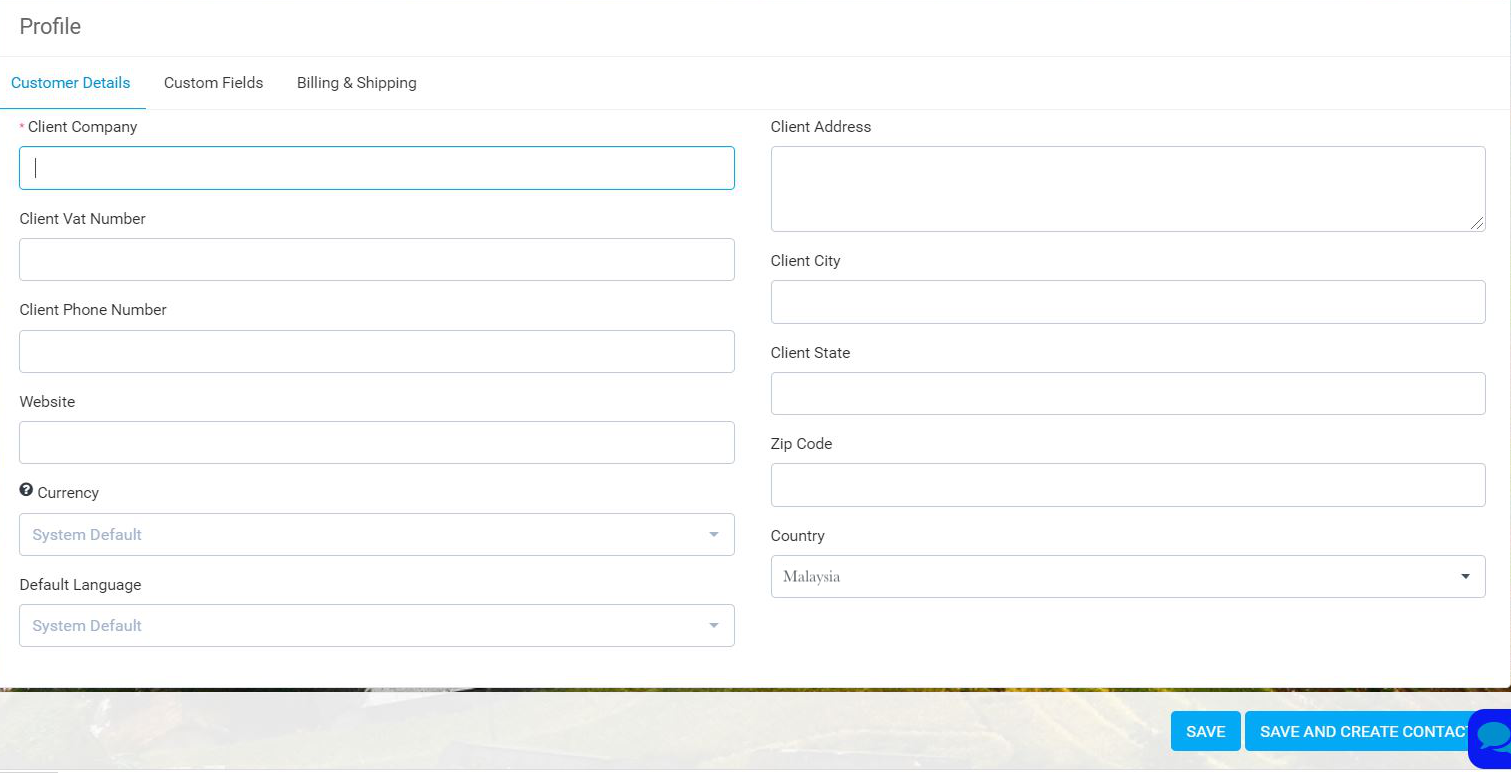
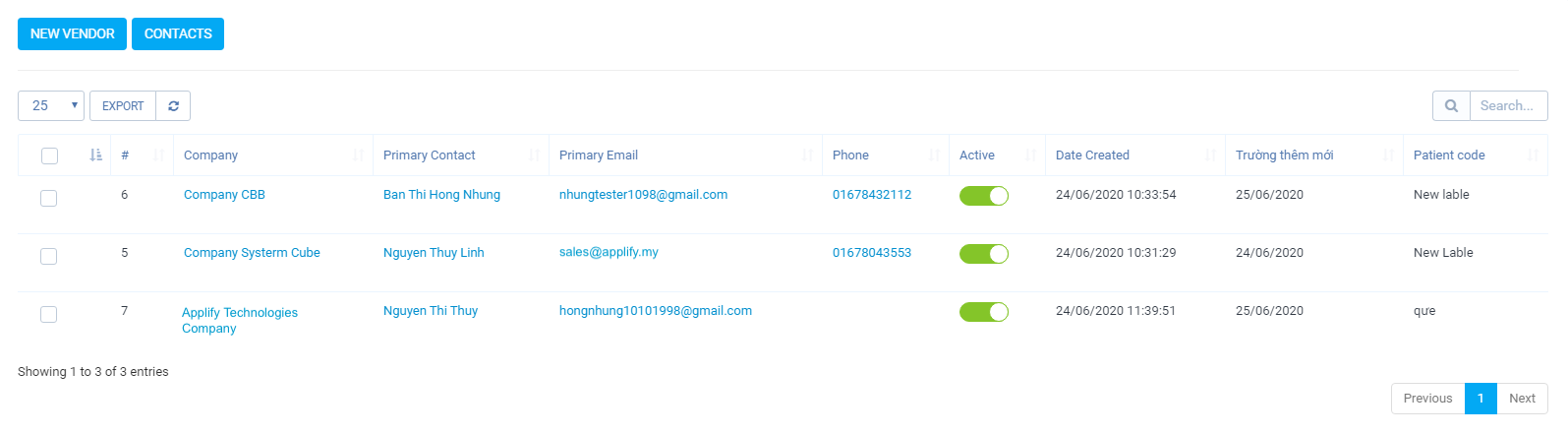
- Create new vendors:Enter the required information: Purchase -> Vendors -> New Vendors
- Create new Items Purchase -> Items -> Add
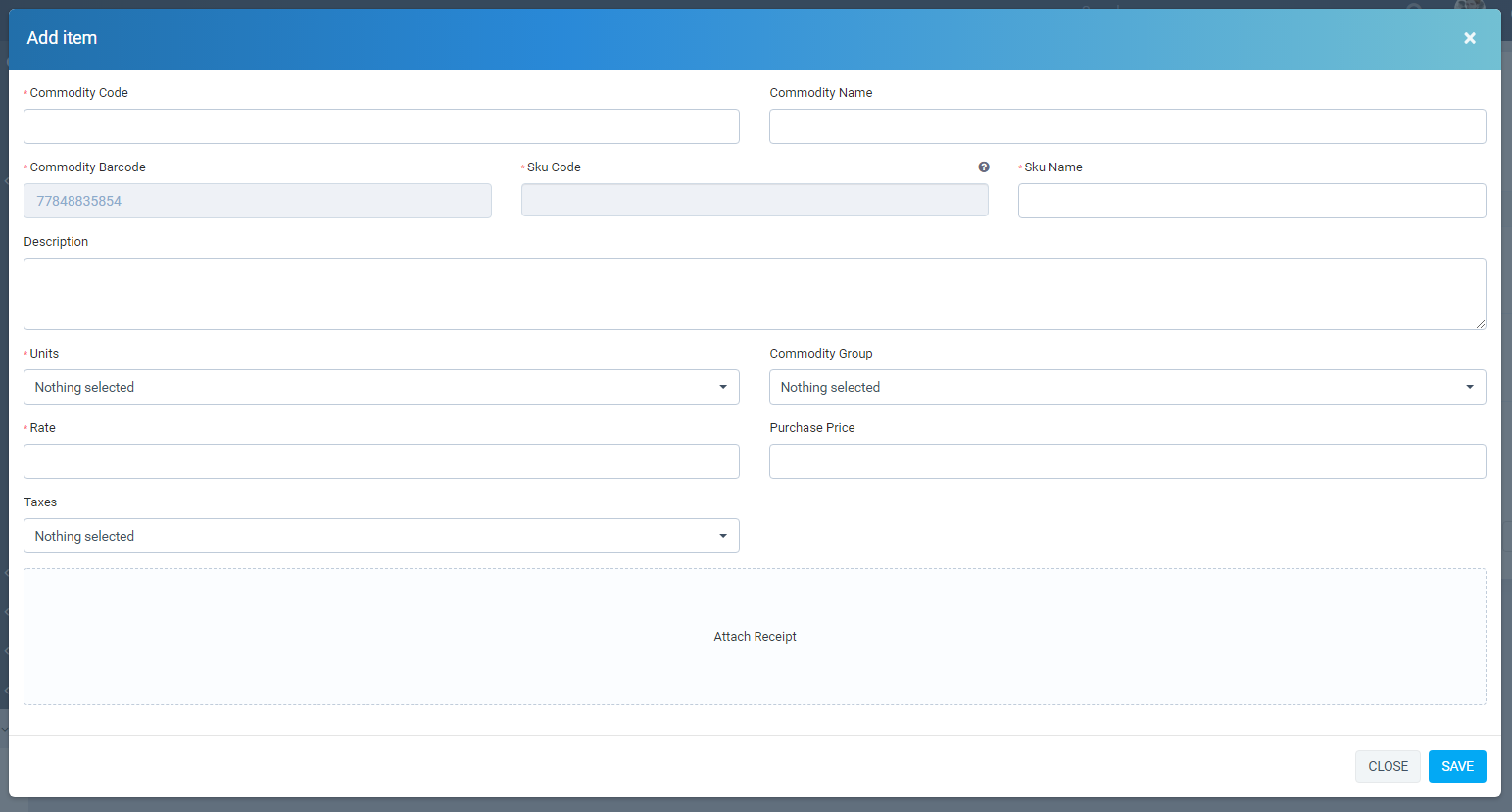
List Items: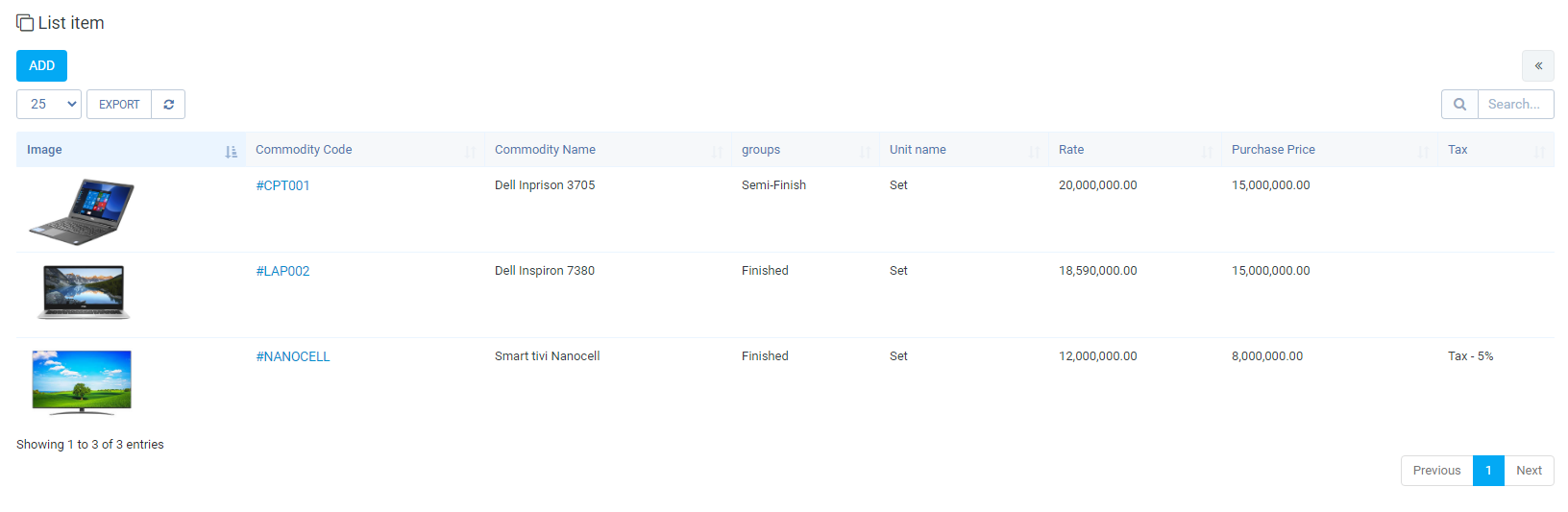
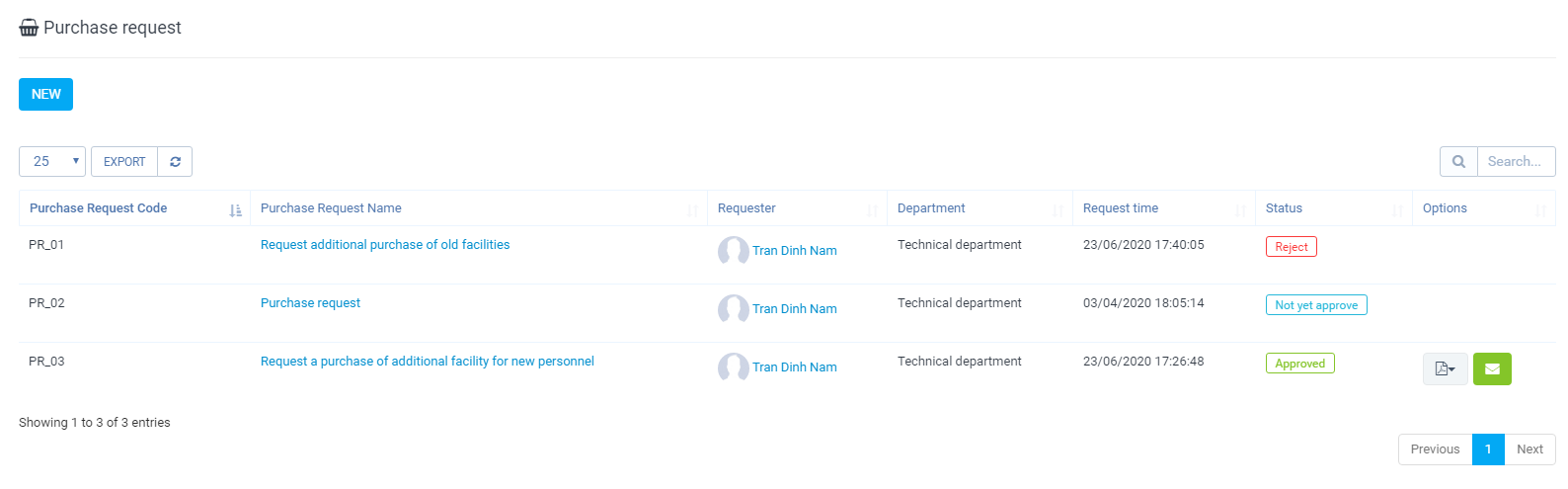
- Create new purchase request: Purchase -> Purchase request -> New
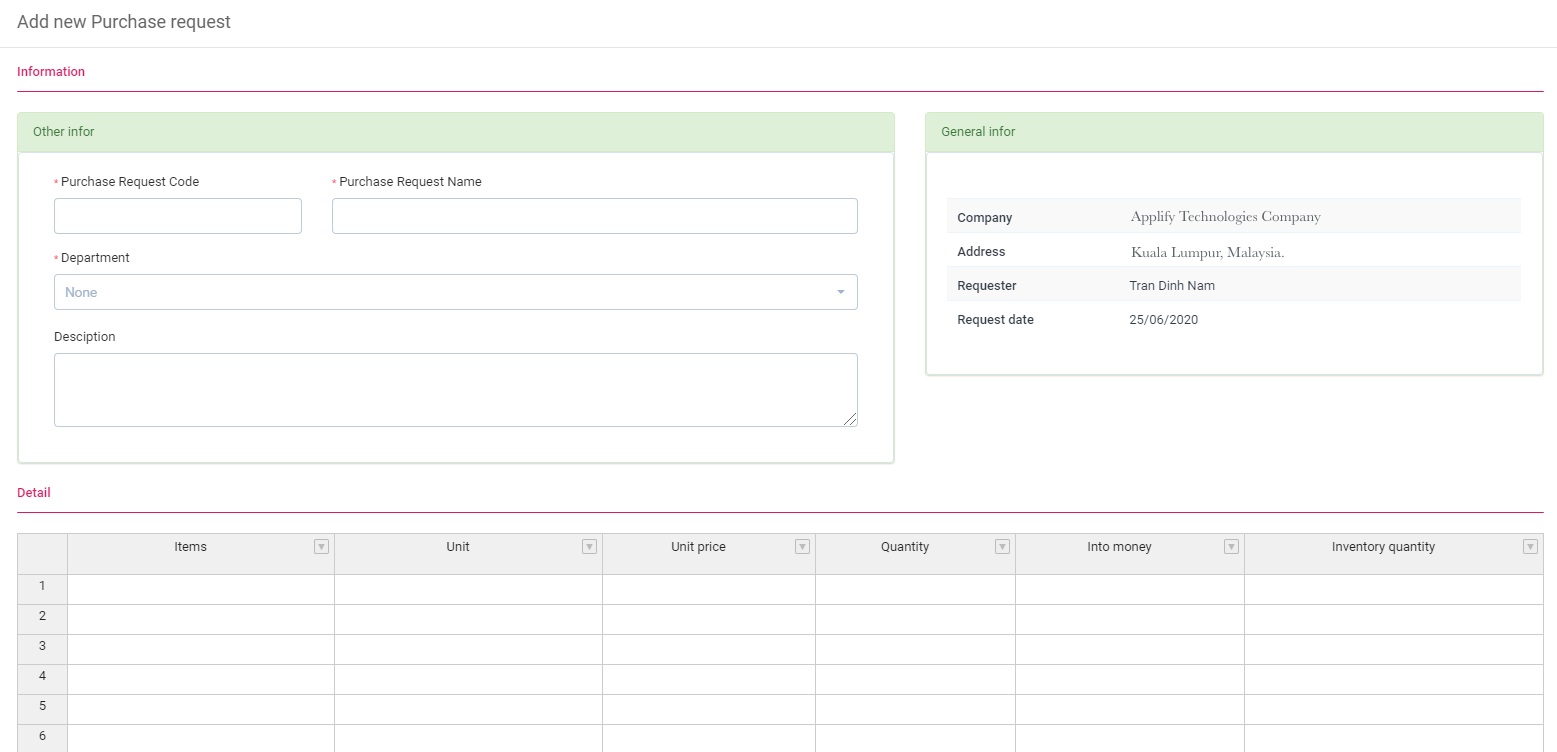 List Purchase request:
 - Create new Quotation: Purchase -> Create new estimate
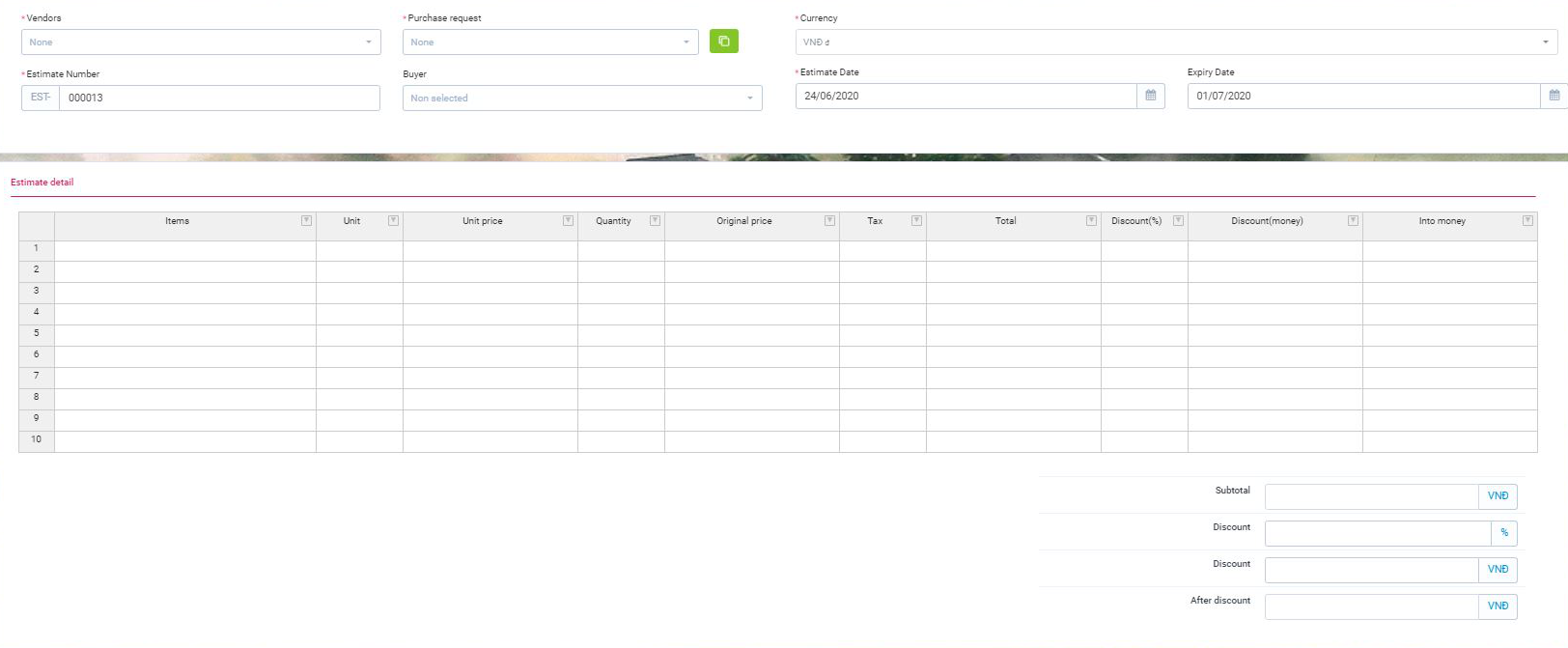 The list of quotation.
 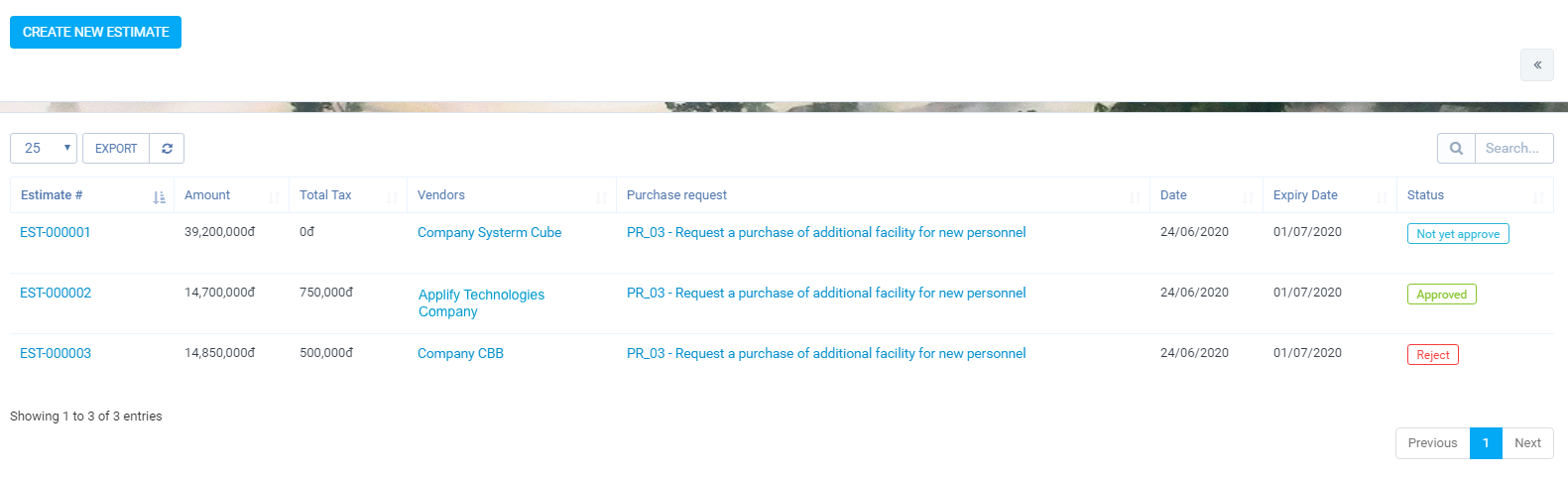 Approval quotation:View detail quotation -> Button "Send request approval". The designee will receive a notice. To approve, click on the button Approval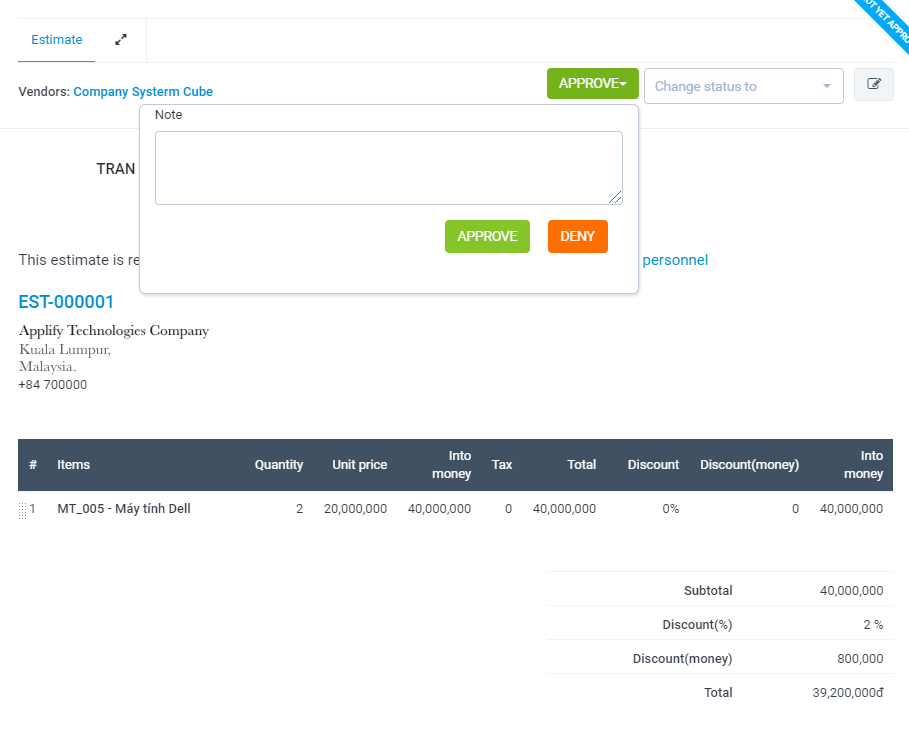
- Create new Purchase Order: Purchase -> Purchase Order -> Create new
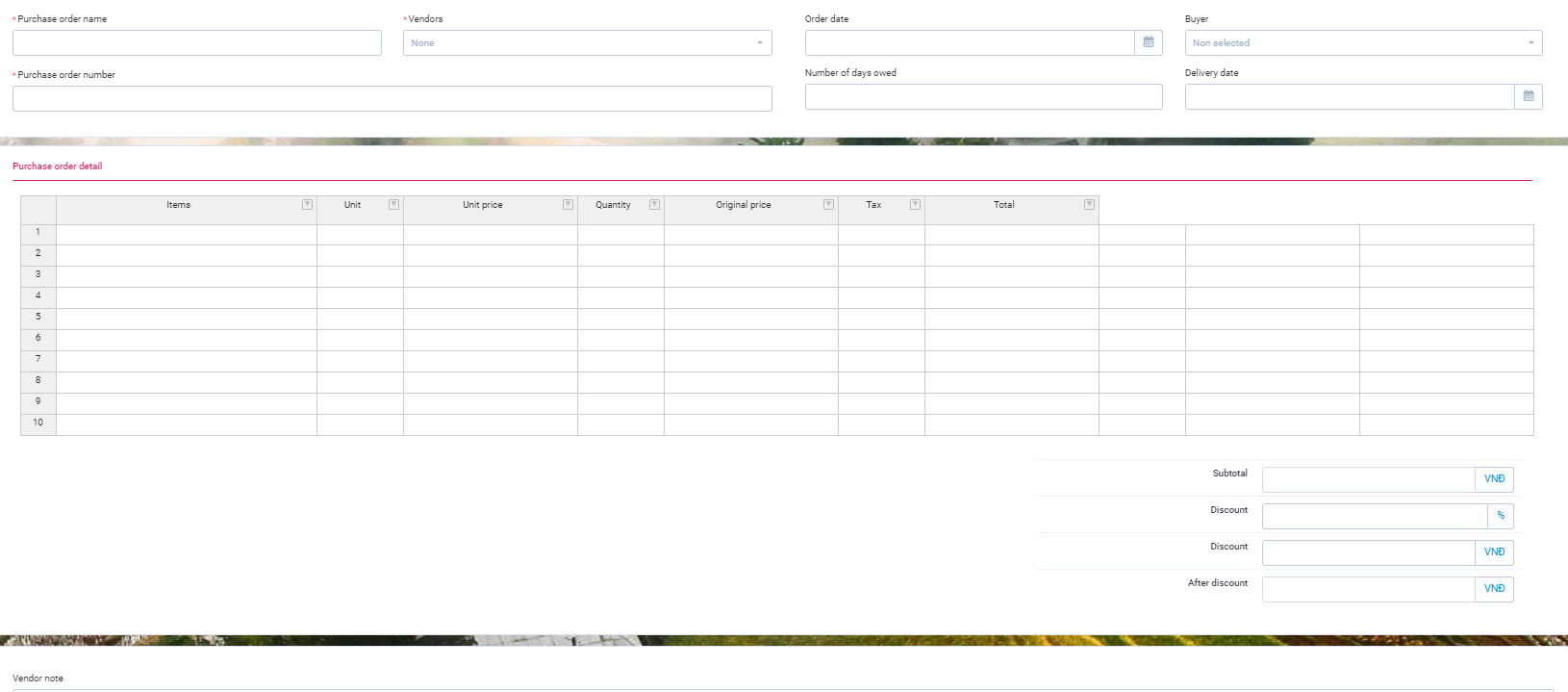 The list of purchase order.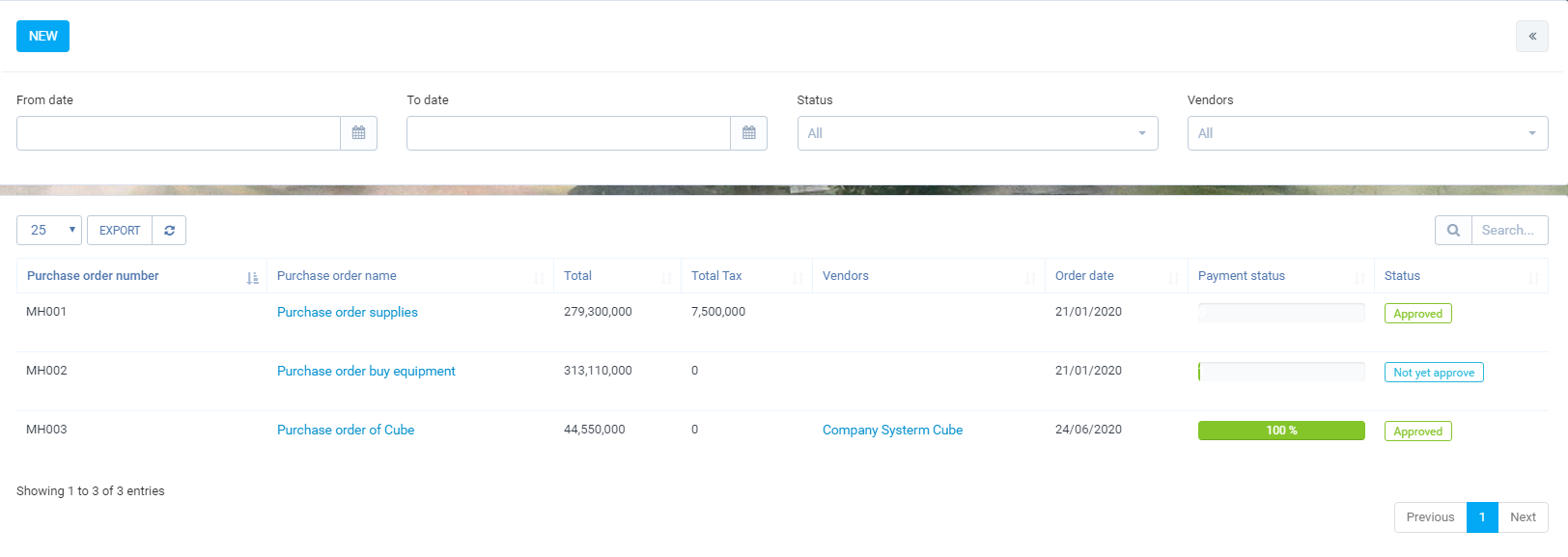
You can filter list folow:
From date AND To date
Status
Vendors
View detail purchar recod
Change status: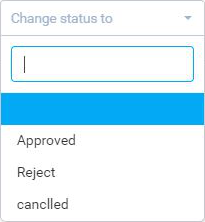
 Reminders:View detail purchase order -> Reminders -> Button "Set estimate reminder"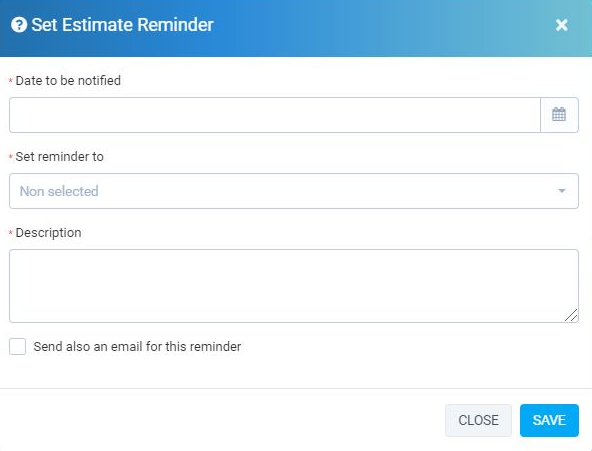
- Create new Contract: Purchase -> Contract -> New
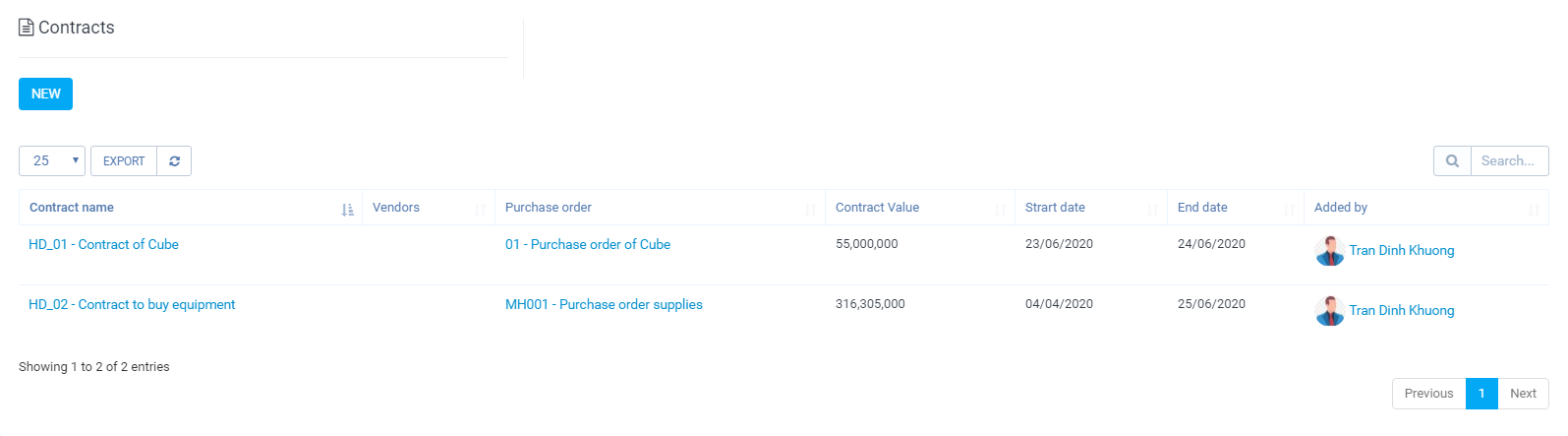
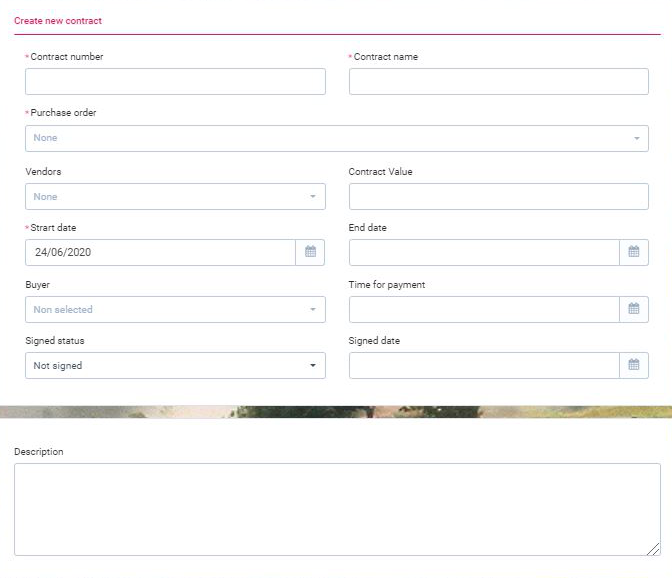 The list of contract.
  Sign contract:View detail purchase request -> Sign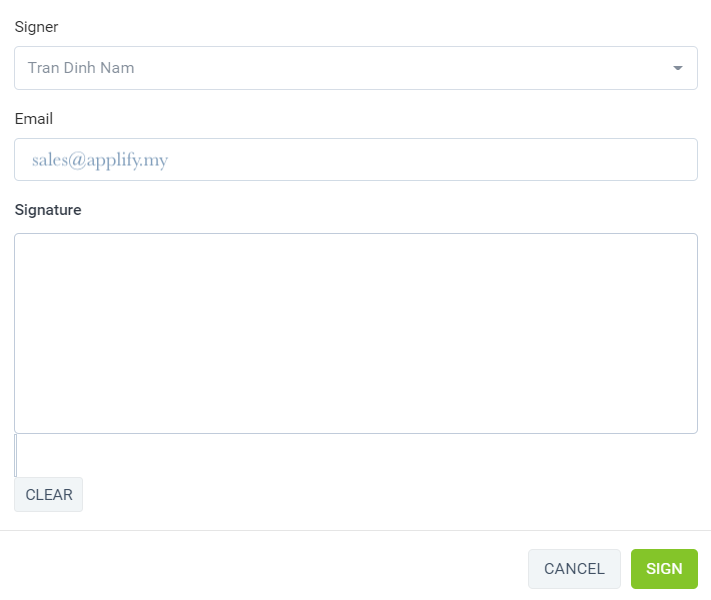
- Approval proccess - Integrated HR-Reconrd module.
- Go Purchase => "Settings" menu => "Approval" tab => New Approval Setting.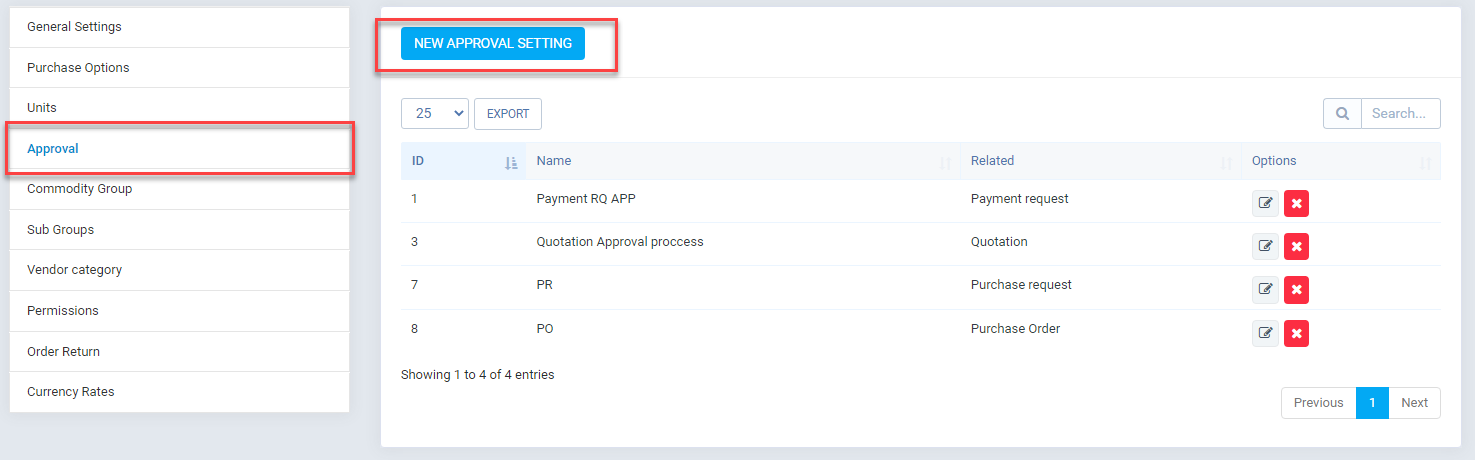
- If you have active the HR-Record module, you can see the new option for approver (Direct manager, Department manager).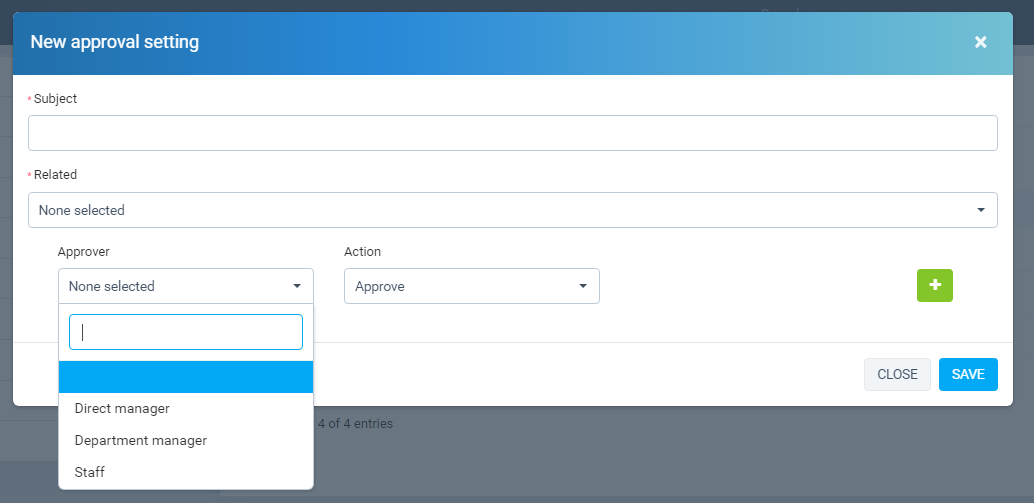
- To use these options, you need to make sure employees are assigned direct managers and departments must have managers. - You can update them in the HR-Record module.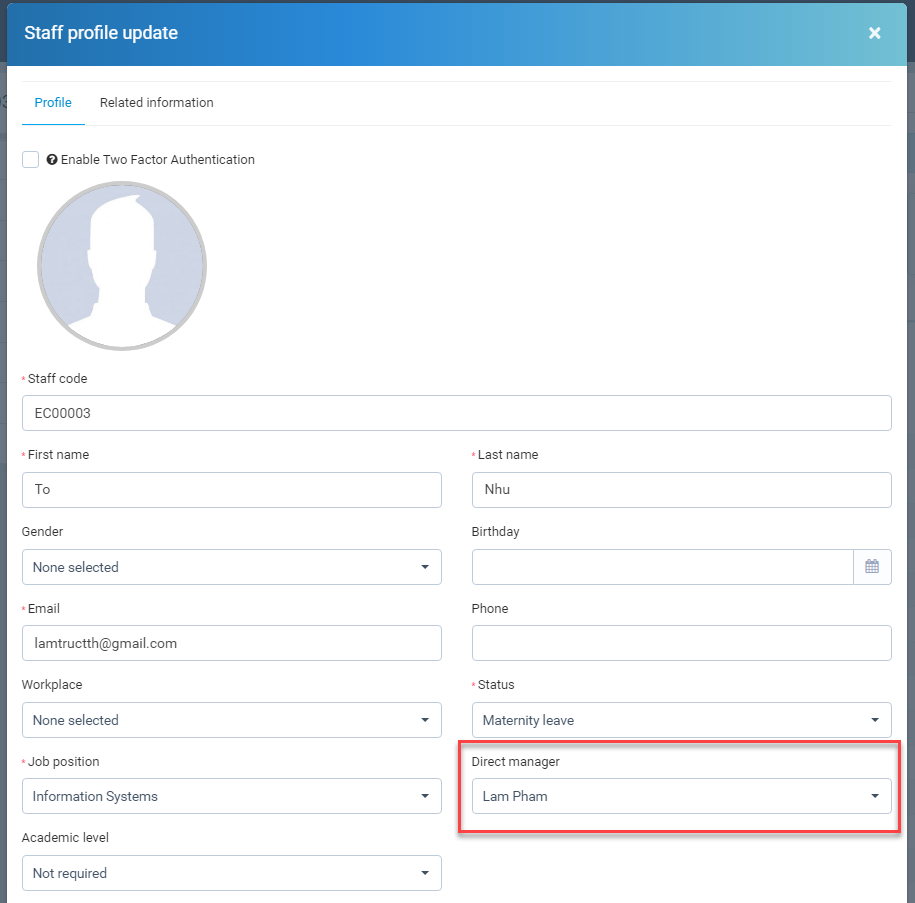
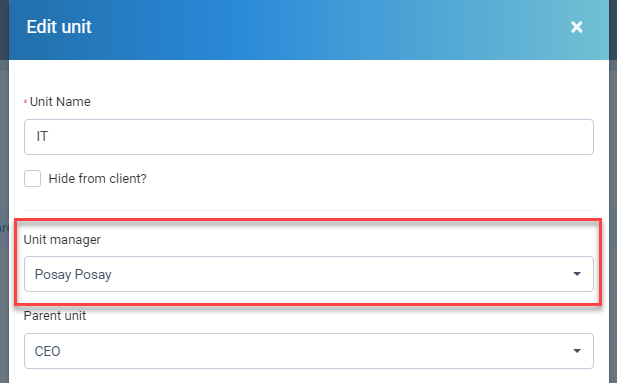
- Multi currency.
- Each vendor will have its own currency and admin can change it in vendor profile.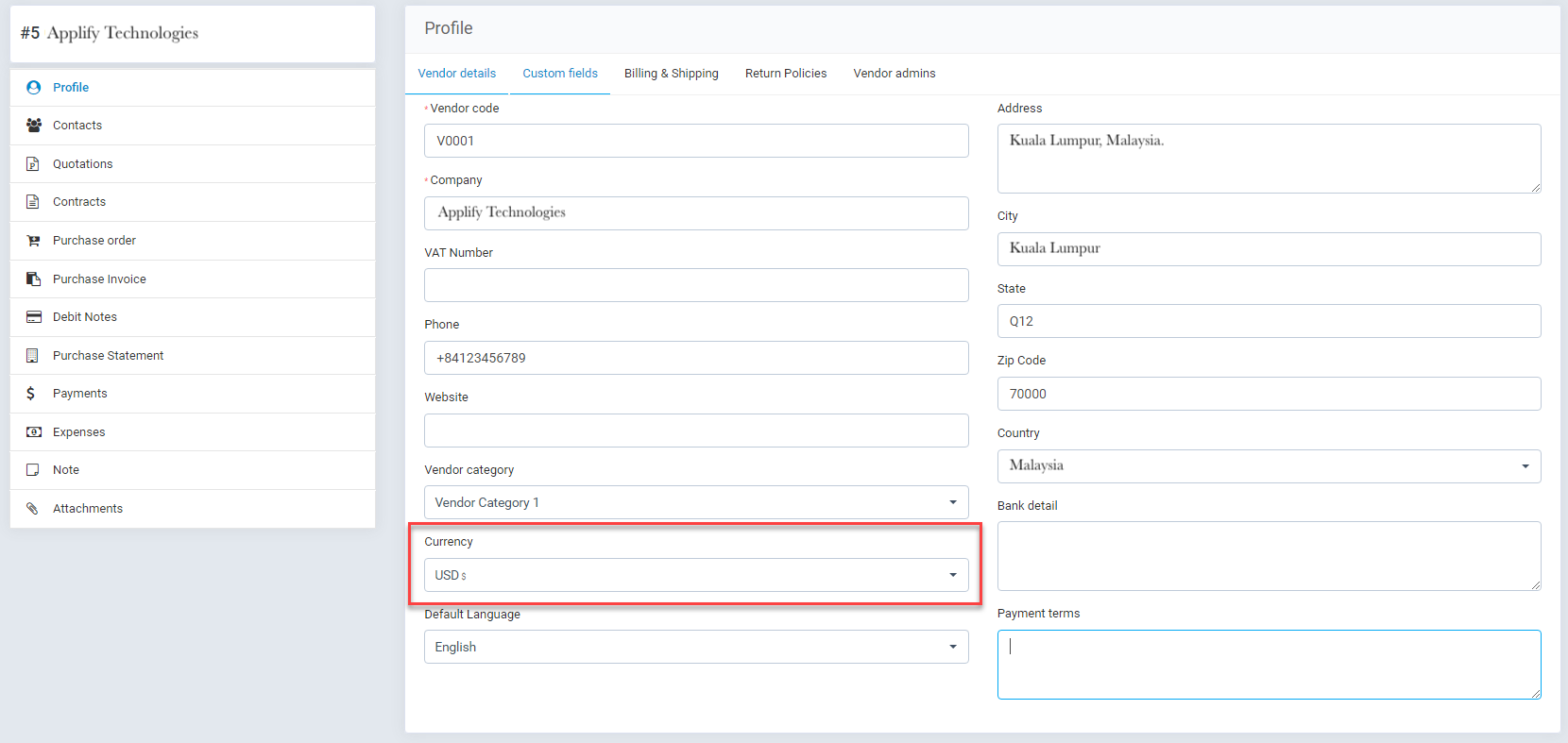
- Users can choose currency when creating objects: Purchase request, Quotation, Purchase Order, Purchase invoice,...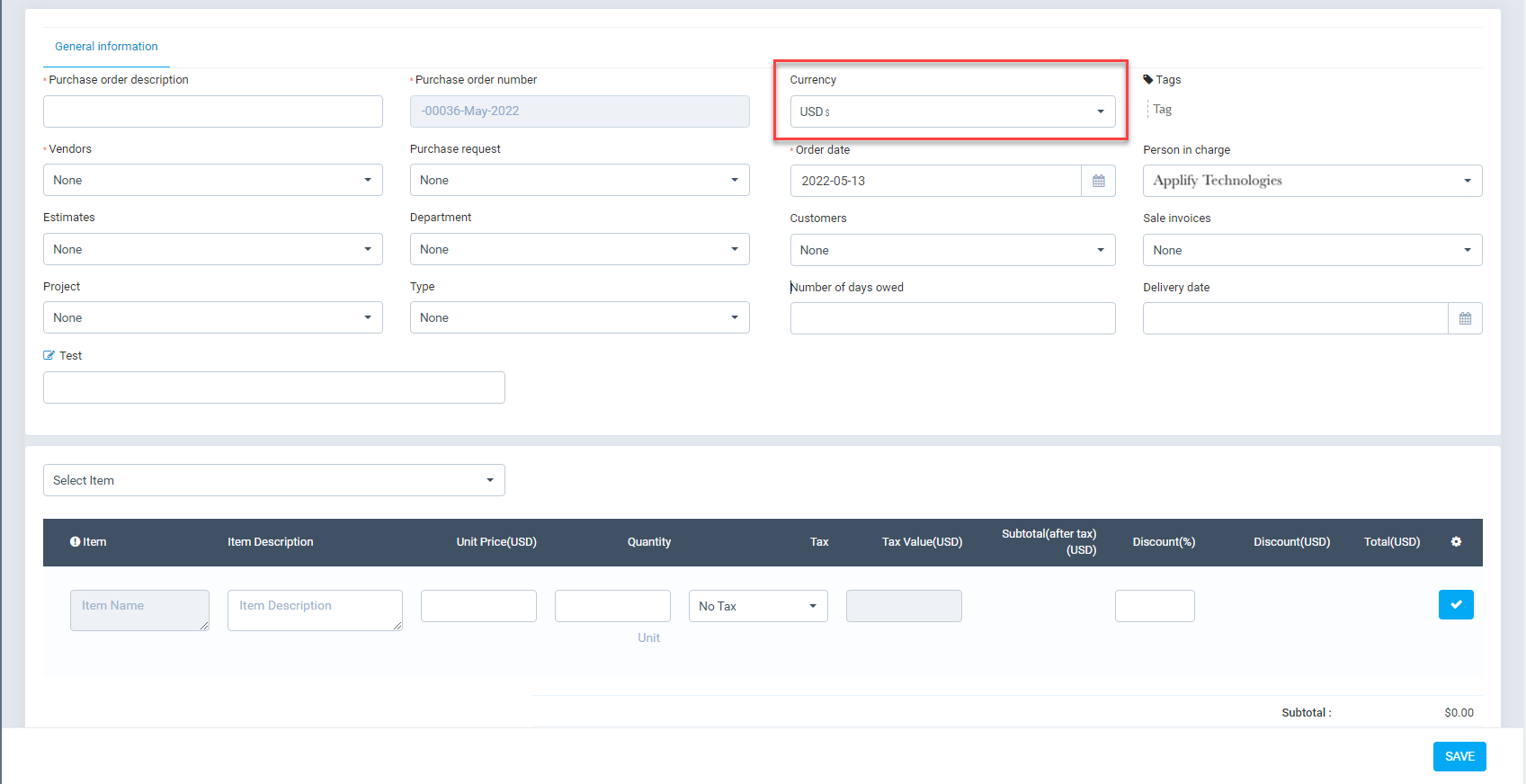
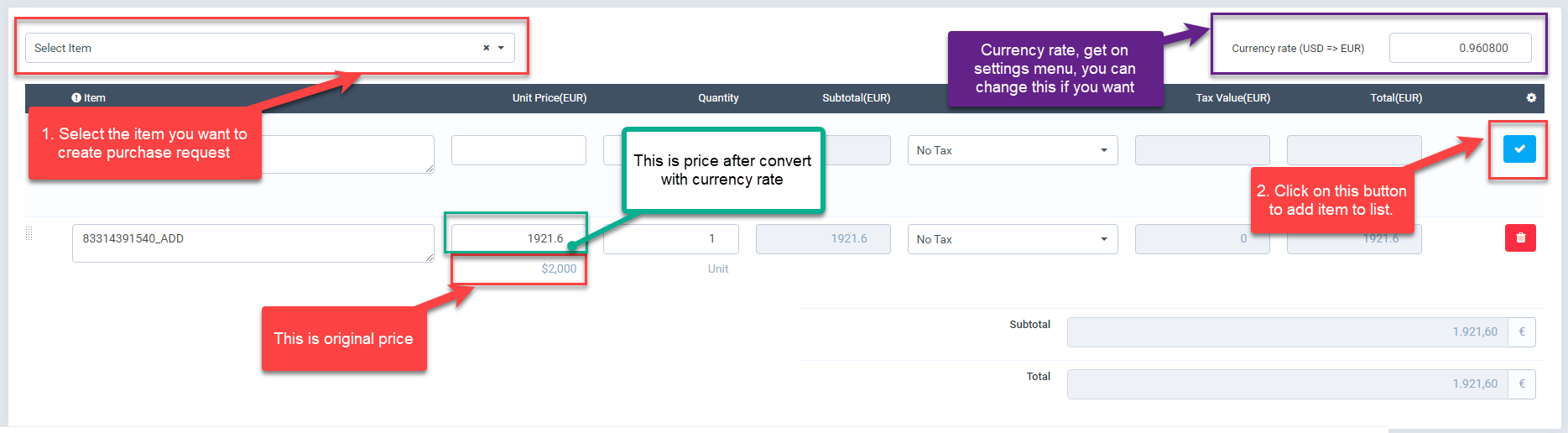
- Currency rates setting - Used for cases where you need to convert between currencies. - Go "Settings" menu => "Currency Rates" => General.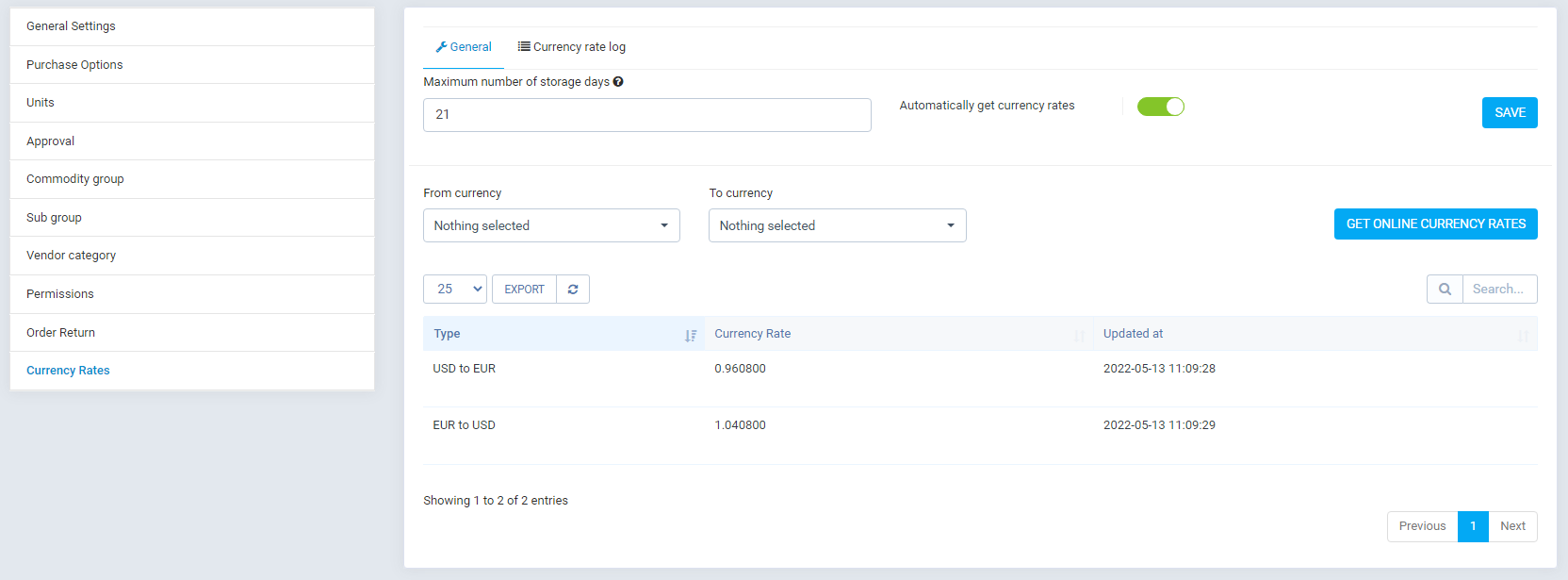
- Maximum number of storage days: this is the number of storage days for currency rate logs. Currency rate logs stored for more than this number will be deleted. If the value is 0, this function will not be perfomed.
- Automatically get currency rates: If you enable this option, the currency rate will be automatically get from internet. - Click on "Get Online Currency Rates" to get the currency rates from internet. - After get currency rate, you can edit it if you want.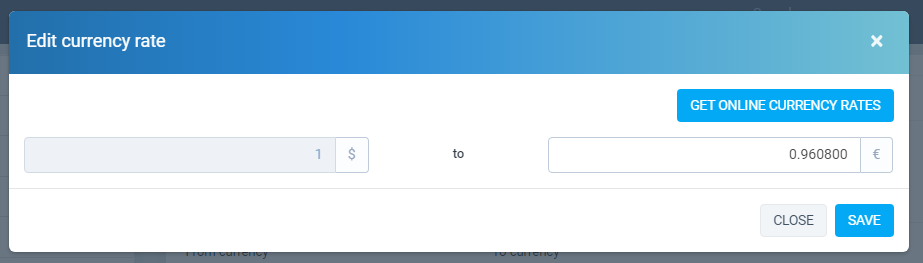
- "Currency rate log" tab: the currency rate will be logged here.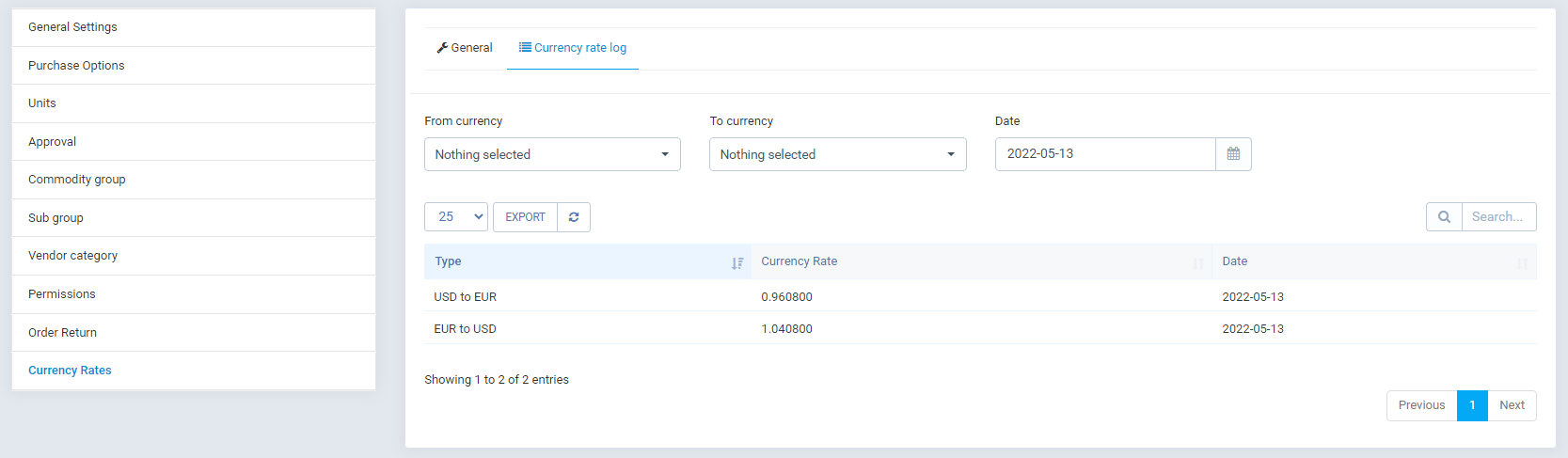
- Purchase Request.
- Go Purchase => "Purchase Request" menu.
- Updates in the management screen:
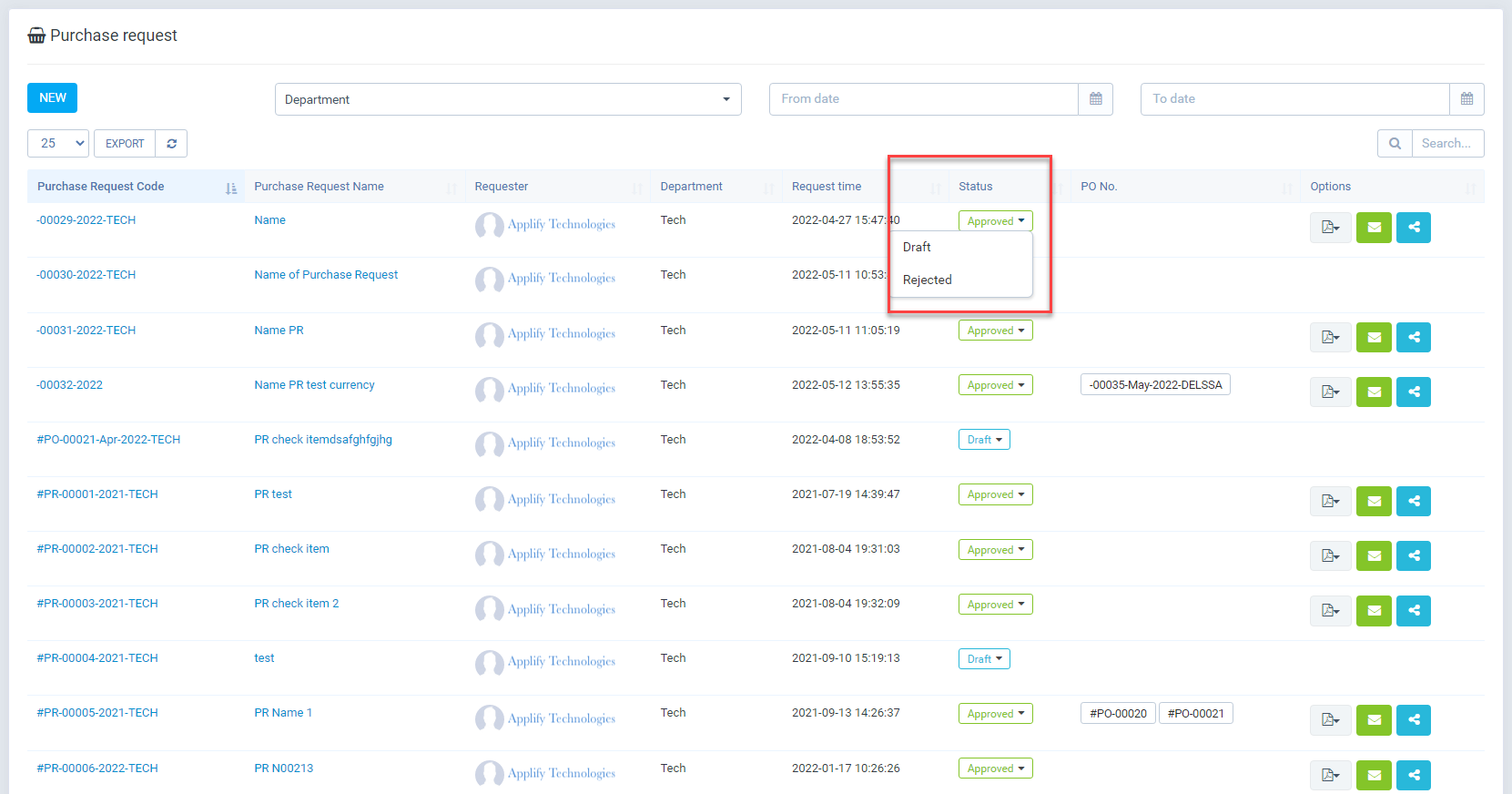
+ Admin can change approval status.
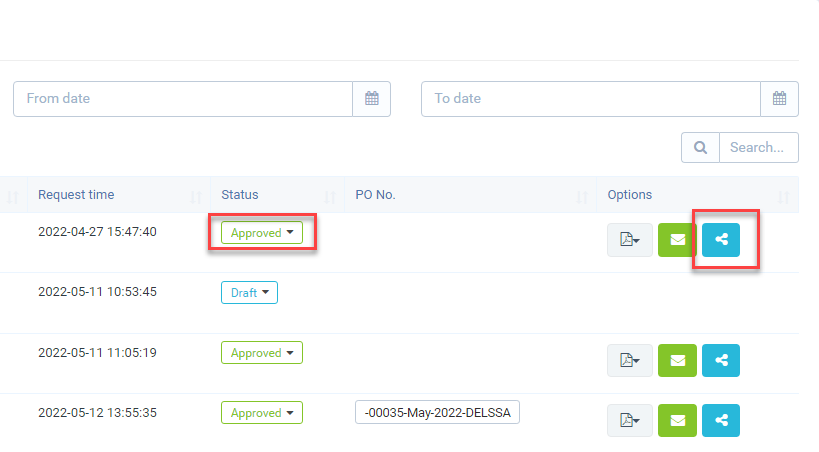
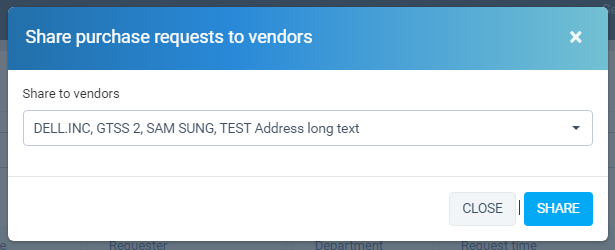
+ After the purchase request is approved, user can share it to vendor.
- Updates in add/edit screen:
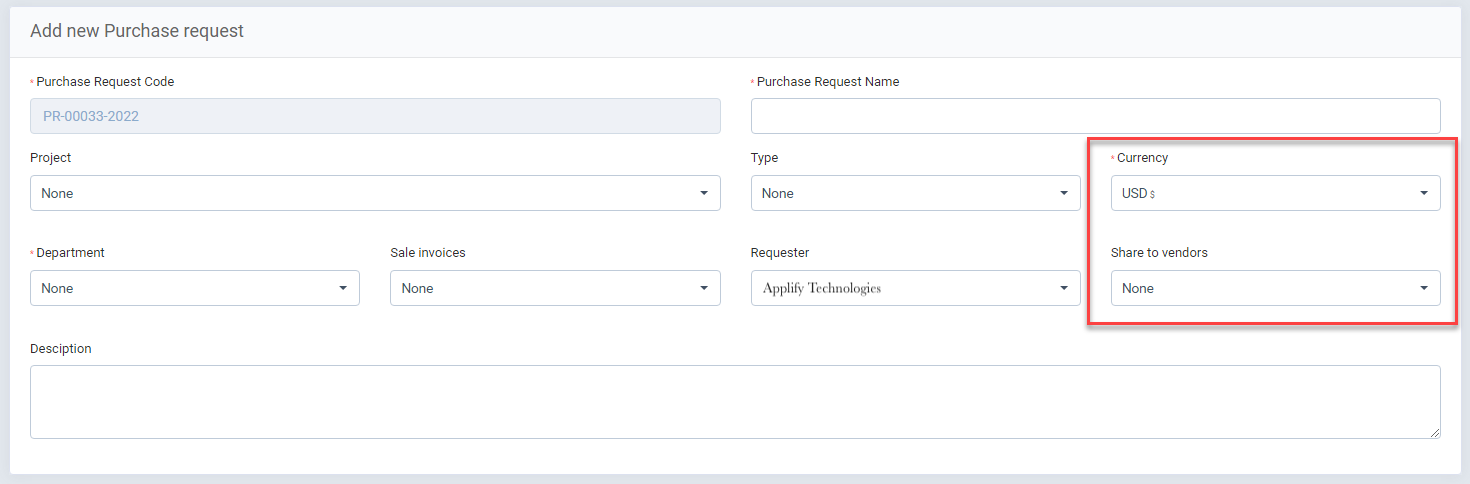
+ Currency field - You can select the currency when create/edit purchase request.
+ Share to vendors field - Select the vendors that will receive purchase request.
+ List items of purchase request.
- Updates in detail screen:
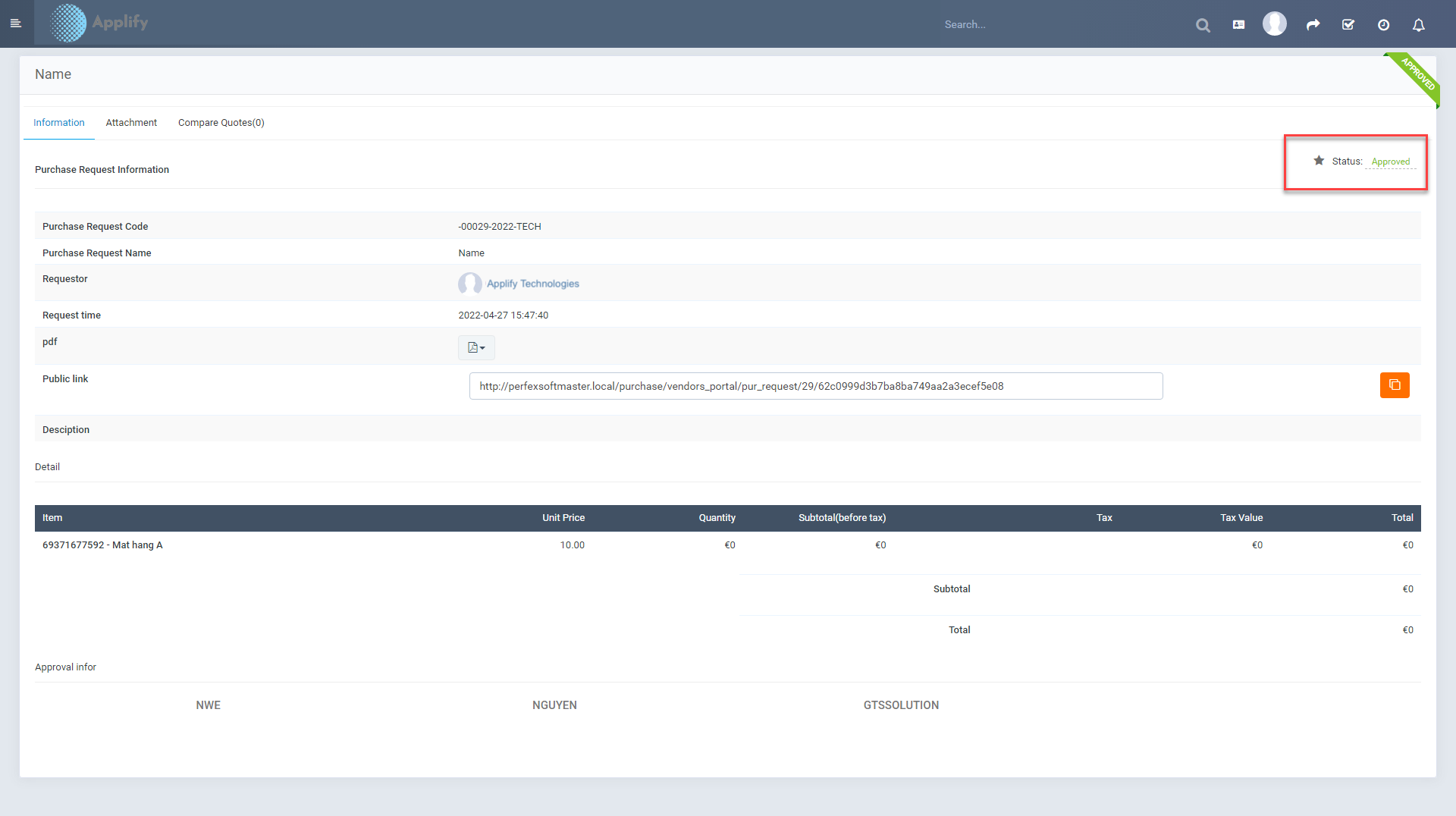
+ Admin can change approval status.
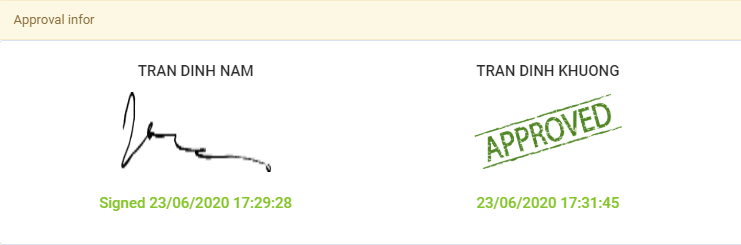
+ Approval info move to bottom of page.
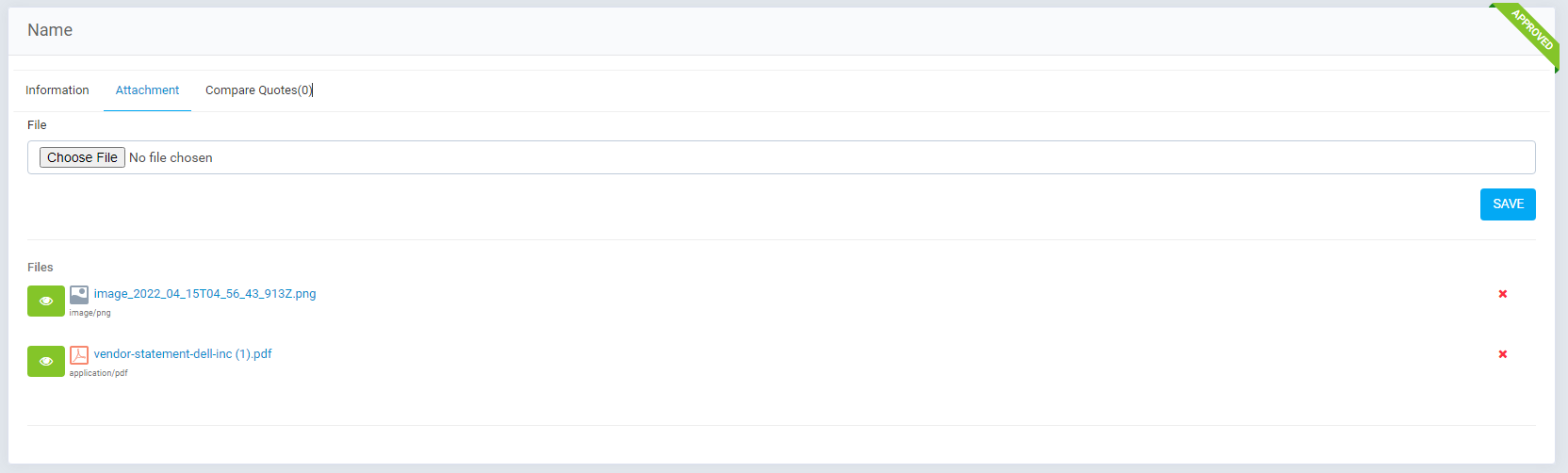
+ Attachment tab.
- Quotation.
- Create/Update quotation, similar the purchase request. This screen also works the same. The currency will change base on vendor, purchase request if you select them. You can change this and update the currency rate if you want.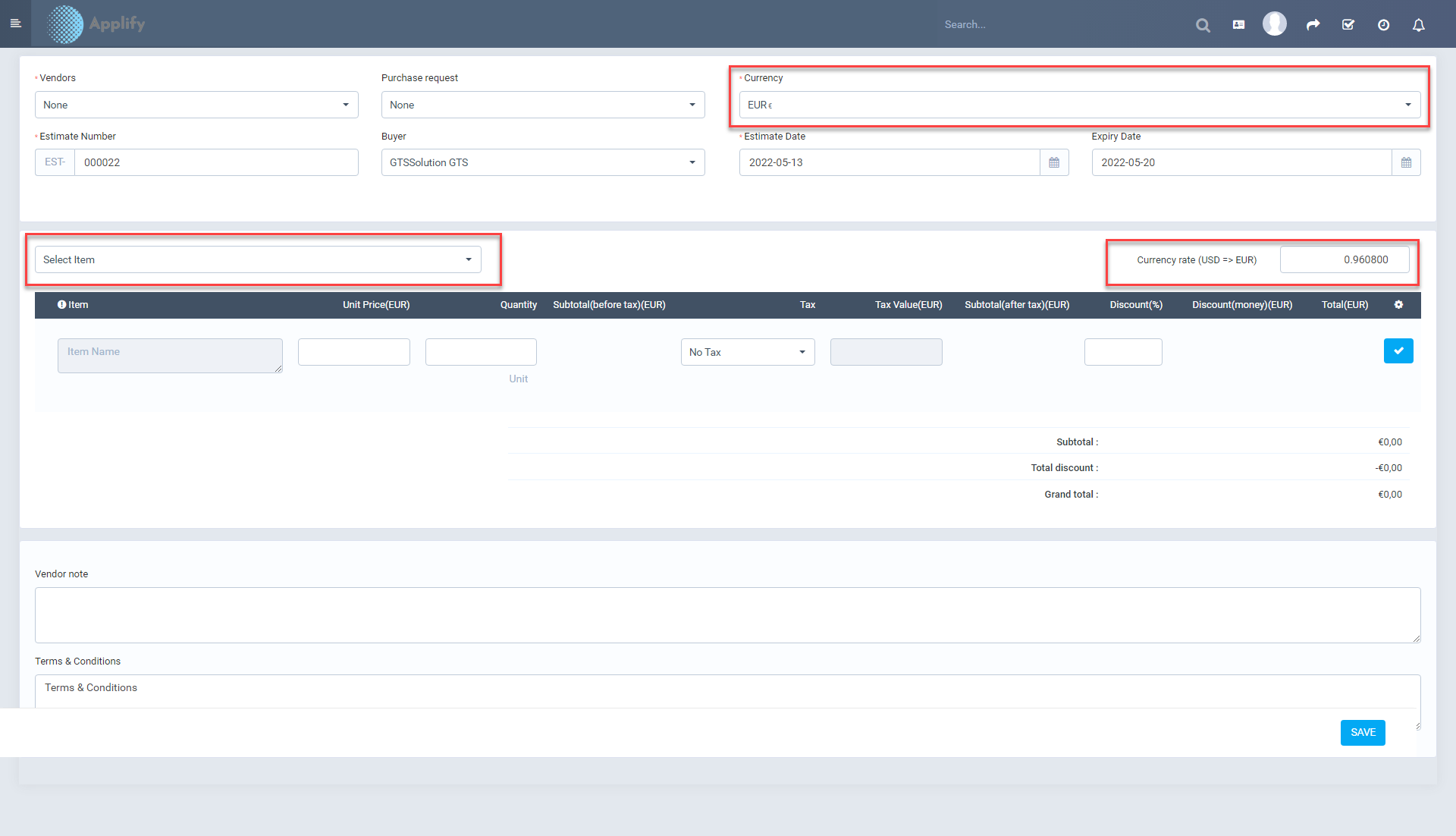
- Purchase Order.
- List Purchase Order.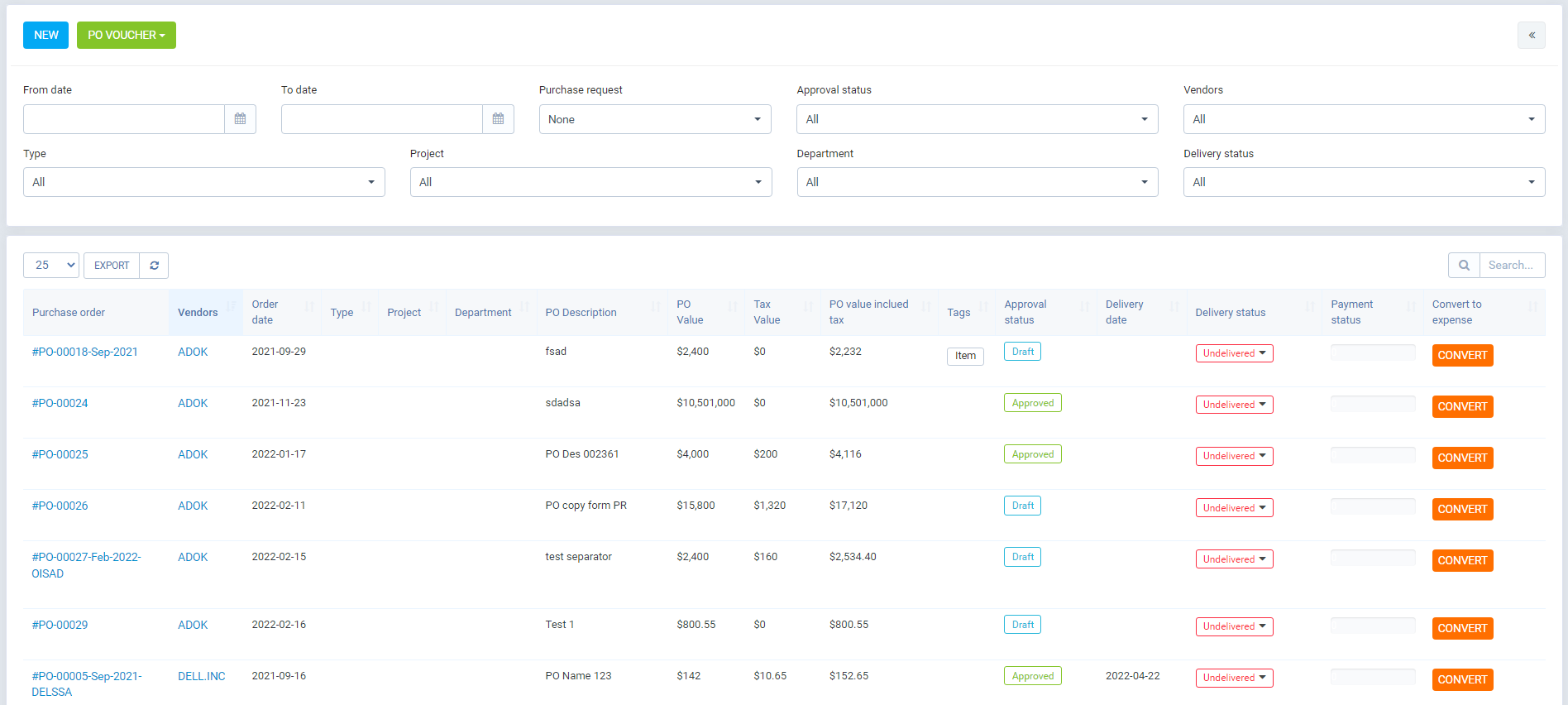
- Create/Update PO with new UI.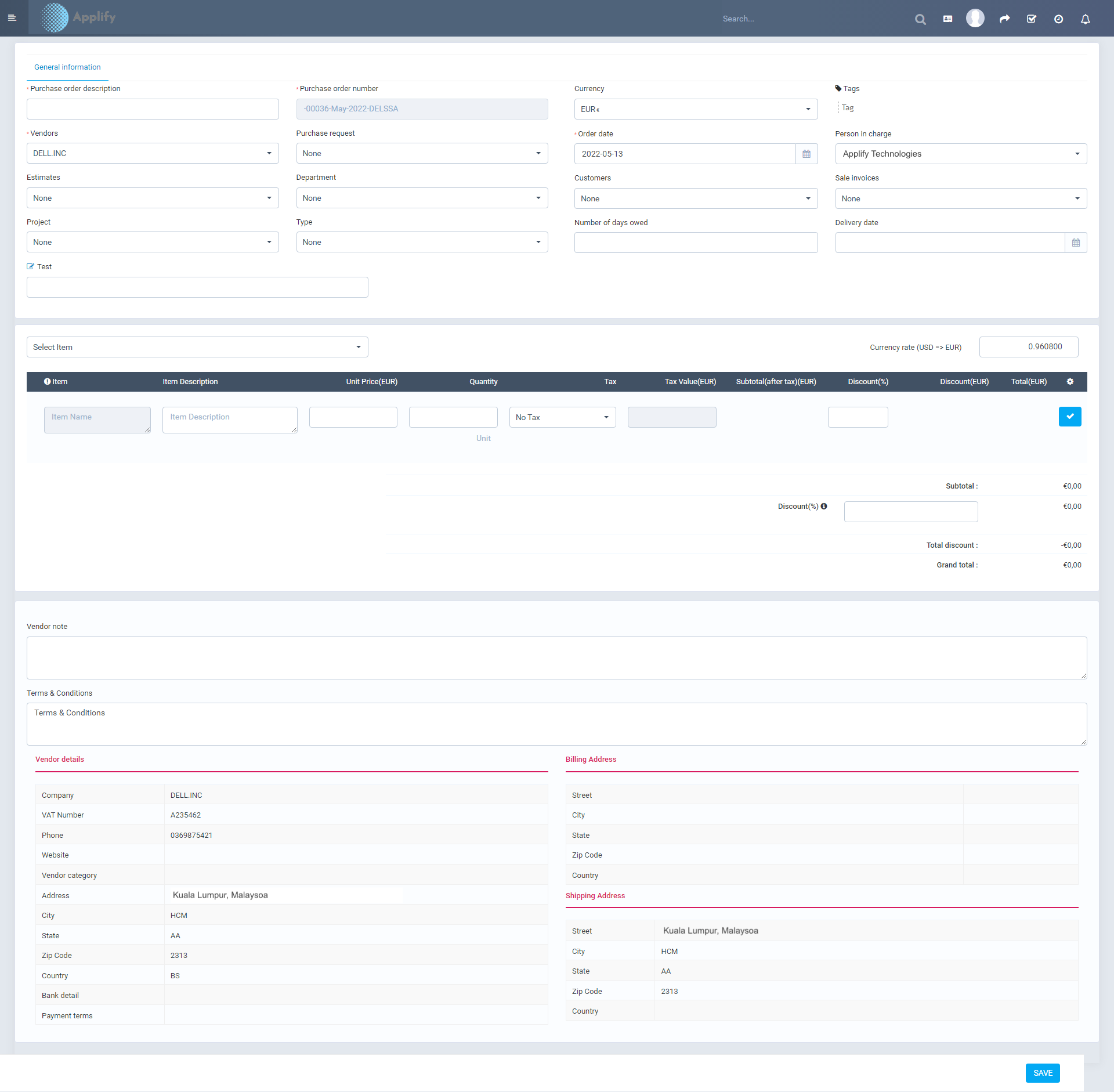
- PO detail screen, update "More" button => the admin can change the status of order here.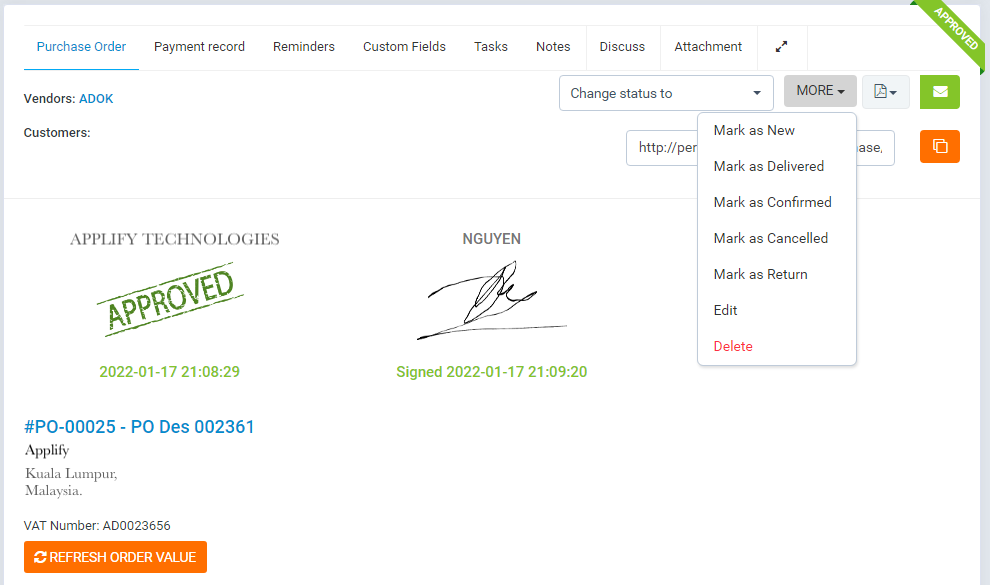
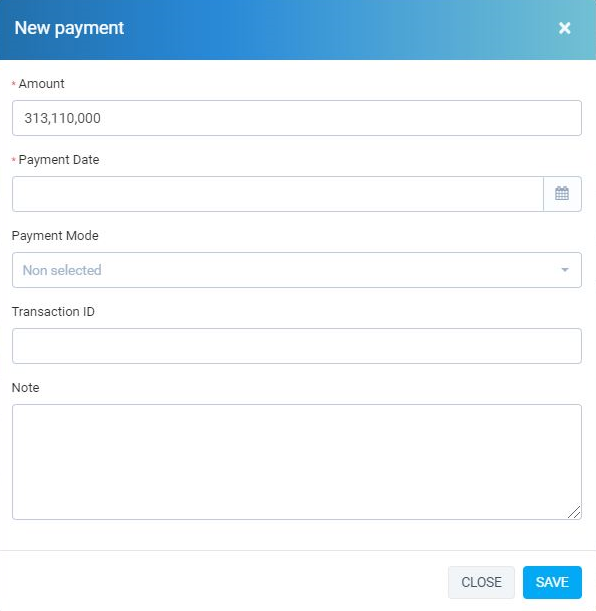
- PO detail screen, payment button => user can add payment for Purchase Order.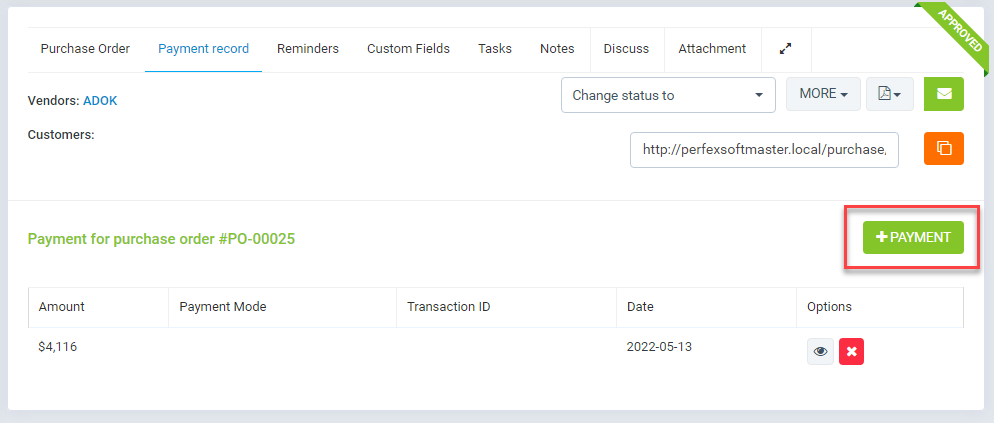
- Order return.
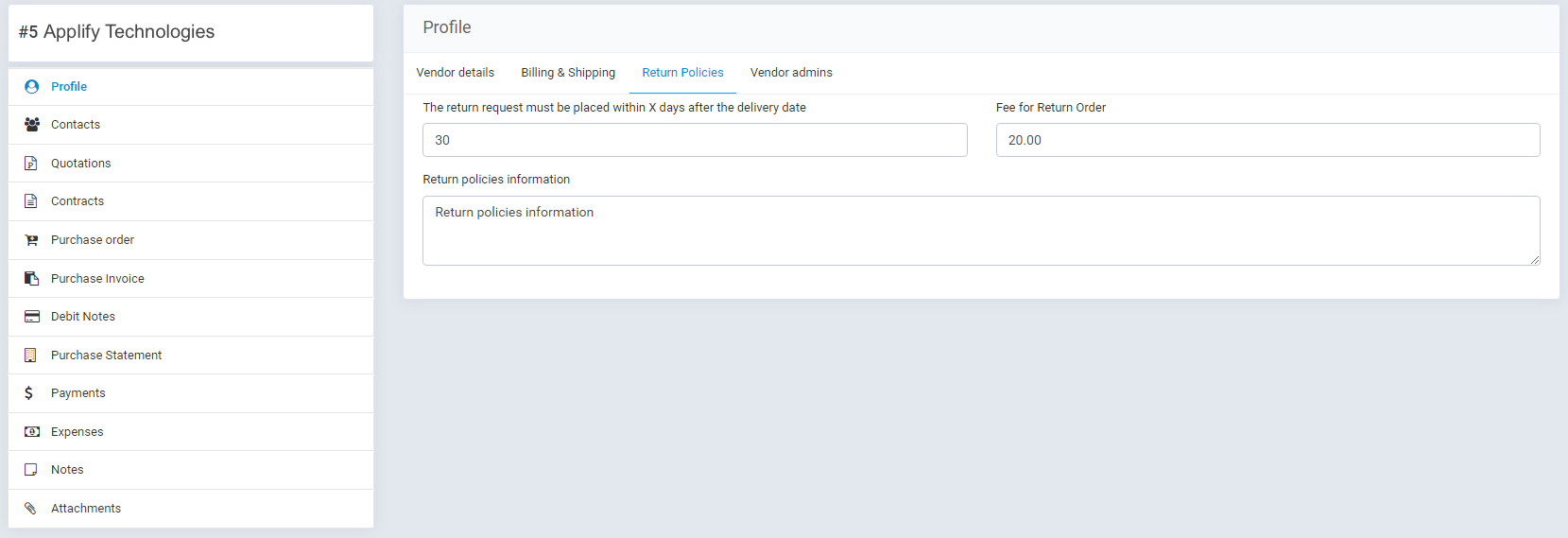
- Reutrn policies:
+ Each vendor has a different return policy. They can set them up in profile on vendor portal or User can help them edit it in vendor profile.
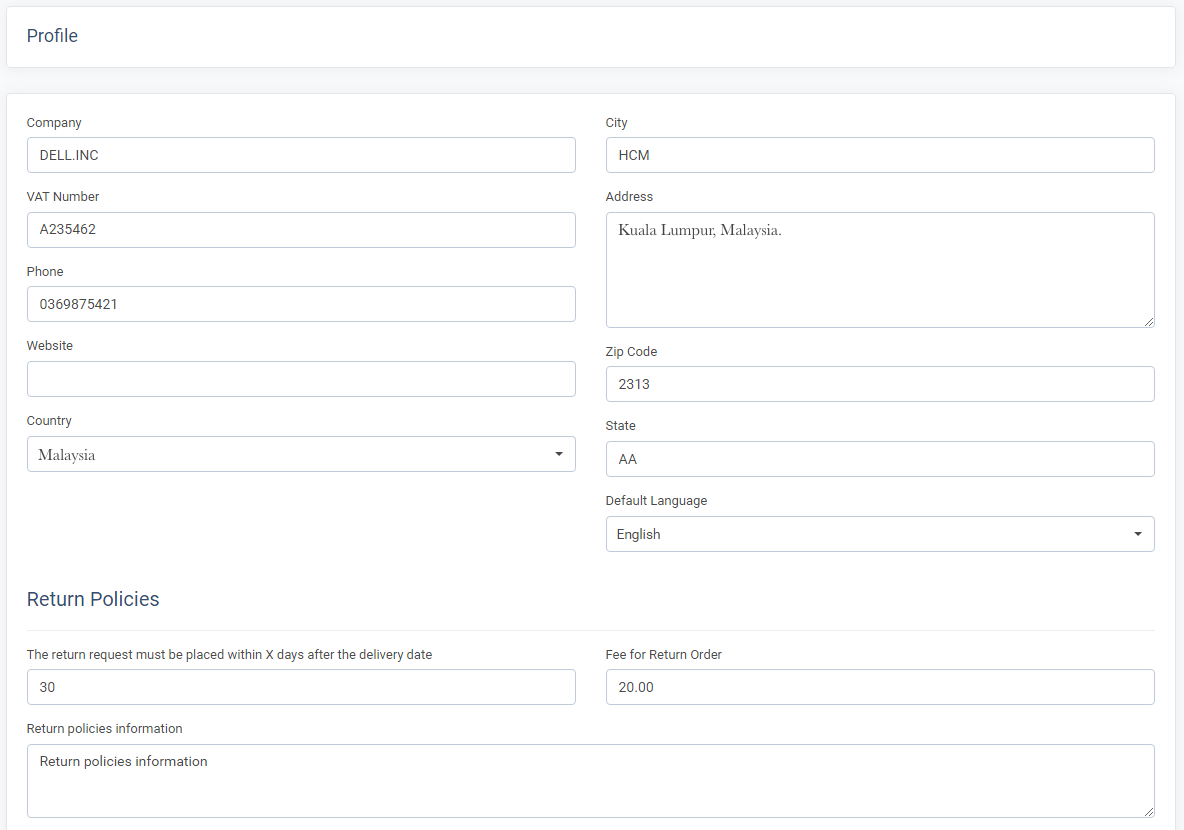
- Create the order return: Go Purchase => "Order Returns" menu => New.
- Order return can only be created from Purchase Order that satisfy the vendor's return policy & comleted the delivery.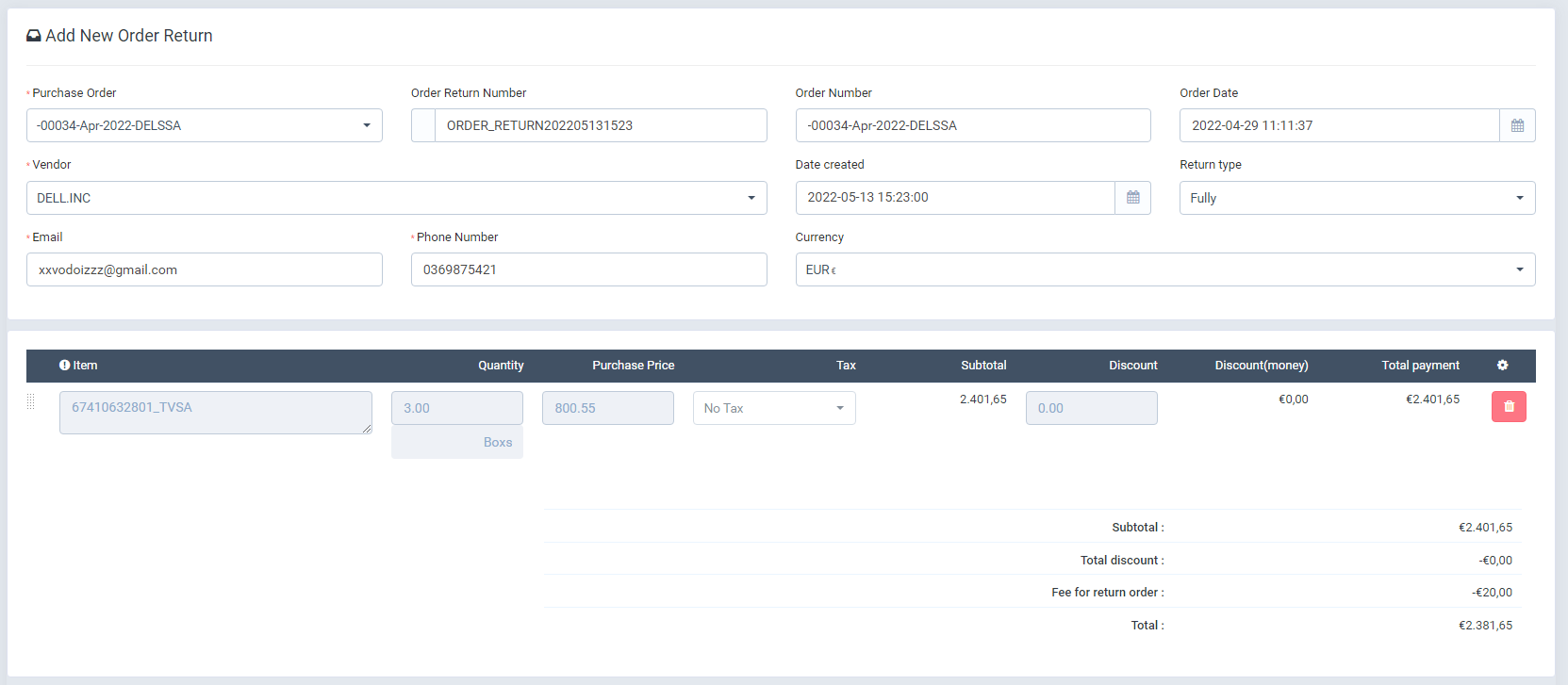
- There are 2 types of order returns: Fully & Partially.
- With type partially, user can change the quantity of item and select the return item. The default type is fully.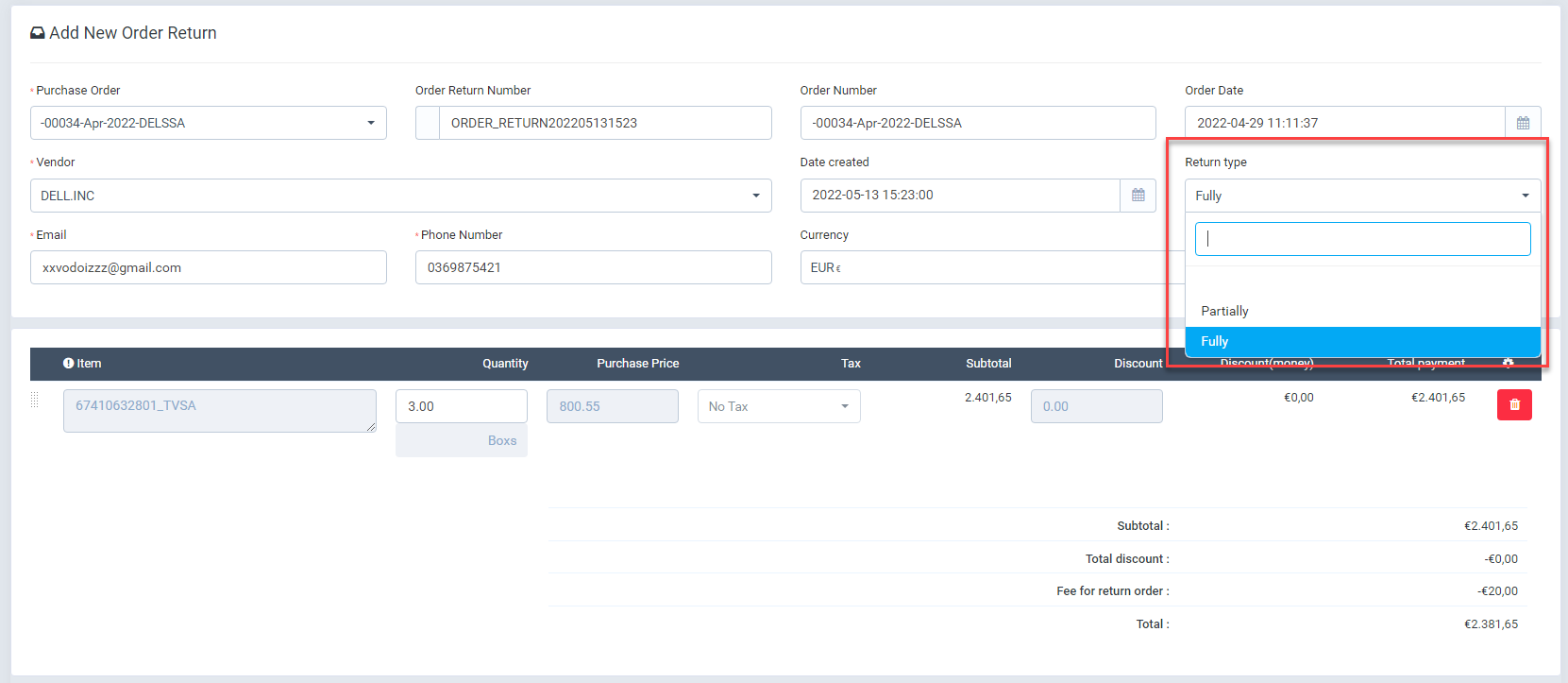
- After order return is created, vendor can confirm or reject this order on vendor portal.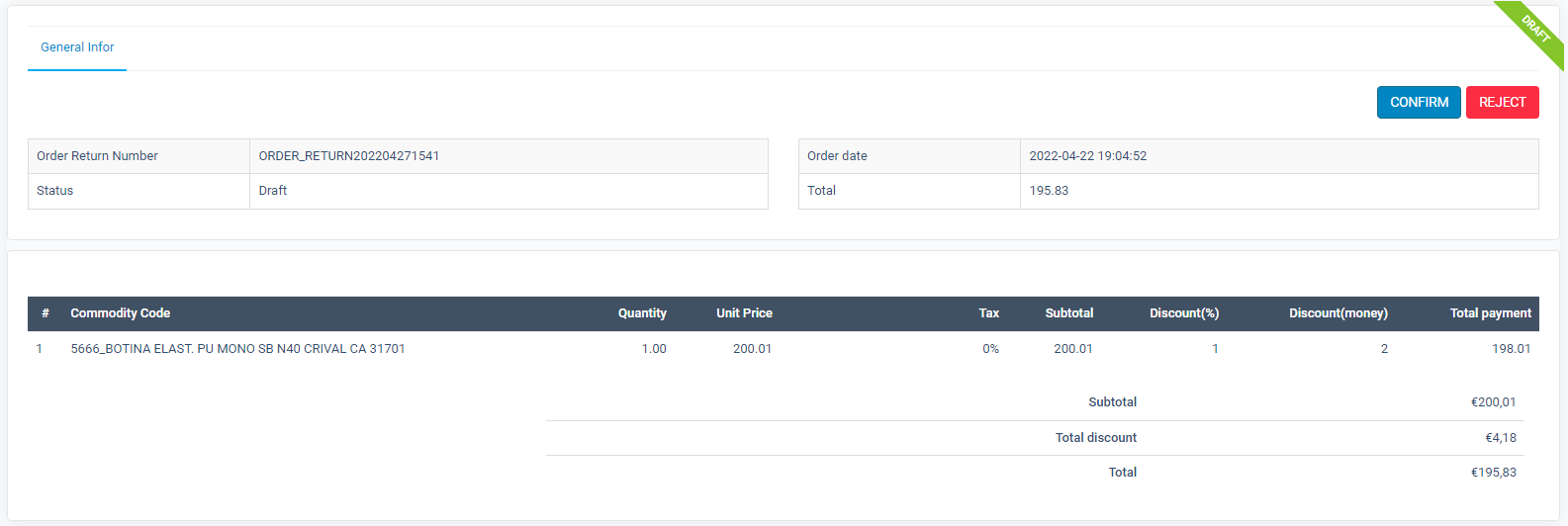
- After order return is confirmed. Admin can create the refund for this order on detail order screen. "More" button => Refund.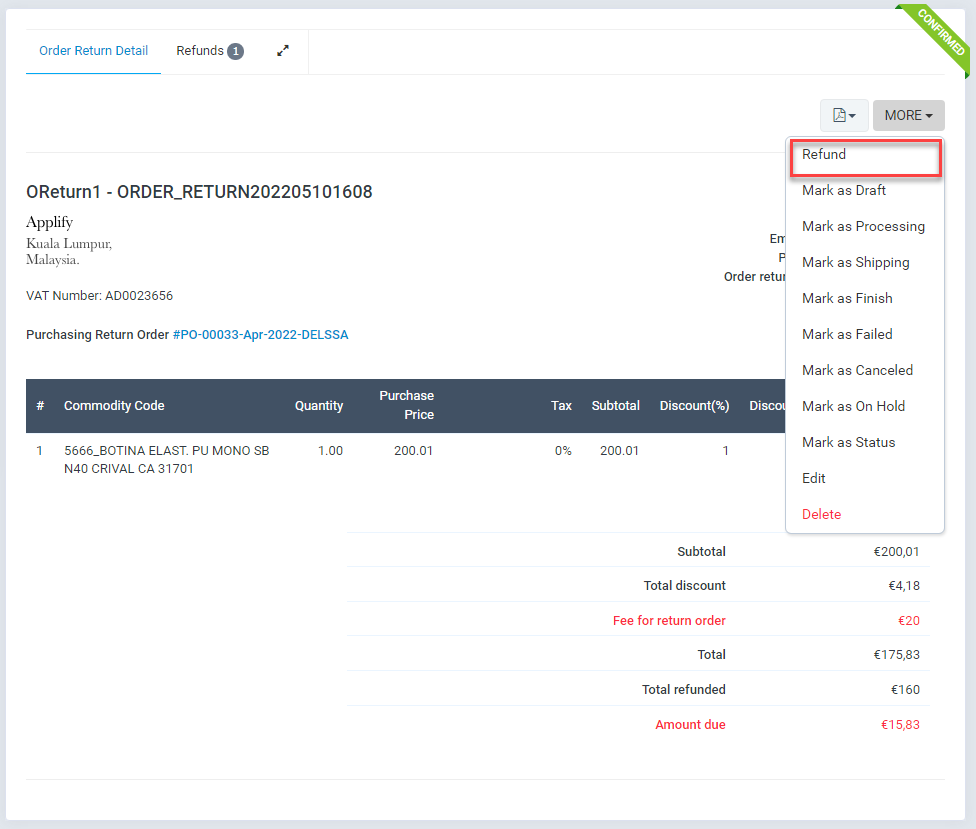
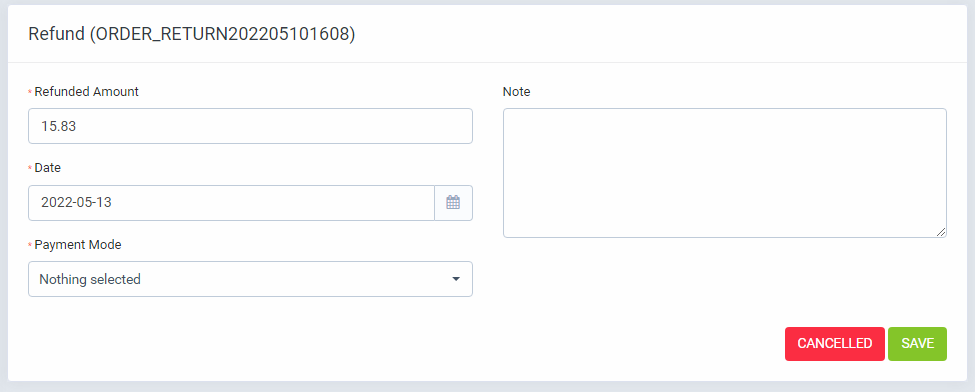
- Purchase Invoice.
- Create Purchase Invoice with new UI.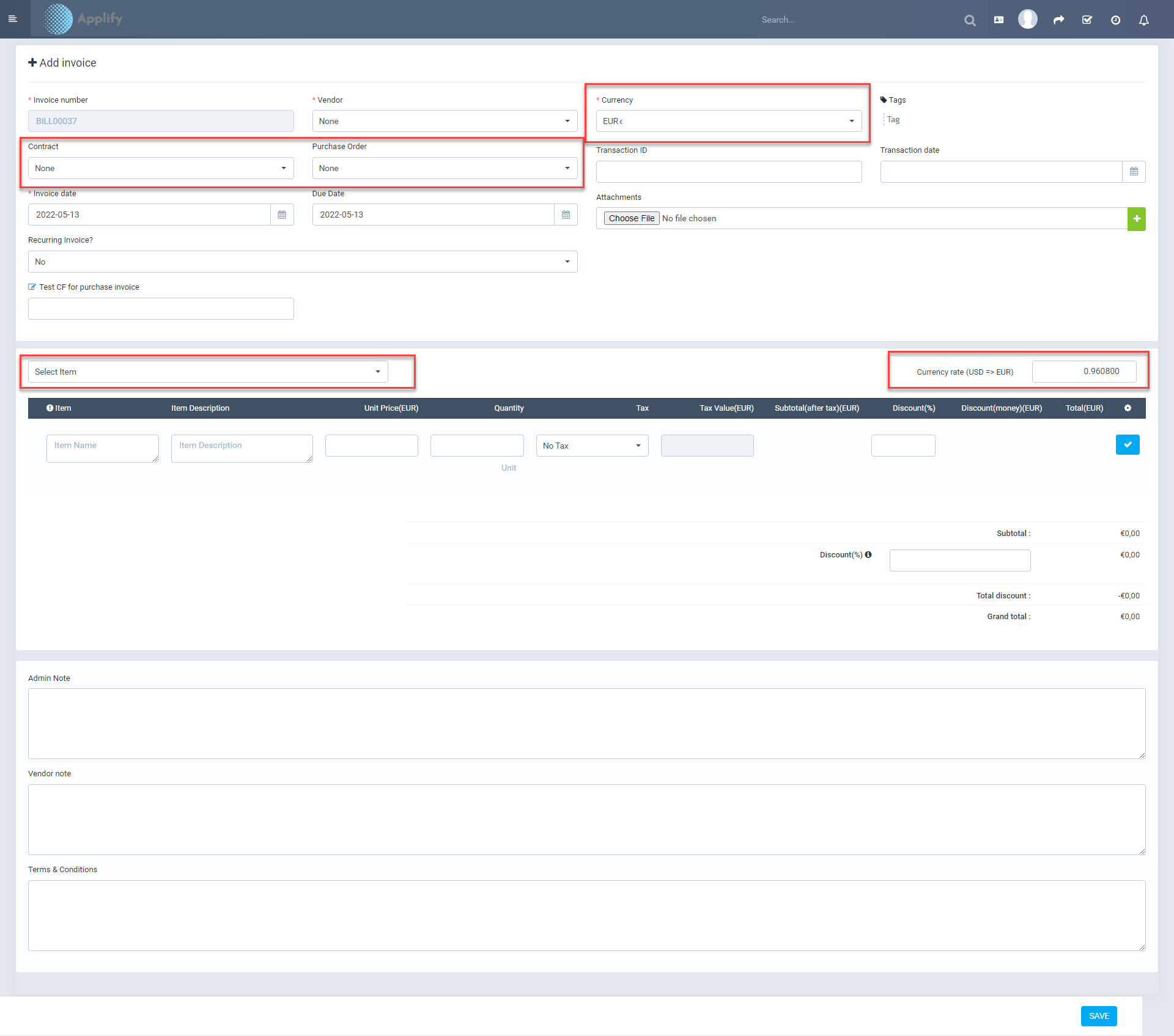
- User can create invoice from contract & purchase order.
- Recurring invoice will not be available when create invoice from purchase order.
- Currency will be loaded by vendor or purchase order & you can change this if you want. - Project related PO, Purchase request, Contract.
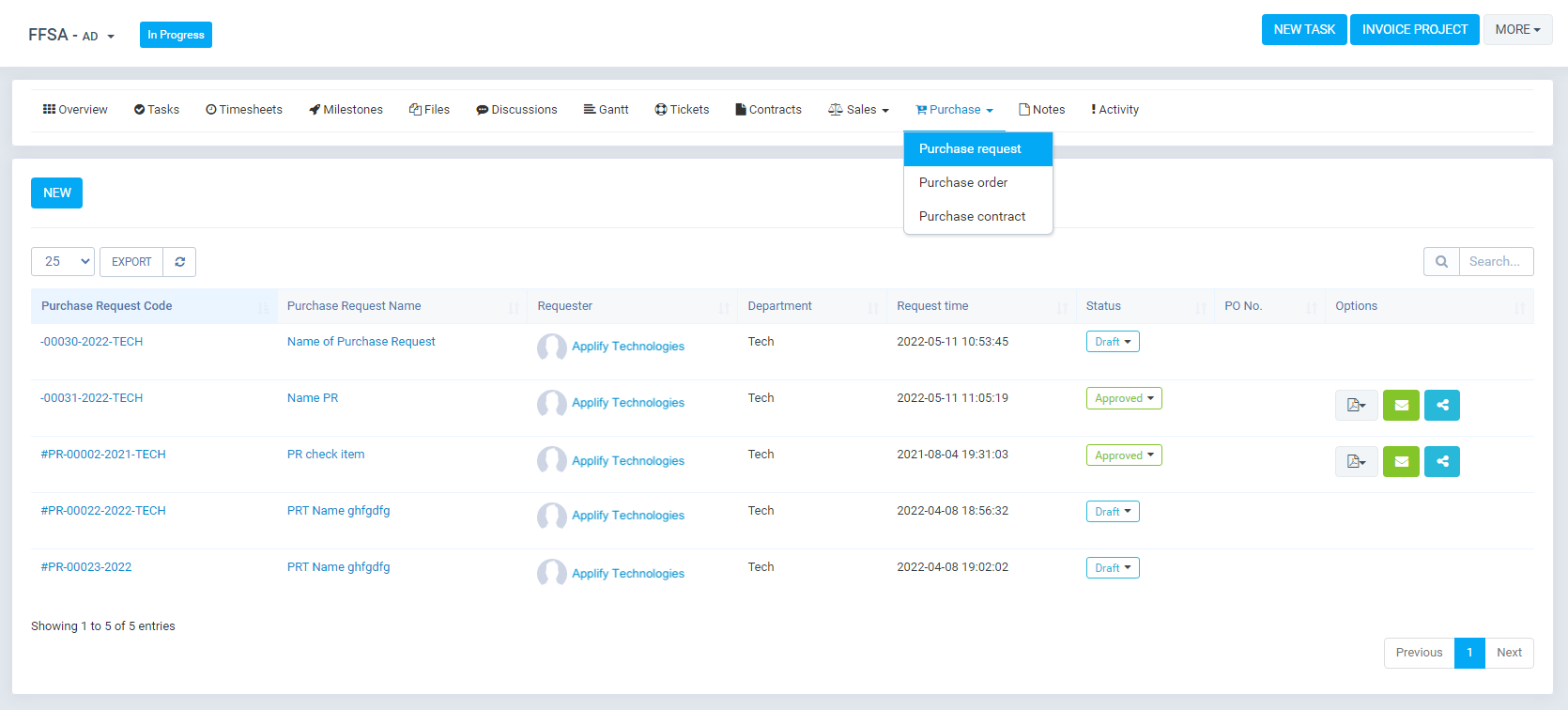
- In detail screen of project, you can see the "Purchase" tab.
- Here, you can view the Purchase Request, Purchase Order, Purchase Contract related this project.
- Vendor portal.
- Vendor profile, vendor can change the return policy on their profile in vendor portal
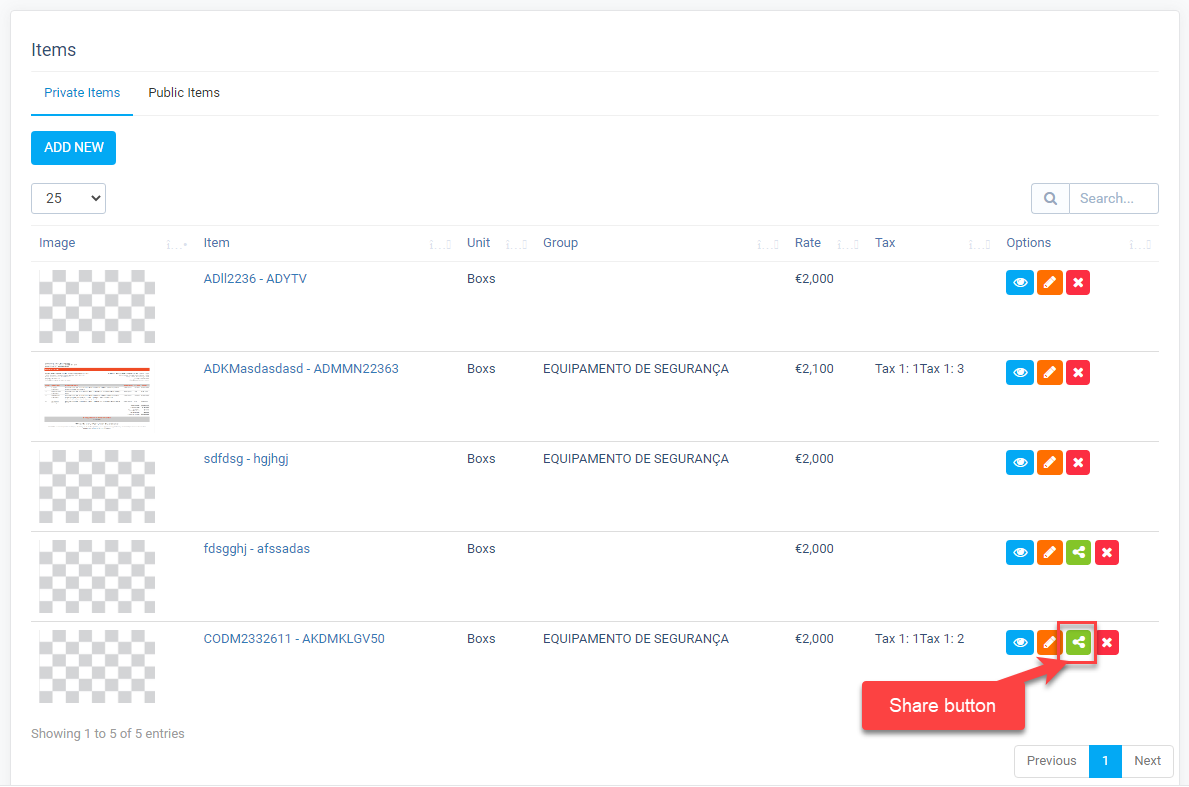
- Items management
+ Vendor can create/edit/delete and manage their own items on tab "Private Items".
+ They can share this items to client(admin portal) and view the items are shared by admin on tab "Public Items".
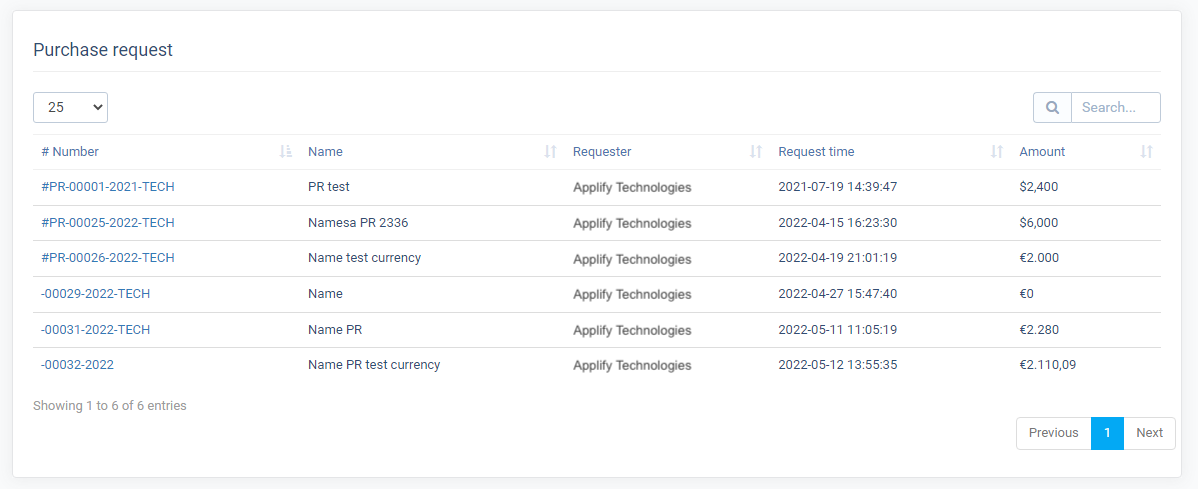
- Purchase Request
+ They can view the list purchase requests are shared by admin.
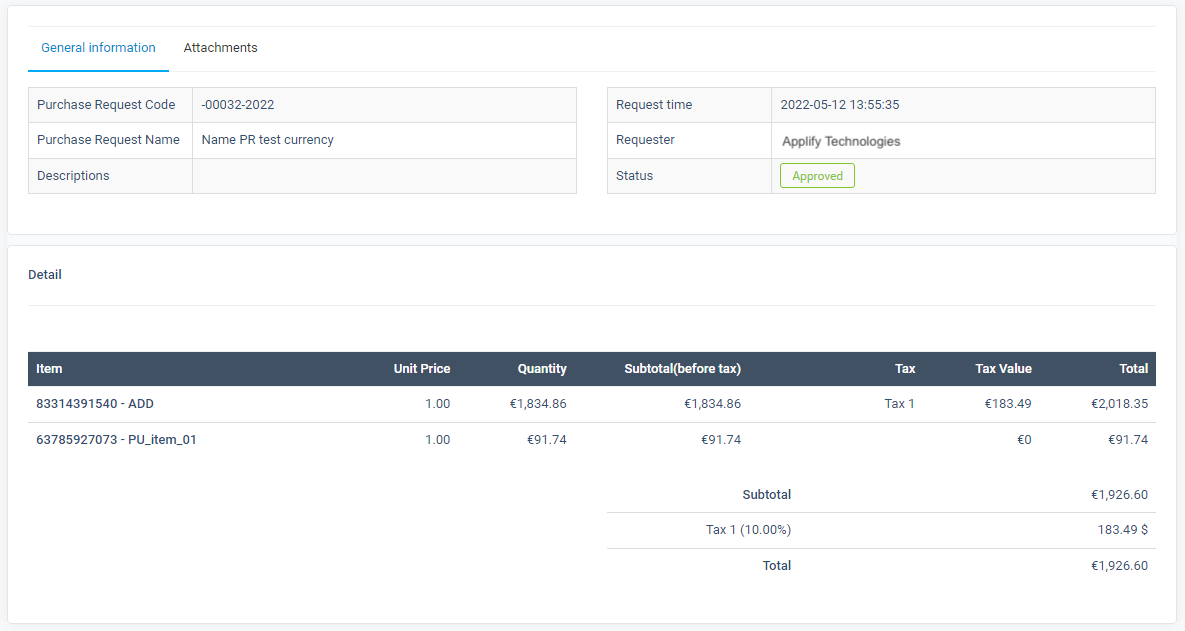
+ Detail screen.
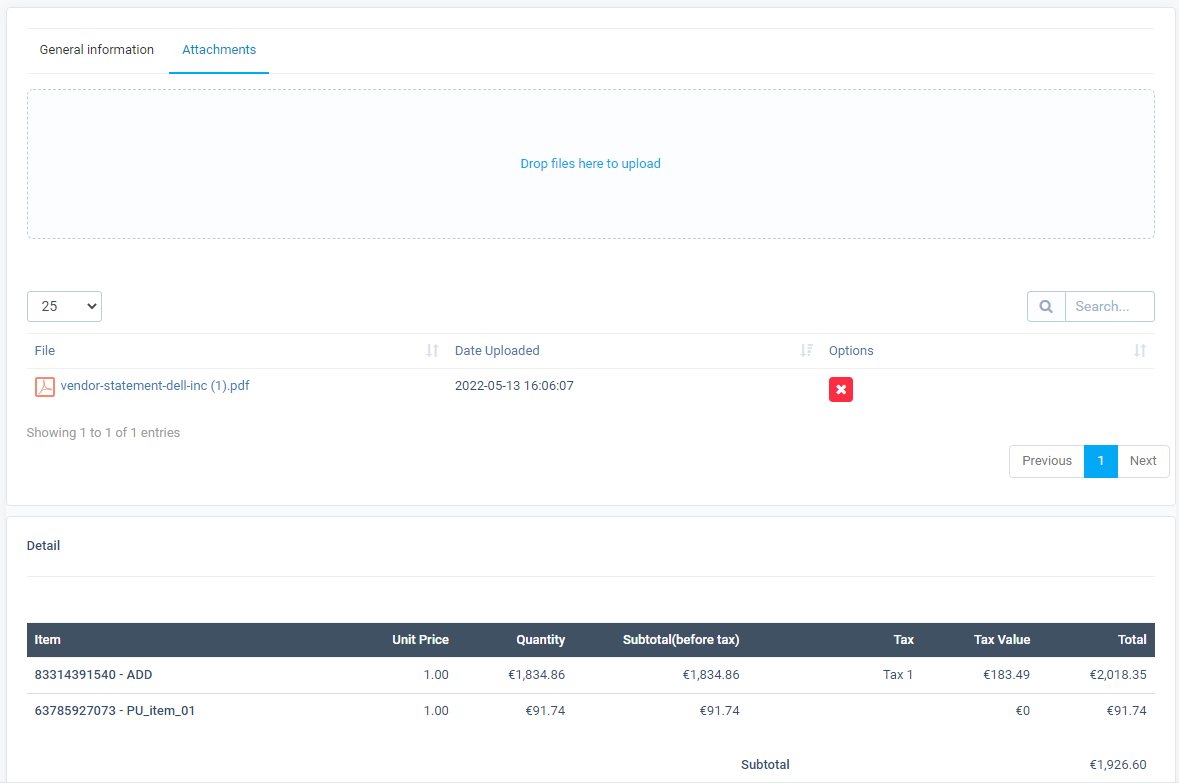
+ Attachment tab. Vendor can upload file & view the file uploaded by admin
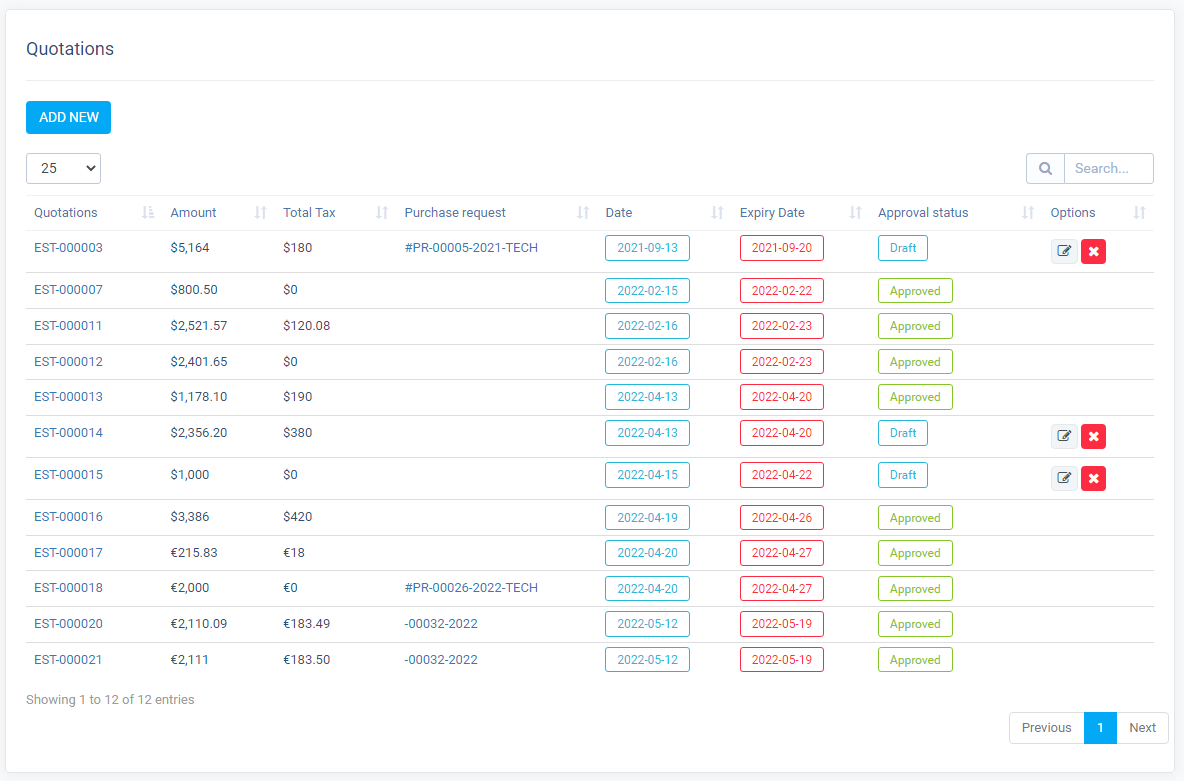
- Quotation
+ Like user on admin portal, vendor can manage/add/update/delete the quotation
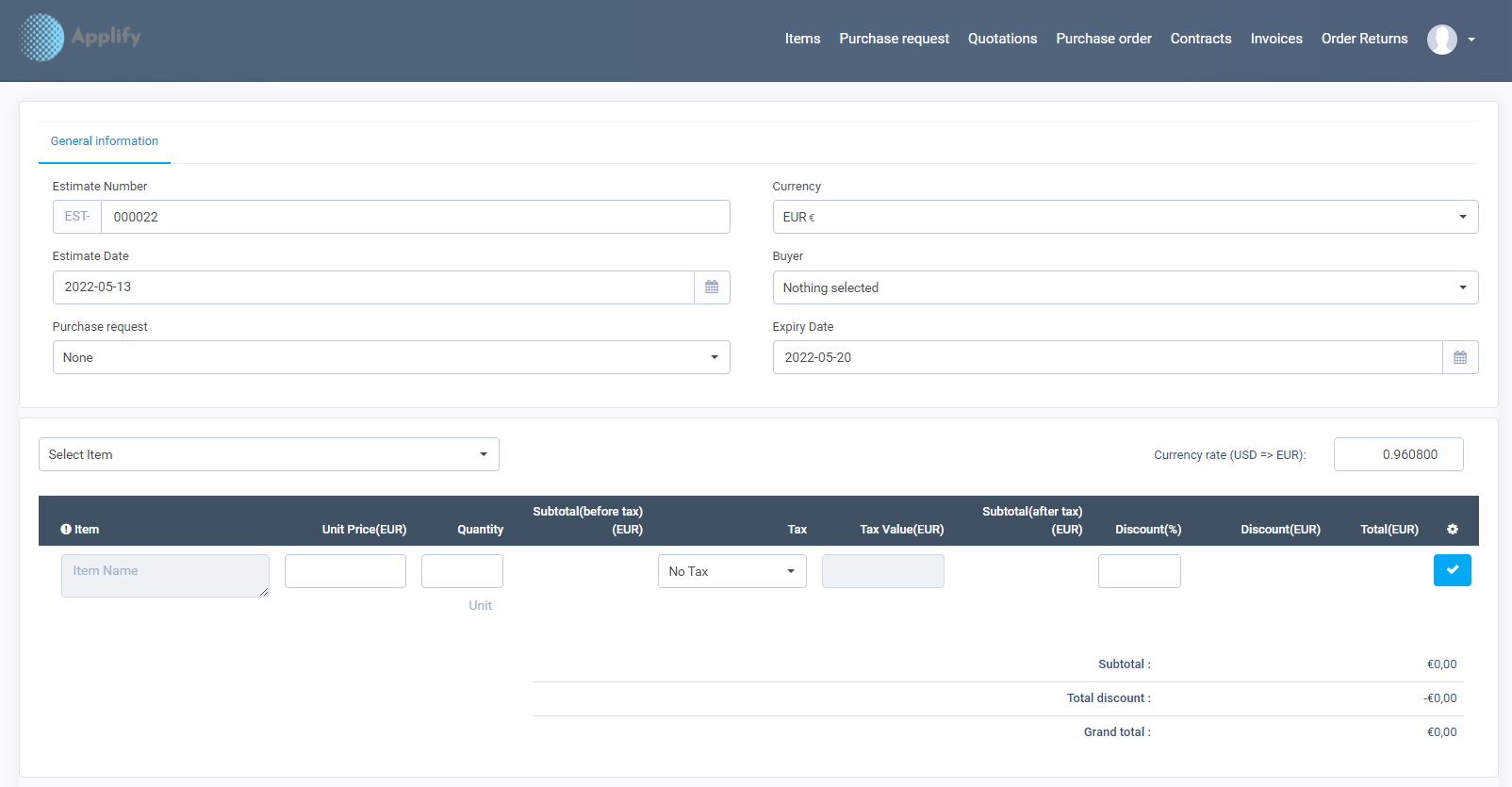
+ When add/edit quote, they on ly can select the items on public items tab in items management.
- Purchase Order
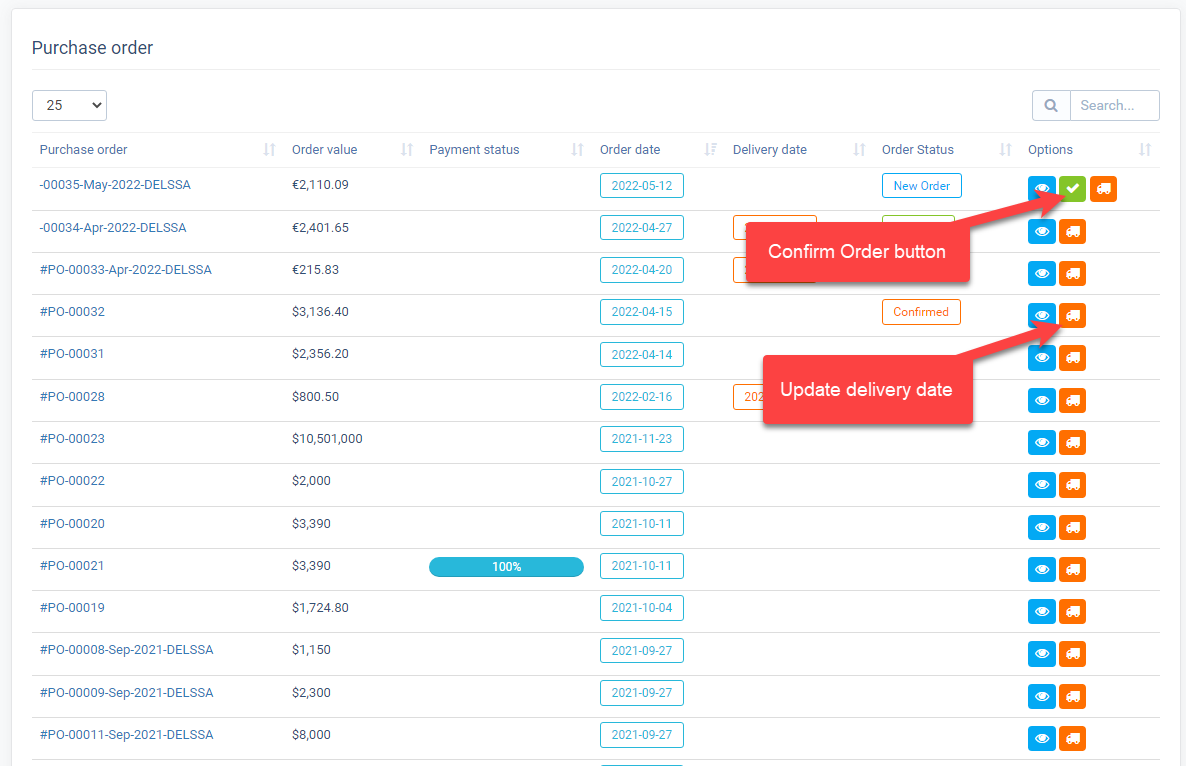
+ On manage screen of Purchase Order, they can confirm & update delivery date for a Purchase Order.
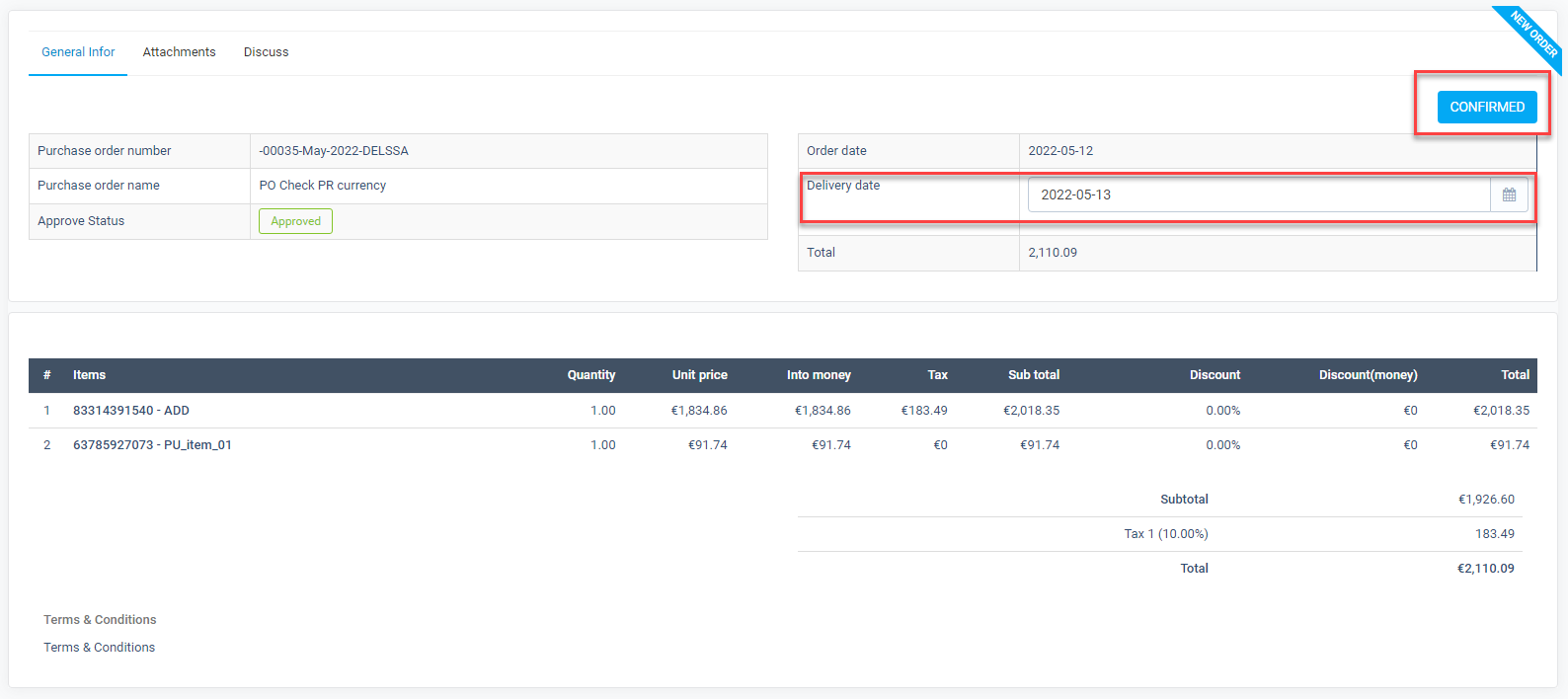
+ On detail screen of Purchase Order, they also can do the same thing.
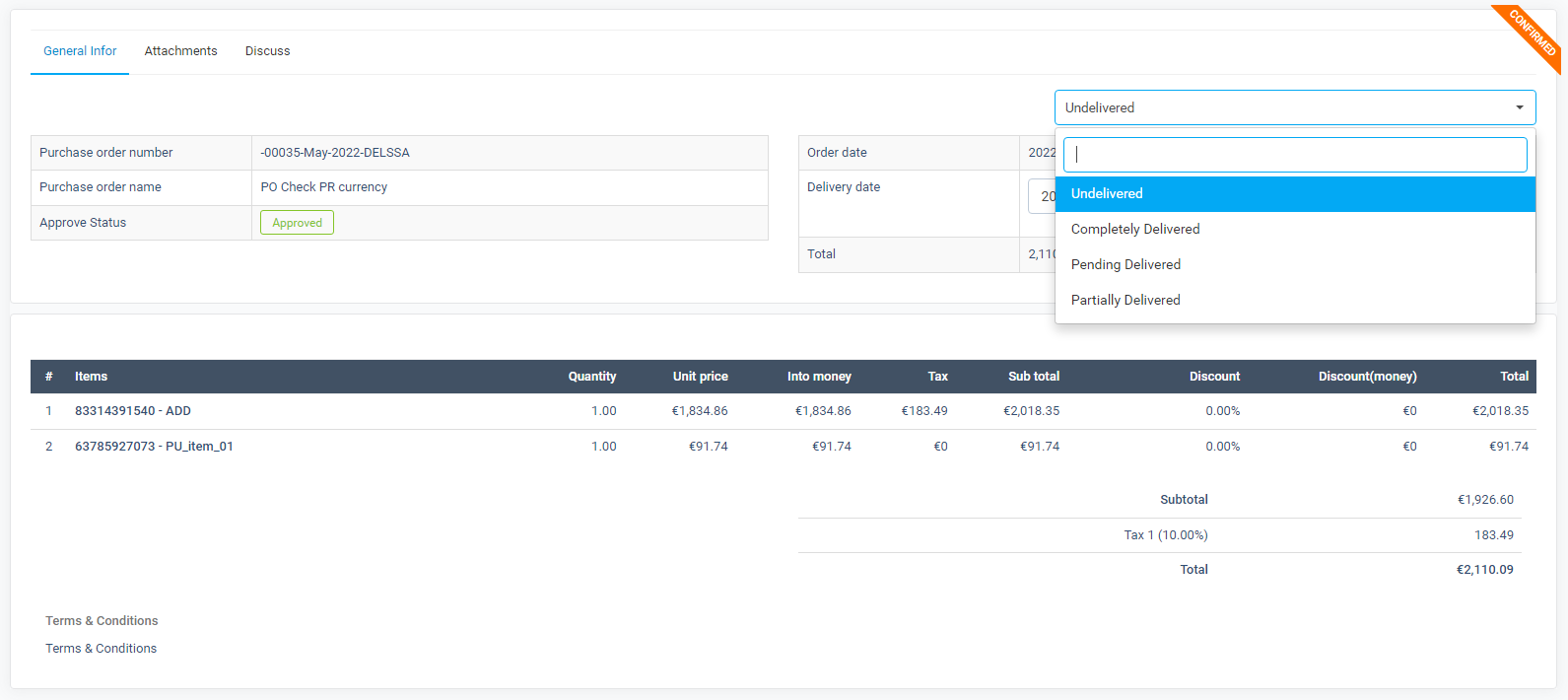
+ After the PO is confirmed, the can update the delivery status in this screen.
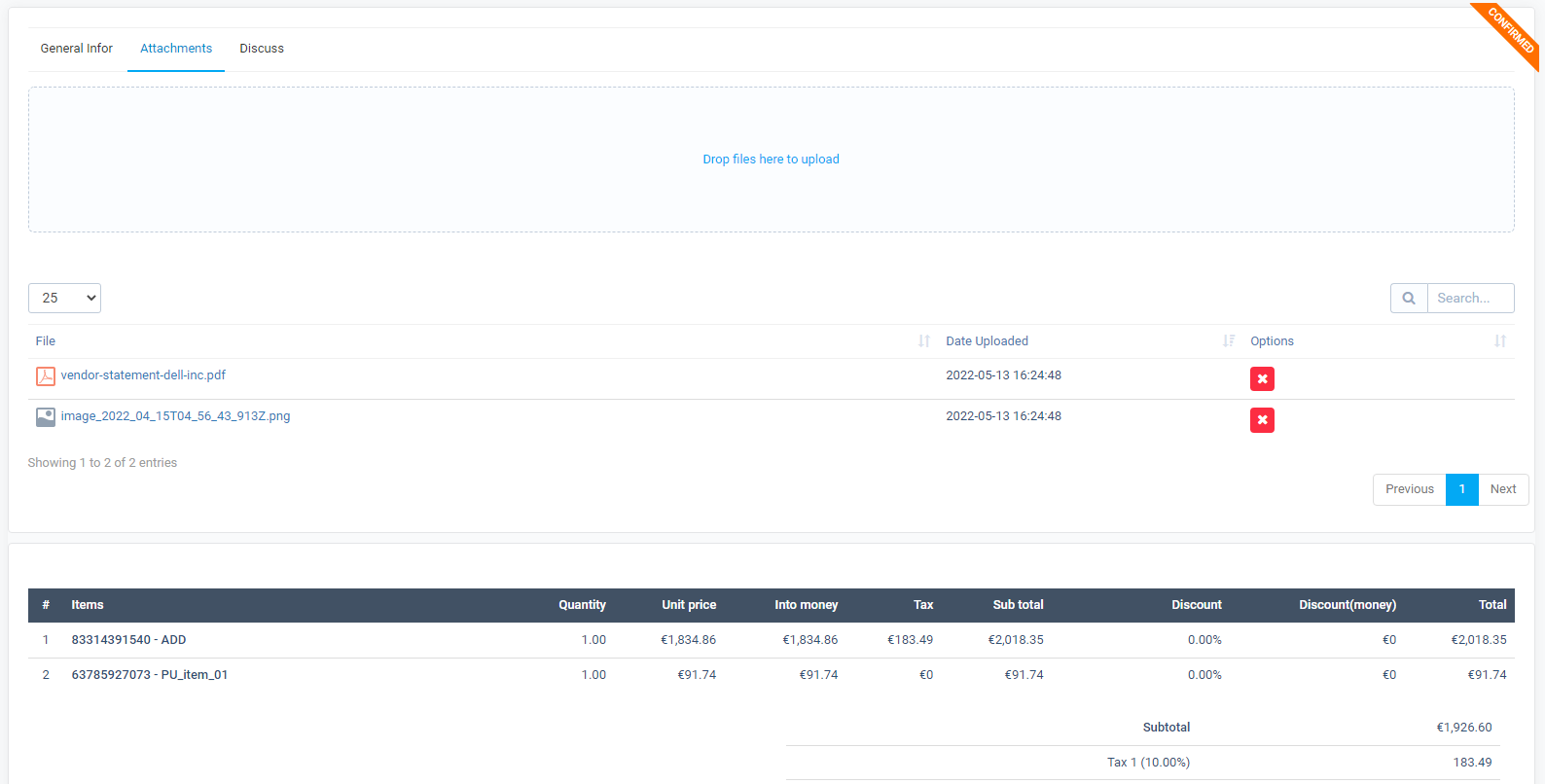
+ Attachment tab. Vendor can upload file & view the file uploaded by admin
- Purchase Invoice
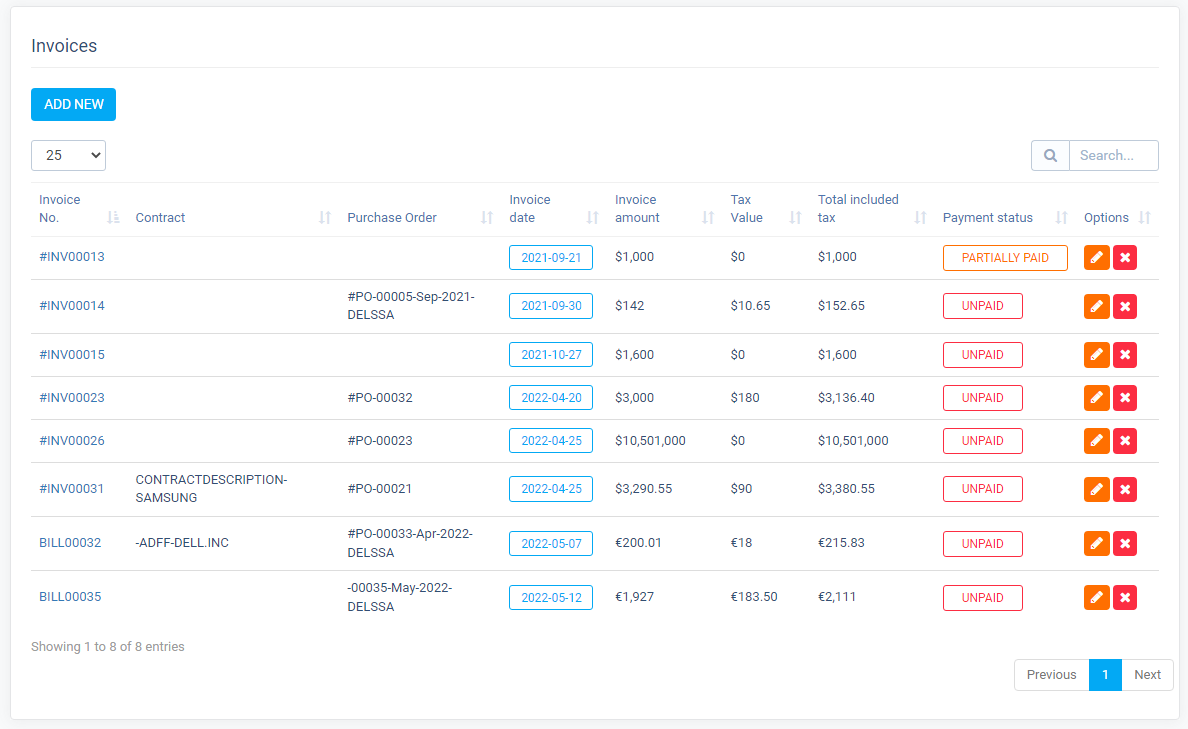
+ Vendor can add/update/delete/manage purchase invoice.
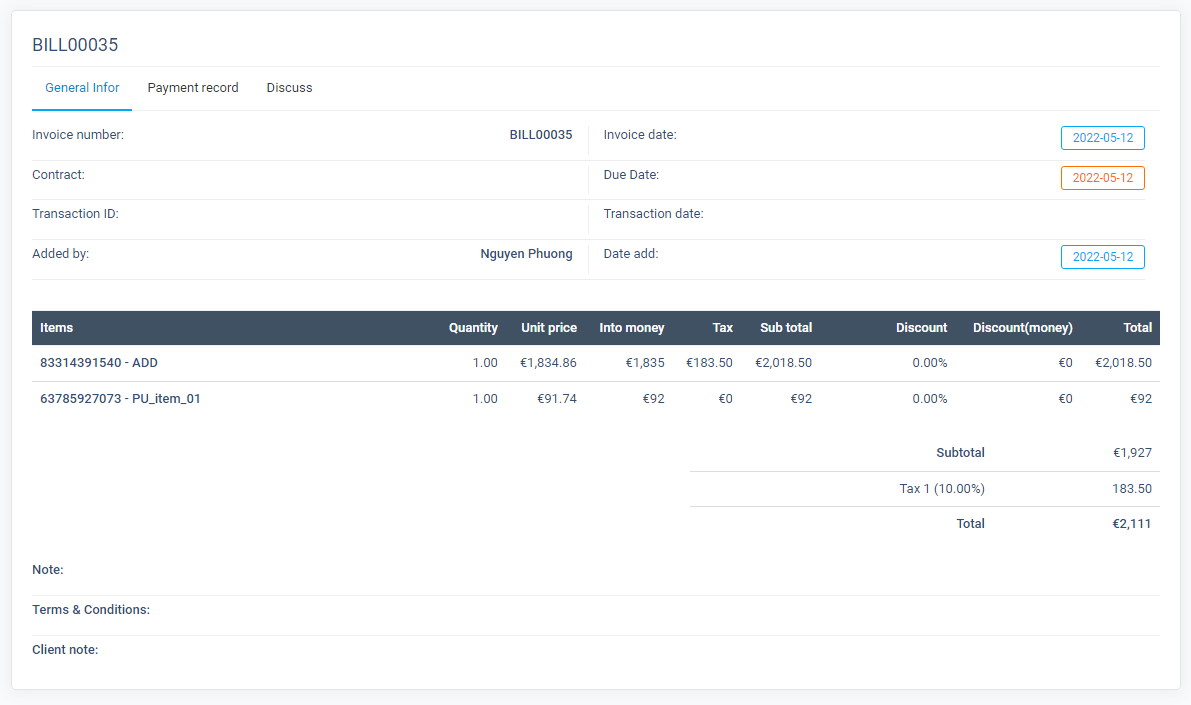
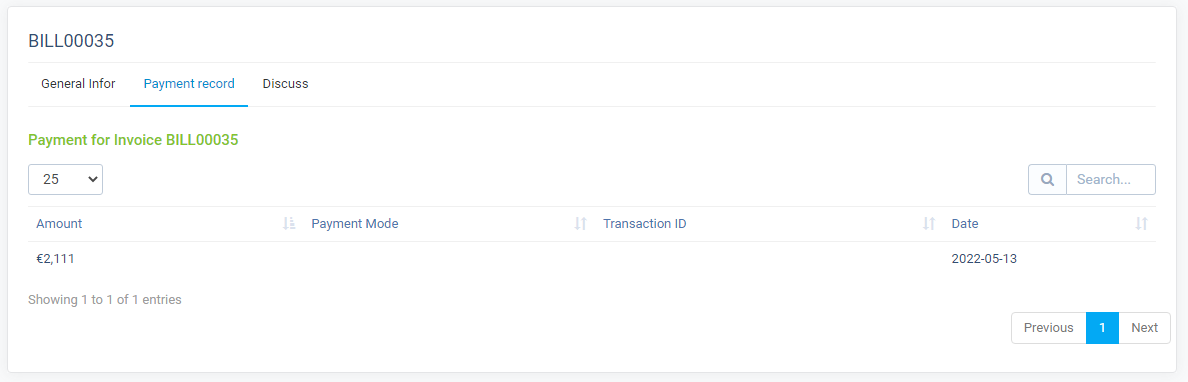
+ Vendor can view detail invoice & the payment record of this invoice.
- Report: Purchase -> Report
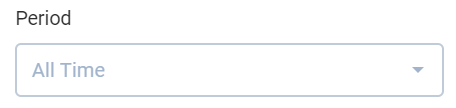
Filter by Period:
a.Cost of import goods for each item:
- Filter by current year. Displays the purchase cost from the purchase order for each item. One item can pay on multiple bills.
- The report is used to see how much it costs to buy items. Compare with the revenue see how much profit and loss how much money. What is the total amount of all items on each invoice?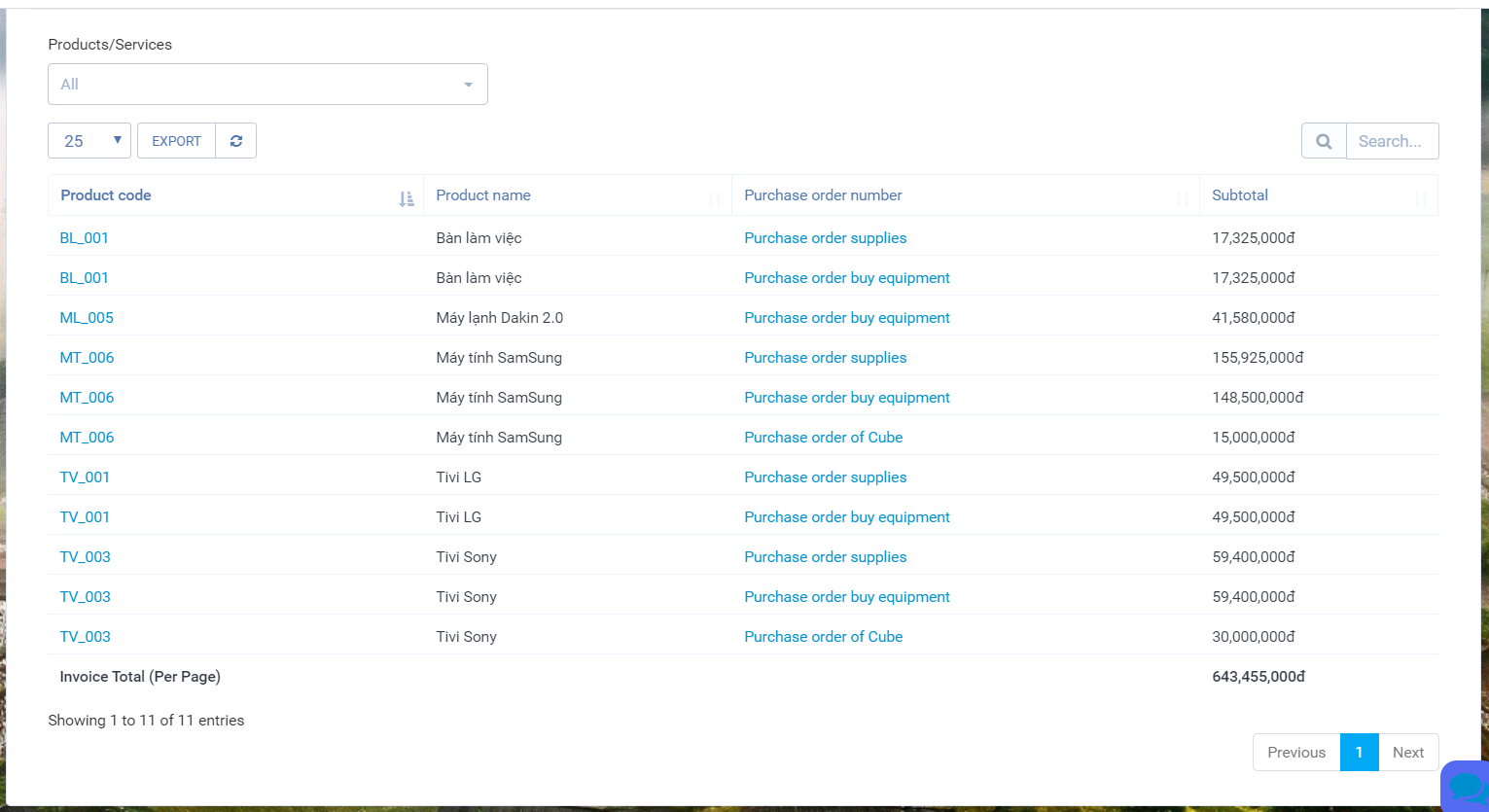
b.Purchase statistics by number of purchase orders:
- Filter by current year.
- The report is used to see how many orders are made each month. Compare with the amount sold too high or too low or not.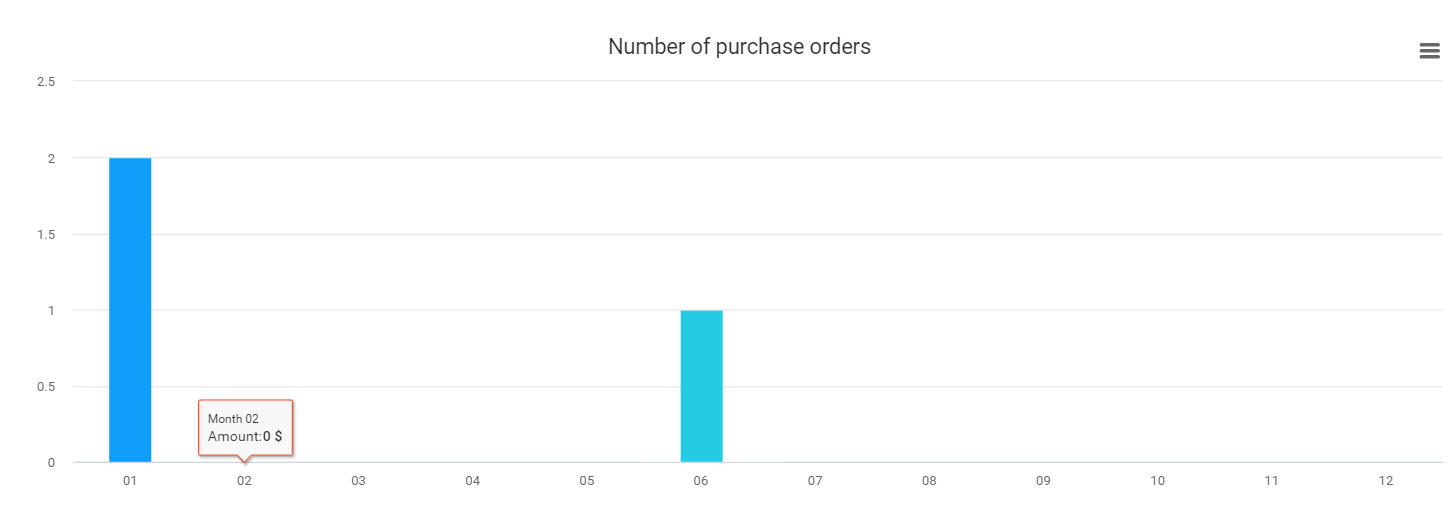
c.Purchase statistics by cost:
- Filter by current year.
- The report is used to view the cost of purchases per month. Compare with monthly sales to see how much profit you have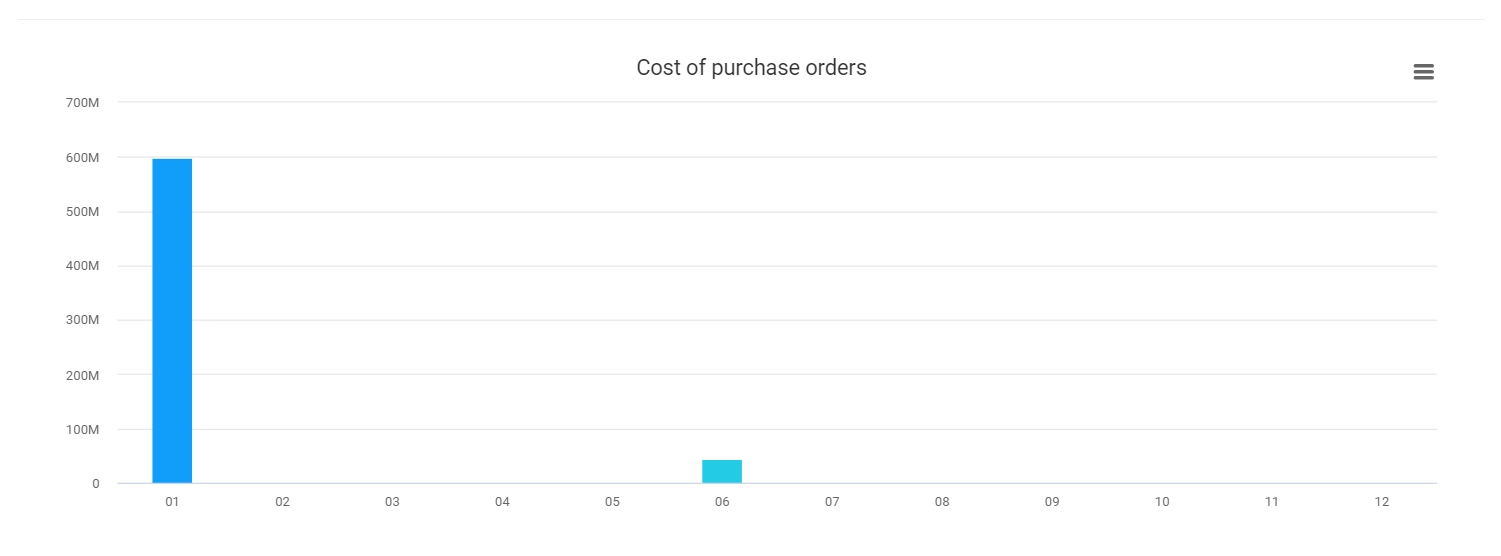
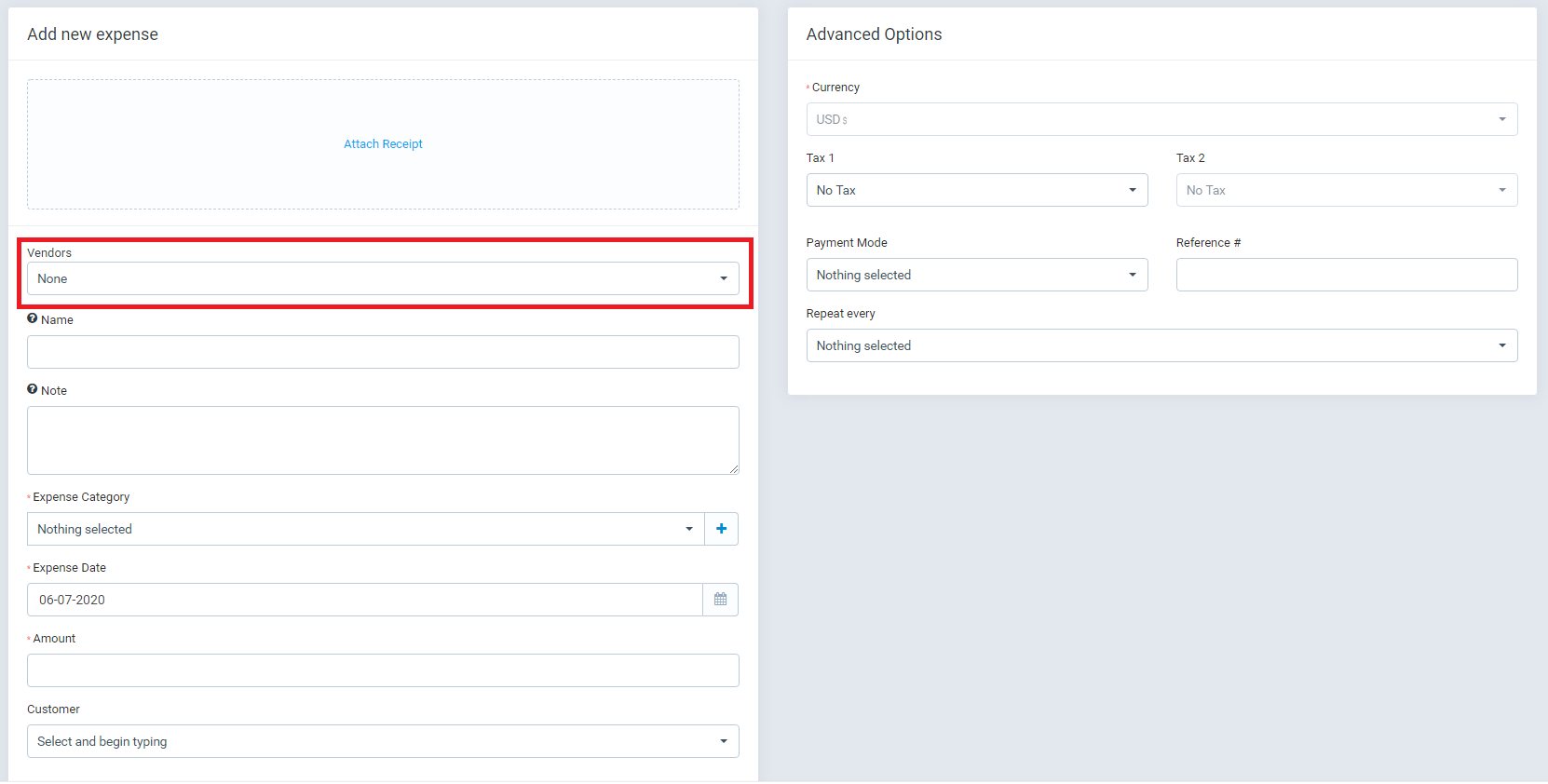
- Choose vendor when create, update expense
- Vendor Portal
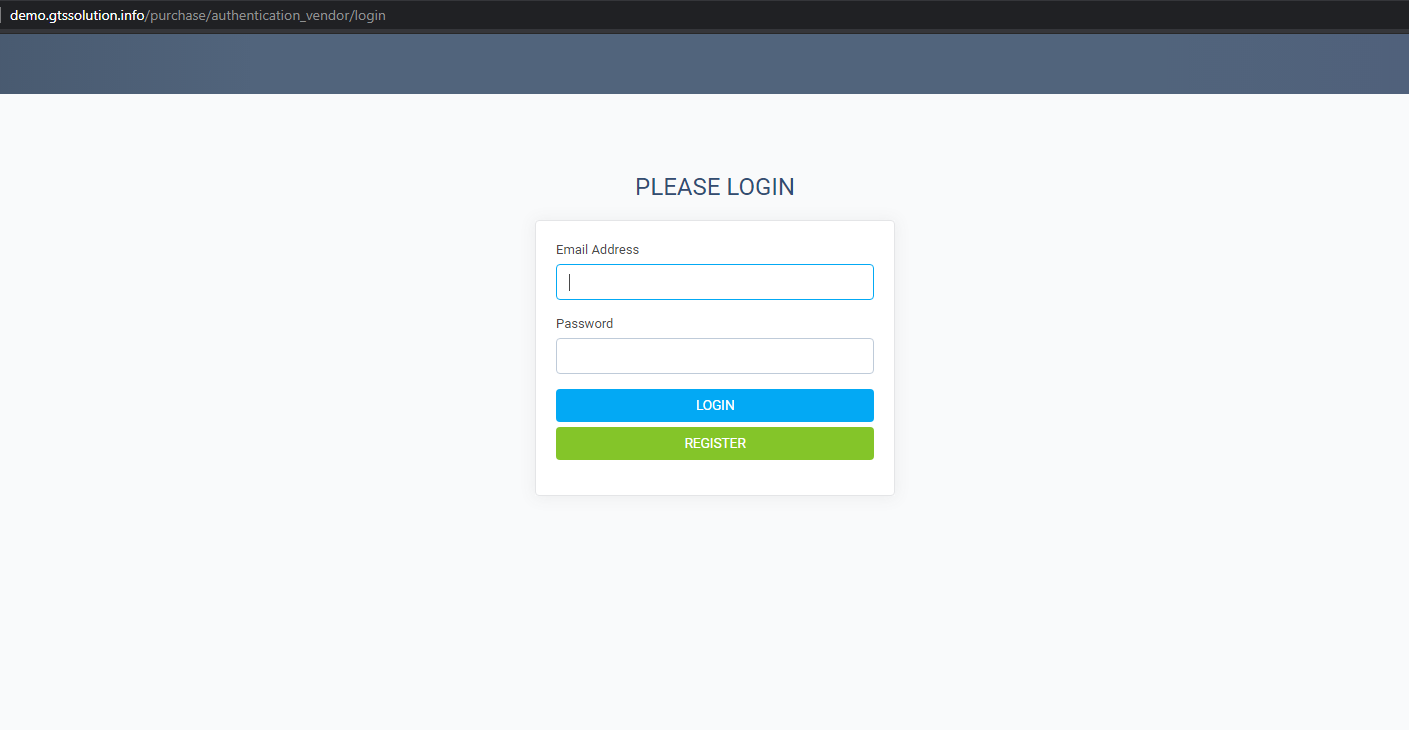
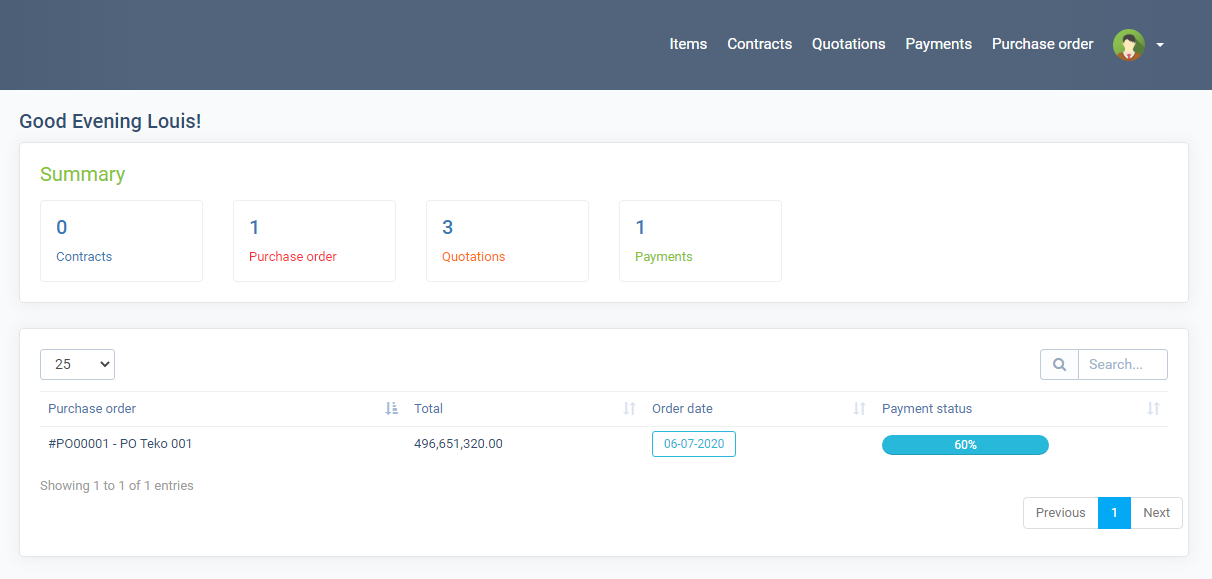
Detail vendors:
Company Cube Systerm. Includer: Profile and Contact.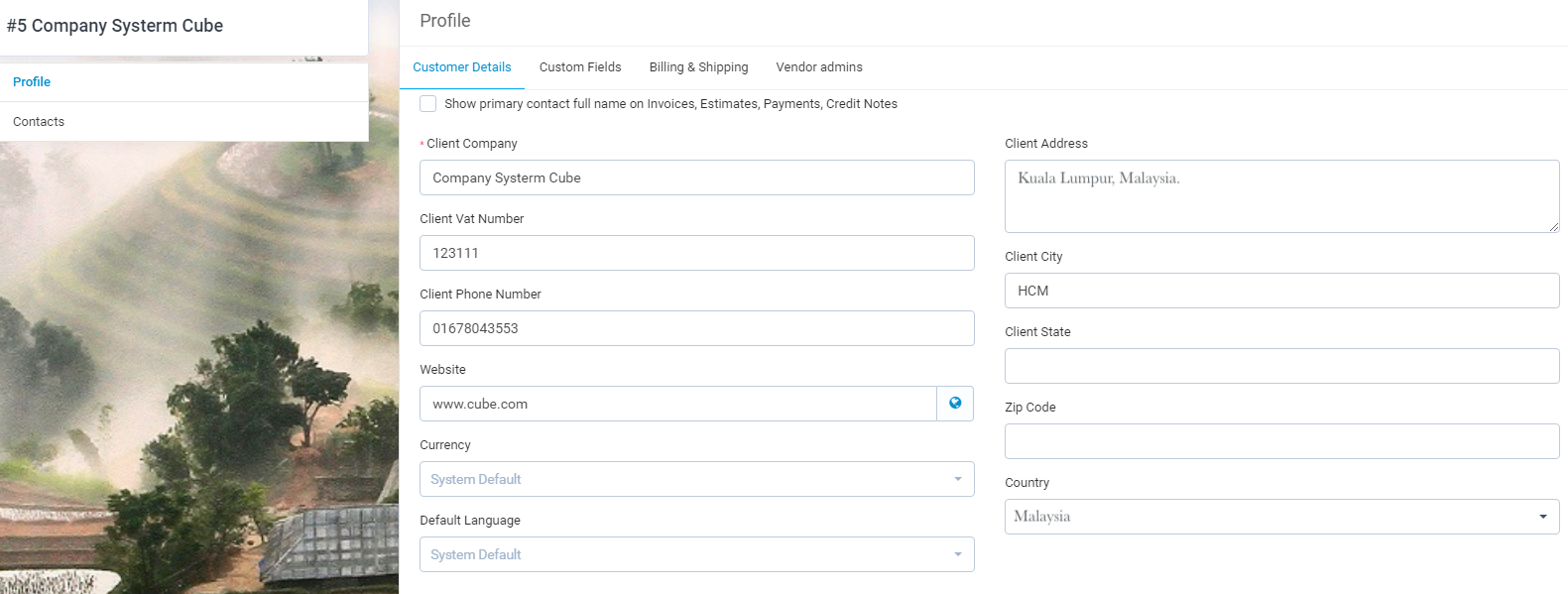
a. Profile: Includer Customer detail, Customer file, Billing $ Shipping, Vendor admins
Customer detail: Name, address, phone number, tax code, ...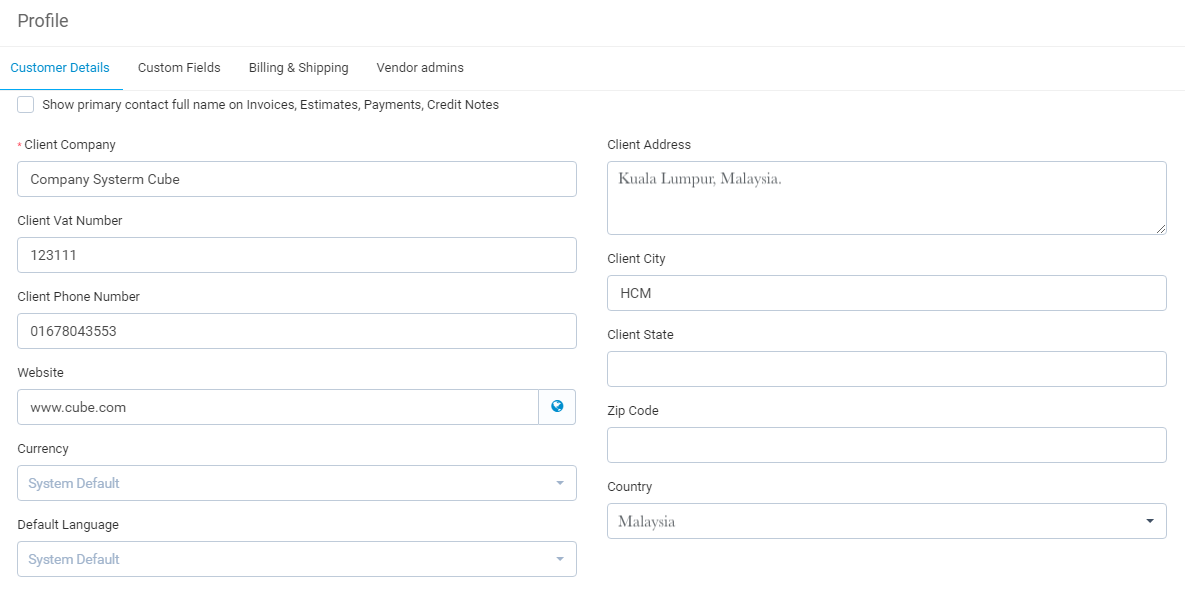 Customer file: Create new lable in file PDF, HTML.
 Billing & Shipping: You can copy the address from the customer detail page
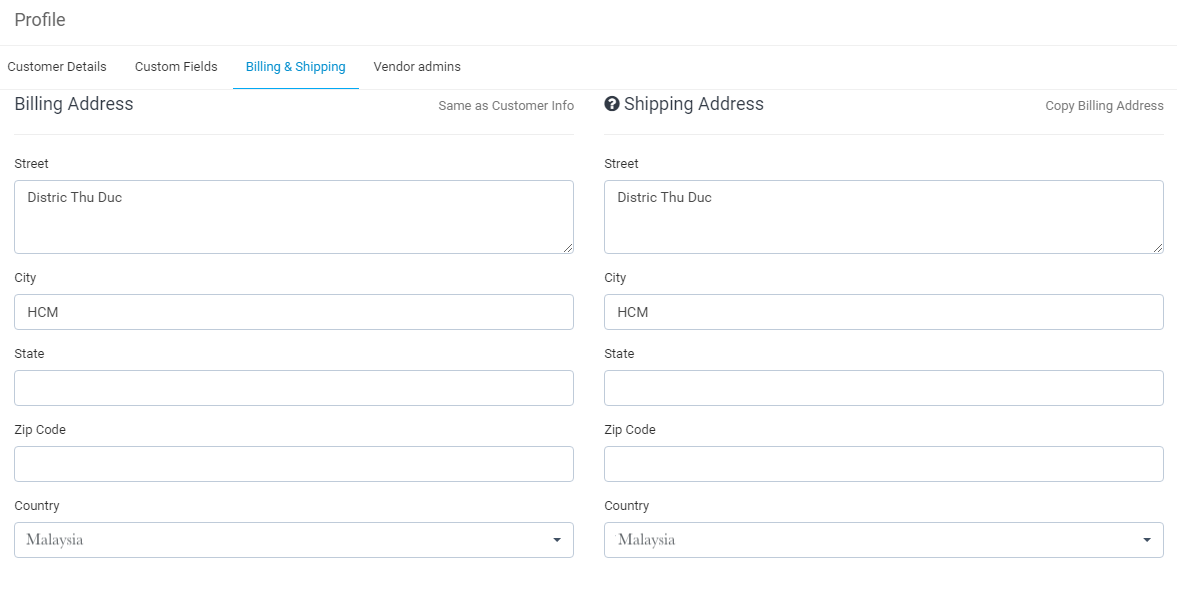 Vendor admins: Create View detail contact -> Profile -> Vendor admin-> Assign admin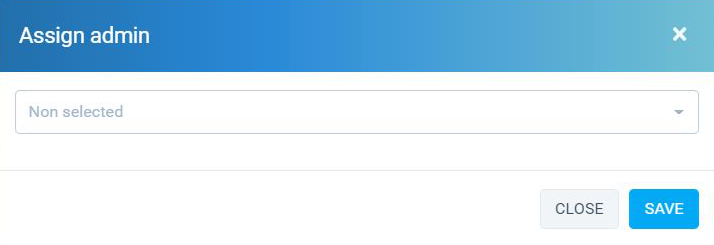
List of vendor:
b. Contact: Create contacts for partners
View detail contact -> Contact -> New Contact
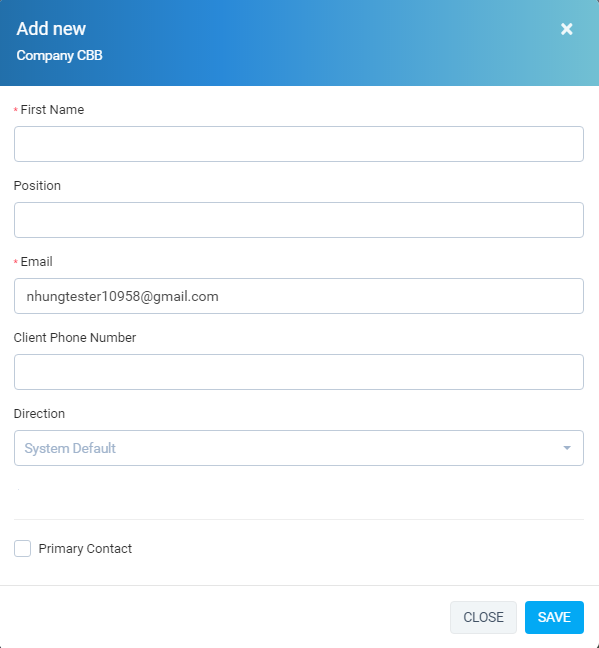 List of contract:
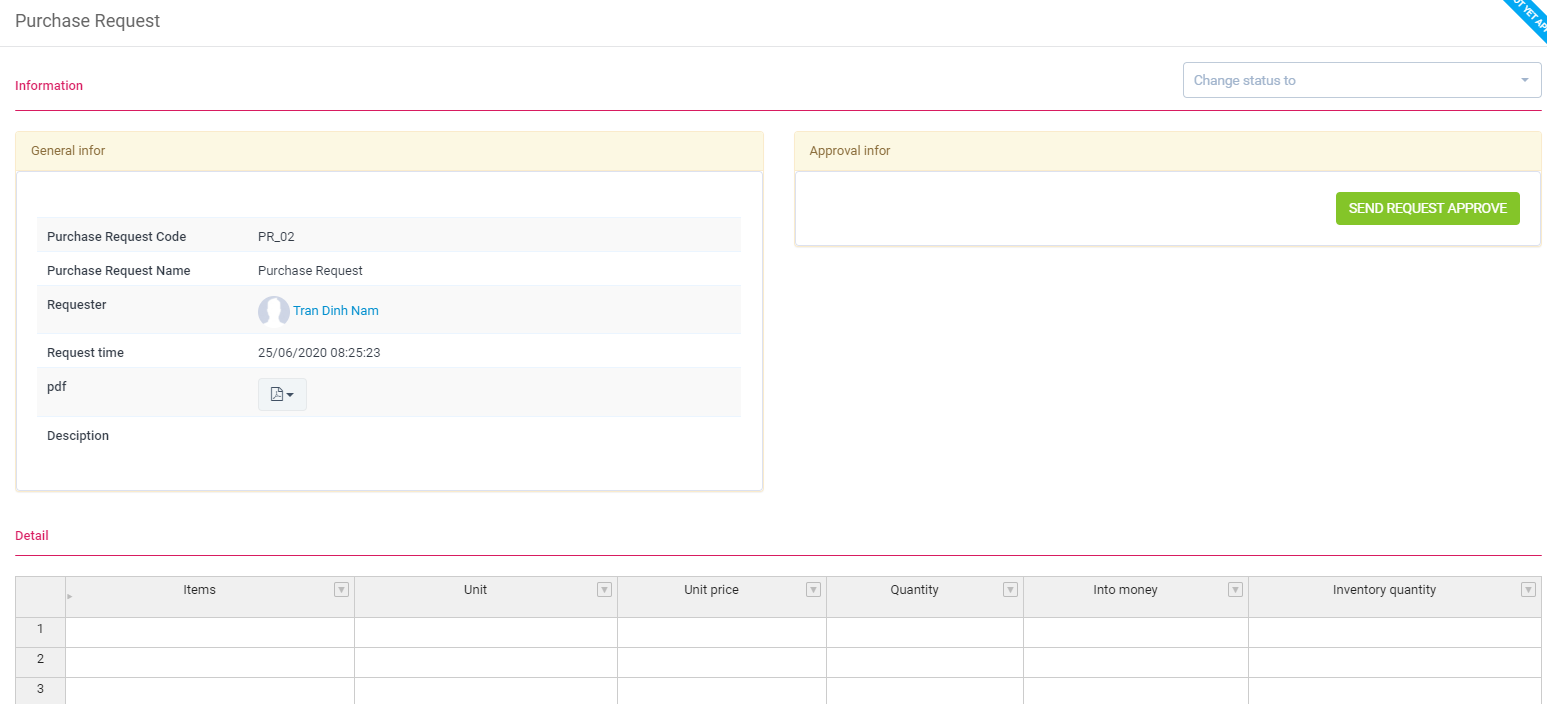
 Approval purchase request: View detail purchase request -> Sent request approval
  The designee will receive a notice. To approve, click on the button
Sign
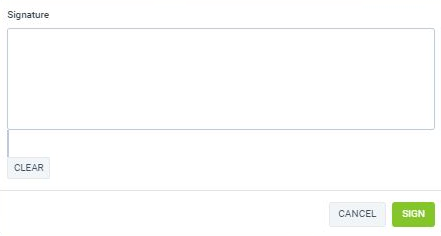
Approval: Click button Approval
Once again, thank you so much for subscribing this module. We will be glad to help you if you have any questions relating to this module.
Applify Technologies