“Staff Workload module for CRM SYSTEM” Documentation by “Applify Technologies”
“Staff Workload module for CRM SYSTEM”
Created: 21/06/2023
By: Applify Technologies
Email: crm@applify.com.my
Table of Contents
How to use Staff Workload module - top
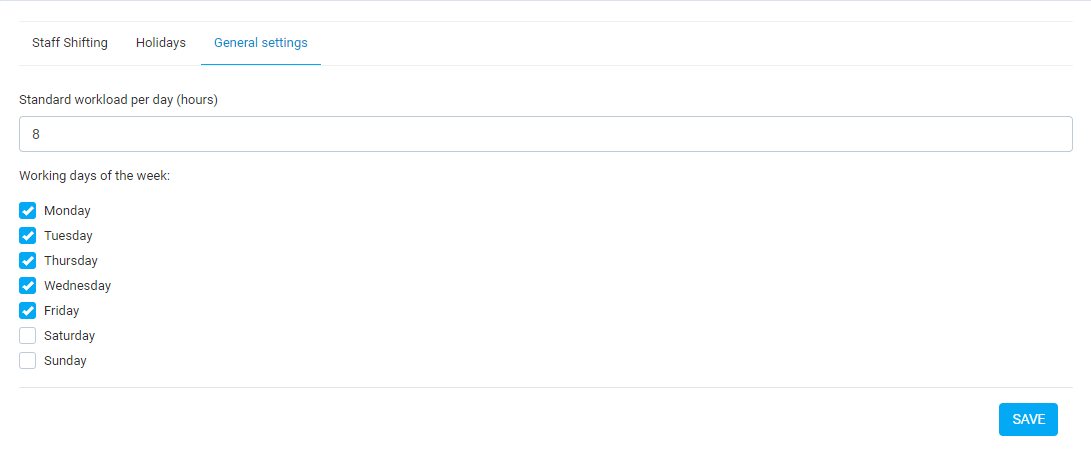
- First configure the standard number of working hours in a day: Staff workload -> Settings
Default standard workload and working day:
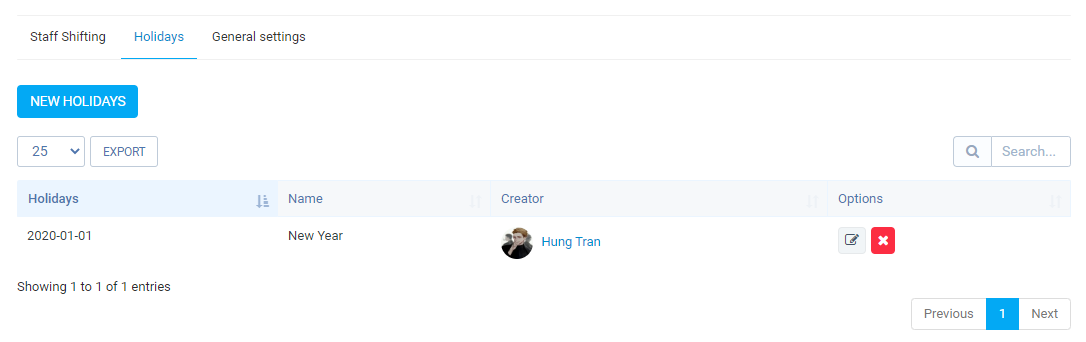
Holiday setting:
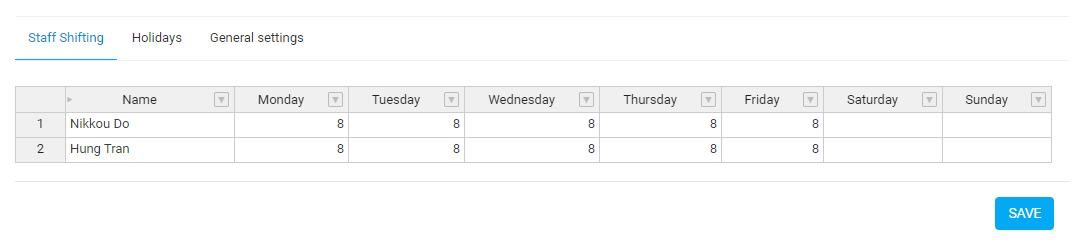
Staff Shifting:
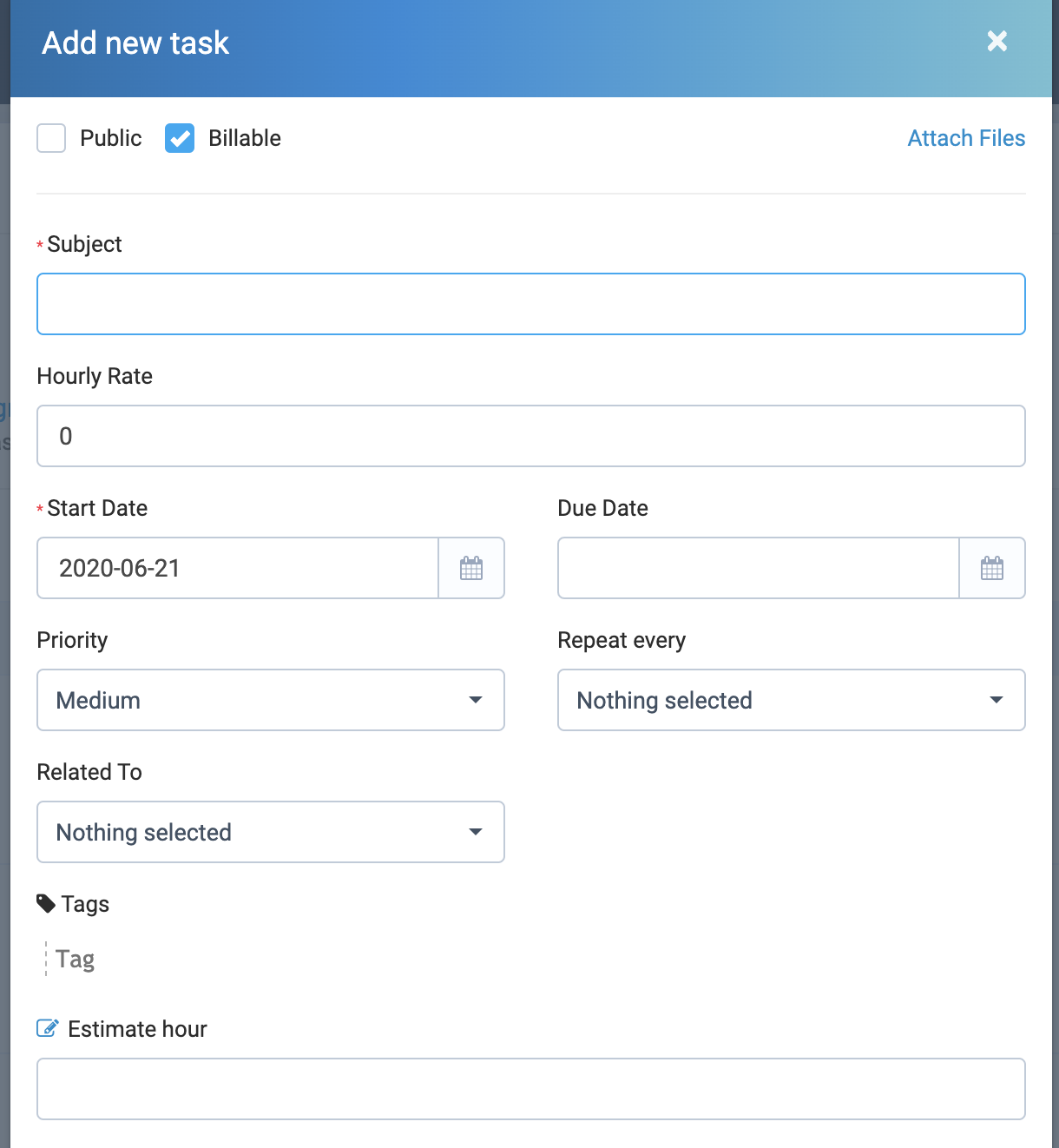
- When creating a task you can enter the estimated hours of execution:
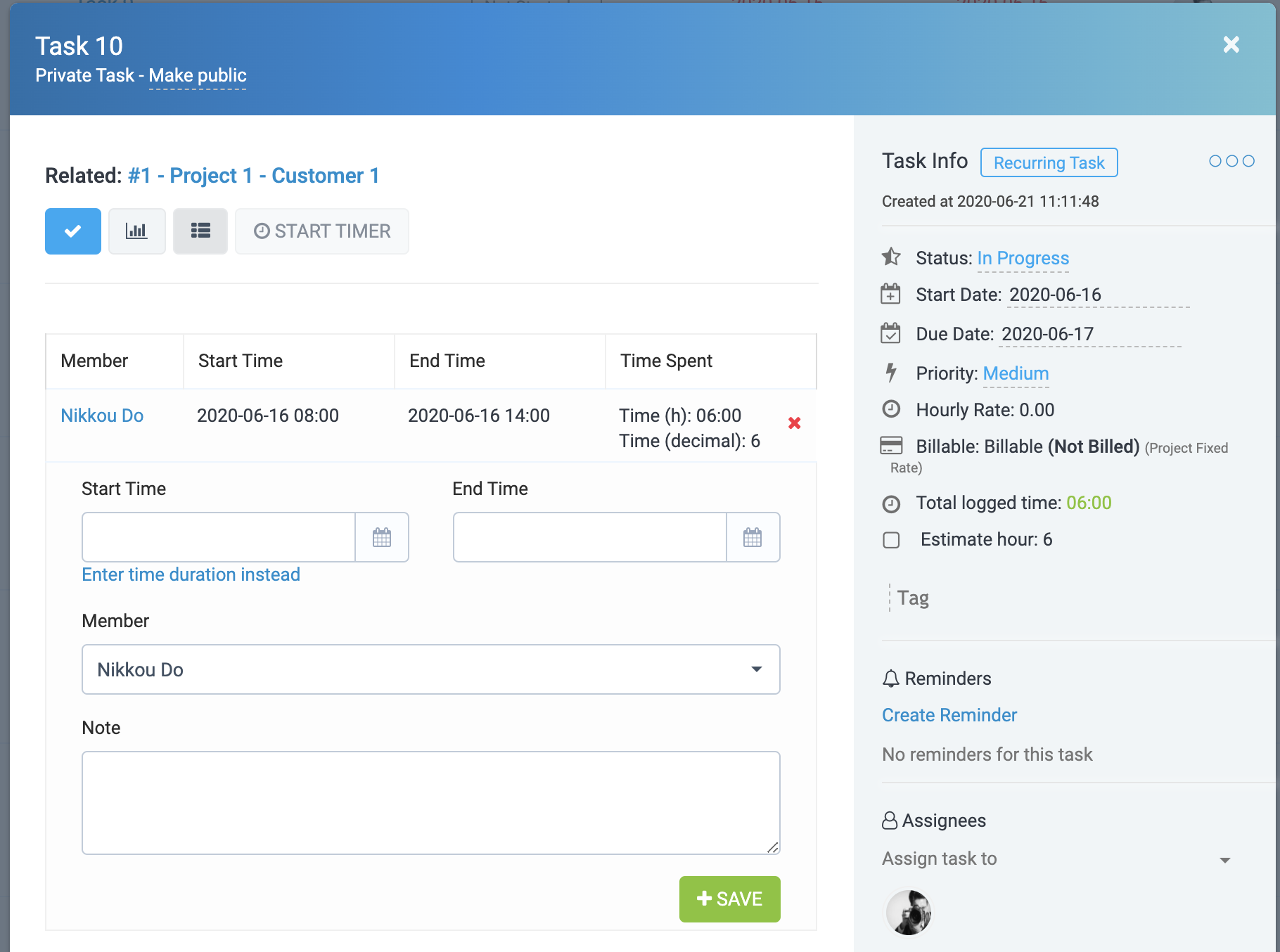
- Enter timesheet when executing Task:
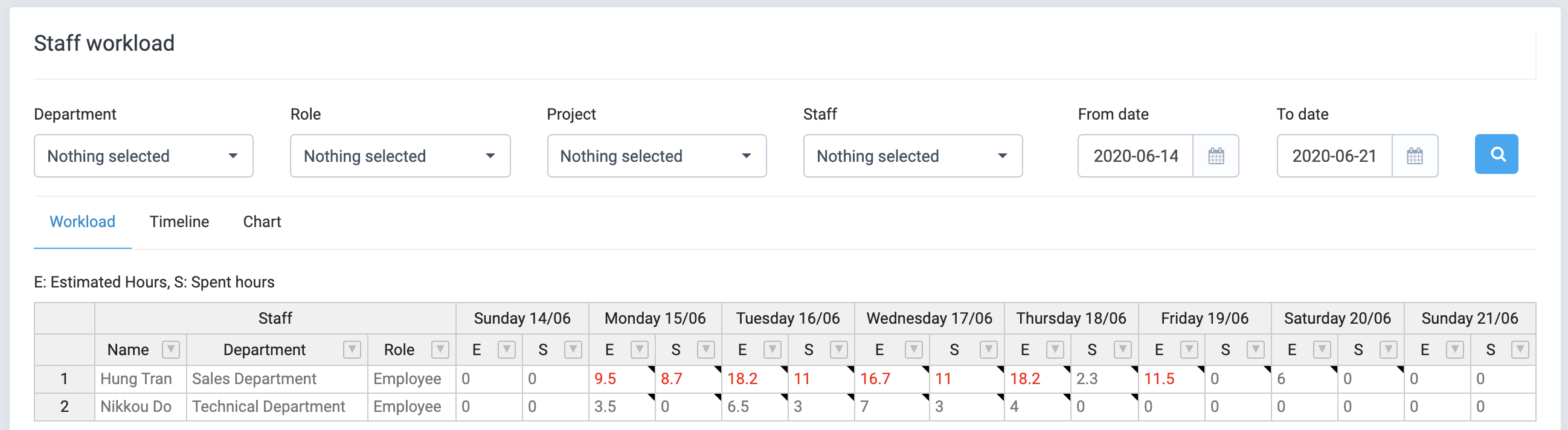
- See the schedule of each staff's work by day, any day with the estimated total hours or performed greater than the standard number of working hours of the day, that line will be red alert. Can filter by department, project, role, staff and time period.: Staff Workload -> Workload
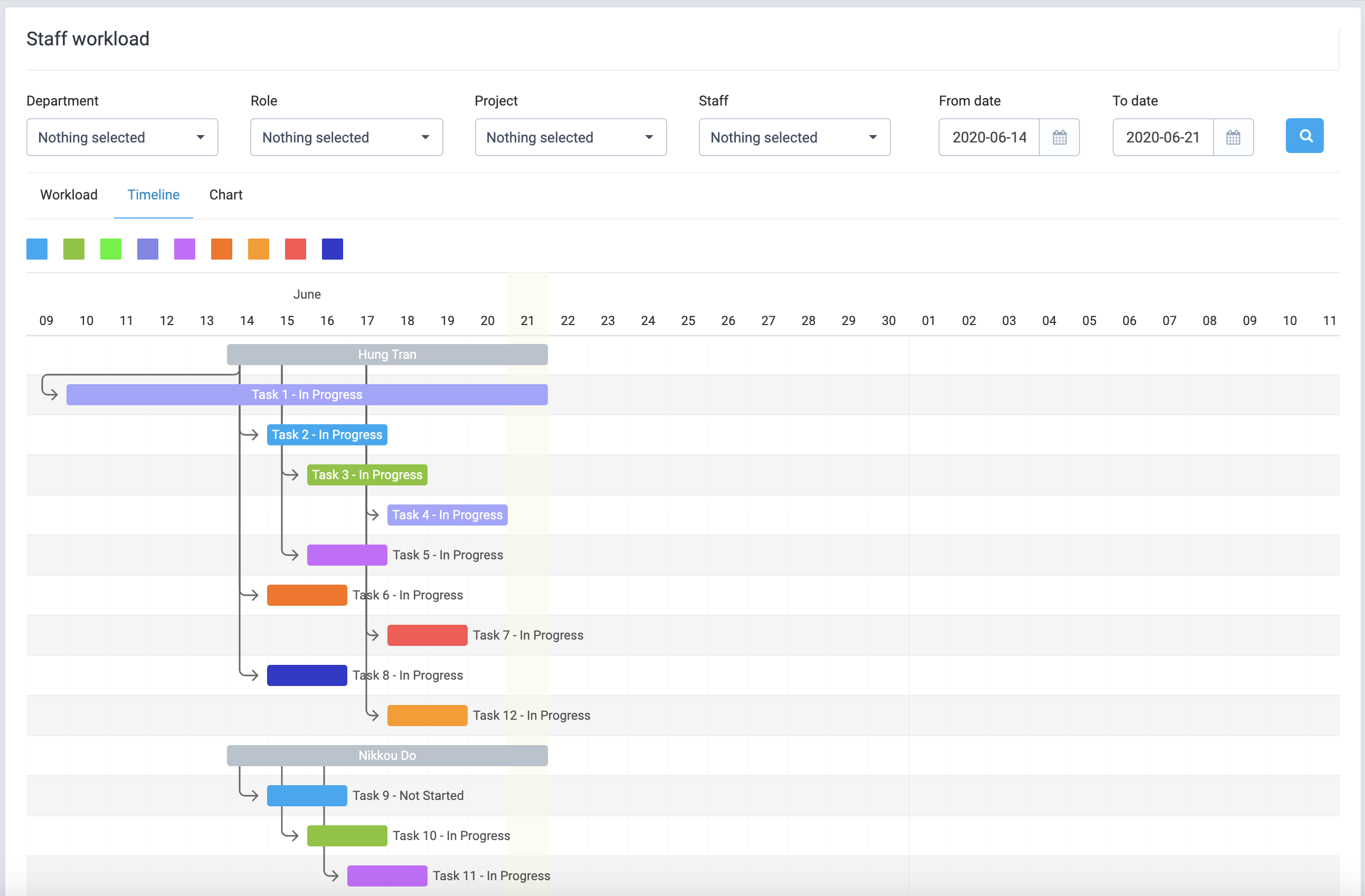
- View in the timeline of each staff's task. The work of staff involves many different objects on the system such as: Customer, Lead, Contract, Invoice, Project, Payment, Estimate, Proposal, Support, ... Each task of each object will have a color different to be able to look visually, you can stretch the taskbar to update the task's duration: Staff Workload -> Timeline
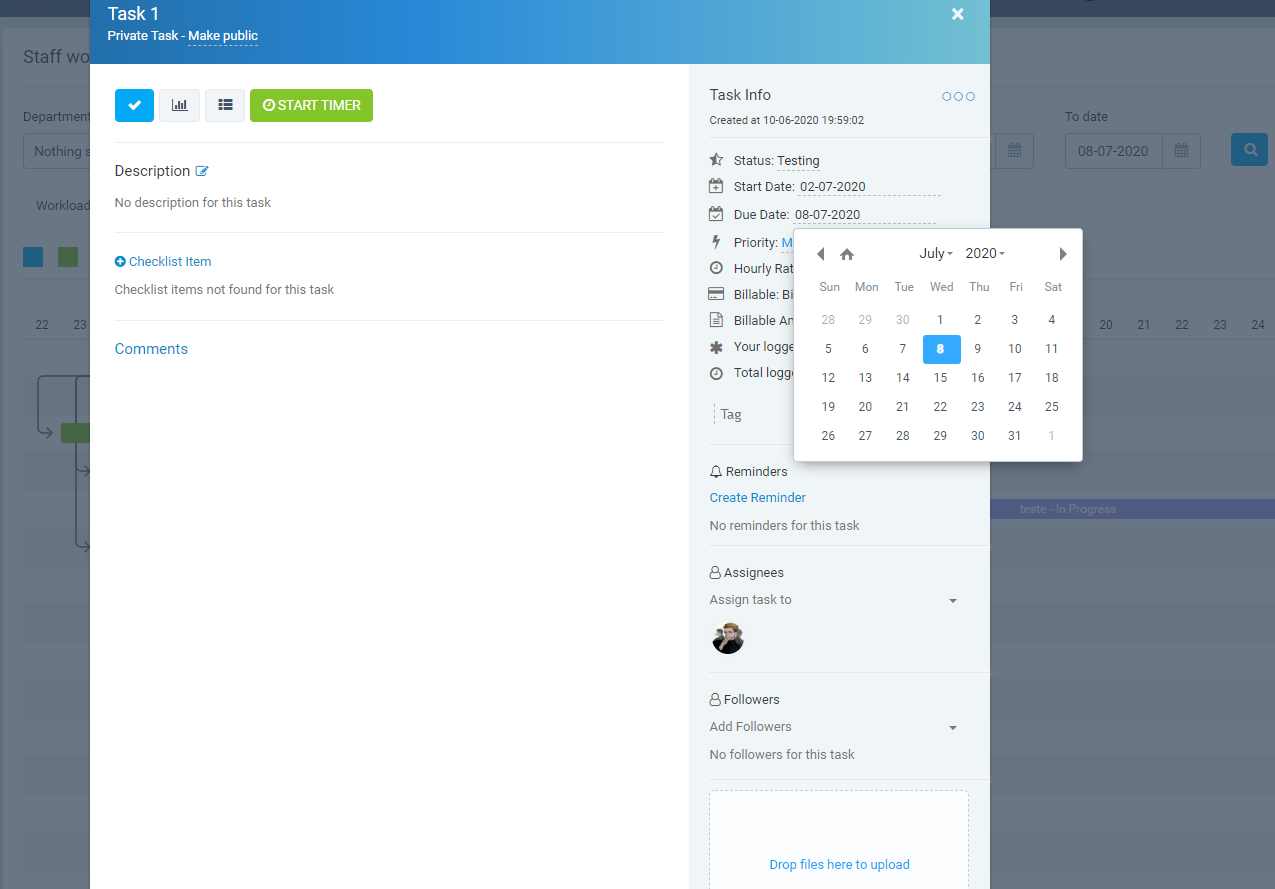
- When clicking on the task, a popup will be displayed to allow viewing and editing the task
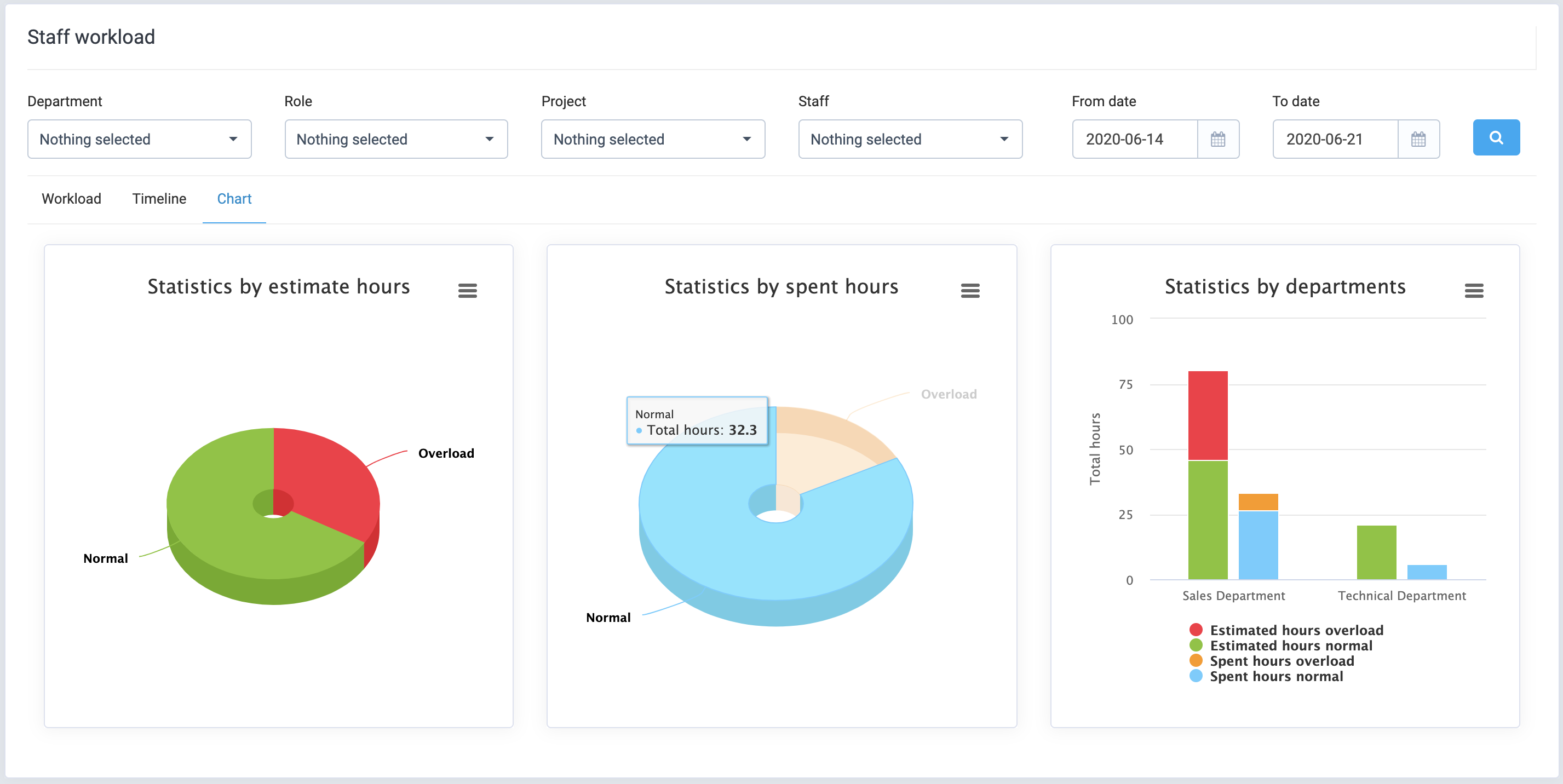
- See breakdown chart by estimated hours, actual hours taken and estimated hours and by each department: Staff Workload -> Chart
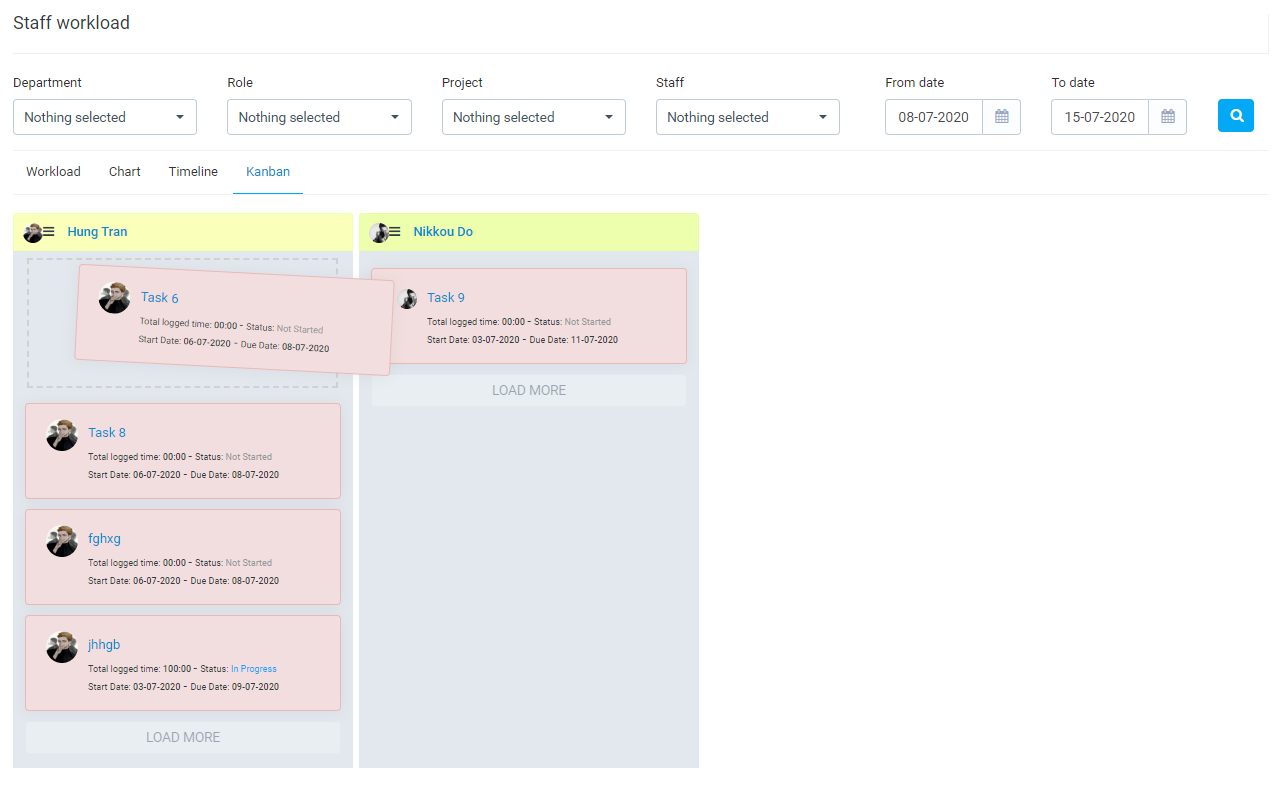
- Kanban
Once again, thank you so much for subscribing this module. We will be glad to help you if you have any questions relating to this module.
Applify Technologies